


You shut the computer down, come back later, and the SSD has vanished. It is not in File Explorer, not in Disk Management, or worse, not even showing in BIOS. If you are asking why is my SSD not detected, the answer can range from a simple connection issue to a failing drive that needs careful handling.
The first thing to know is that detection problems are not all the same. An SSD that appears in BIOS but not in Windows points to a different class of problem than one that is completely invisible to the system. That distinction matters, especially if the drive contains business records, client work, photos, or any other data you cannot afford to lose.
Why is my SSD not detected in the first place?
An SSD is only usable when several parts of the chain are working properly. The drive itself needs to power on, communicate through the correct interface, and present a readable identity to the system. Then the operating system needs to recognise the file system, assign a letter if relevant, and mount it correctly.
If any step in that process breaks down, the drive may appear missing. Sometimes the cause is external, such as a loose cable, incorrect BIOS setting, enclosure fault, or driver conflict. Sometimes the problem is internal to the SSD, including firmware corruption, degraded NAND, controller failure, or power-related damage.
That is why a missing SSD can be either a quick fix or the first sign of a serious failure. The challenge is knowing which one you are dealing with before you make things worse.
Start by checking where the SSD disappears
Before changing settings or running repair tools, confirm exactly where detection stops. This gives you a clearer fault pattern.
If the SSD shows in BIOS or UEFI but not in Windows, the issue may involve partitioning, drive letter assignment, initialisation state, file system corruption, or operating system drivers. If it appears in Device Manager but not Disk Management, there may be a low-level communication issue.
If the SSD does not show in BIOS at all, focus on hardware compatibility, power, cable connection, M.2 slot support, or SSD failure. A drive that is absent at firmware level is less likely to be fixed by anything inside Windows.
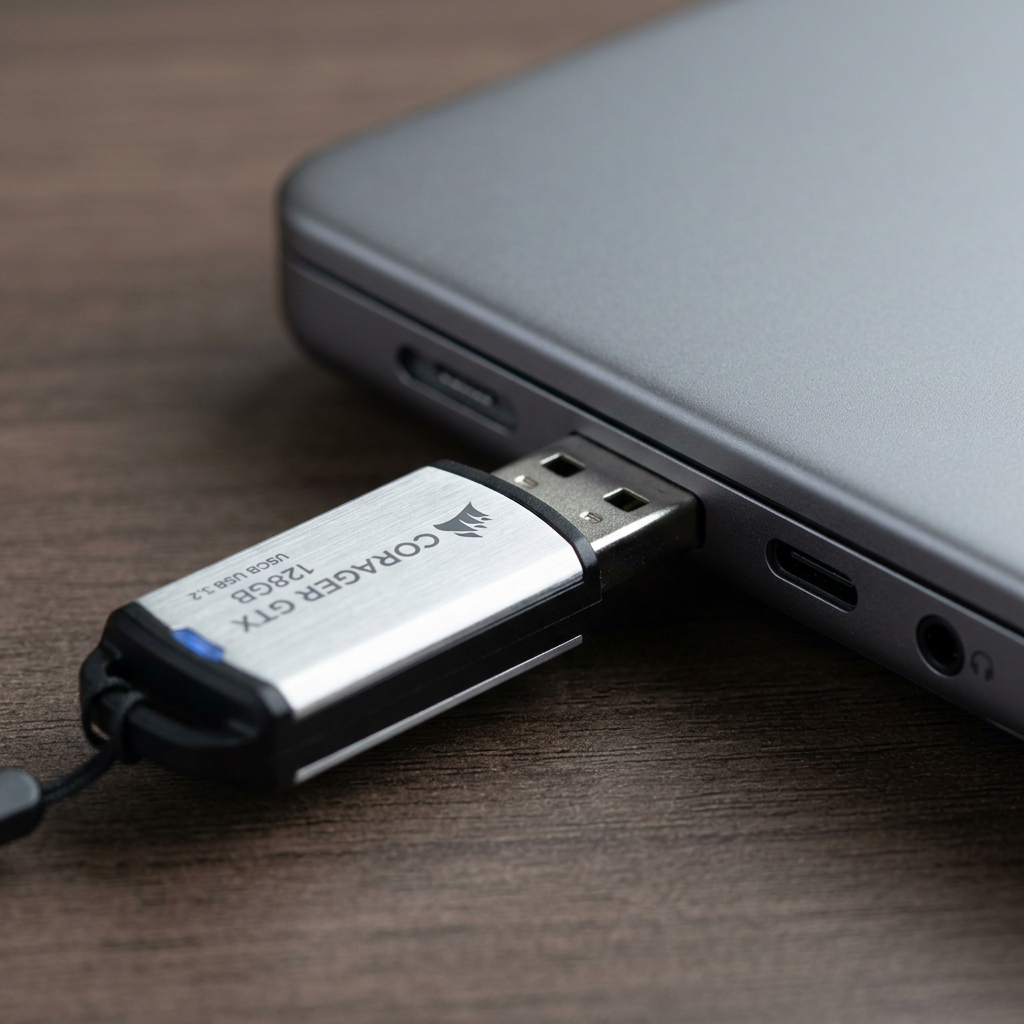
External SSDs add another layer. If the drive is not detected through USB, the fault might sit with the cable, adapter, enclosure, USB port, or power delivery rather than the SSD itself.
Common reasons an SSD is not detected
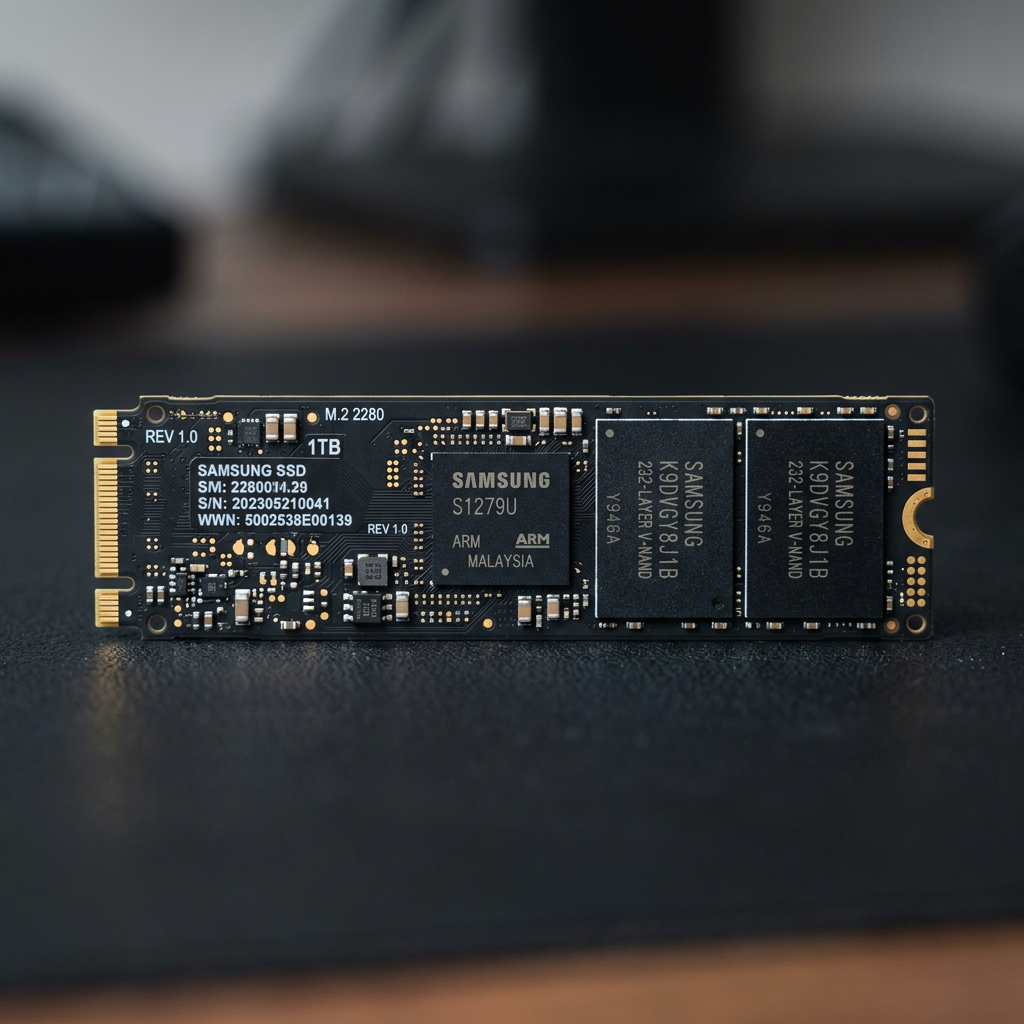
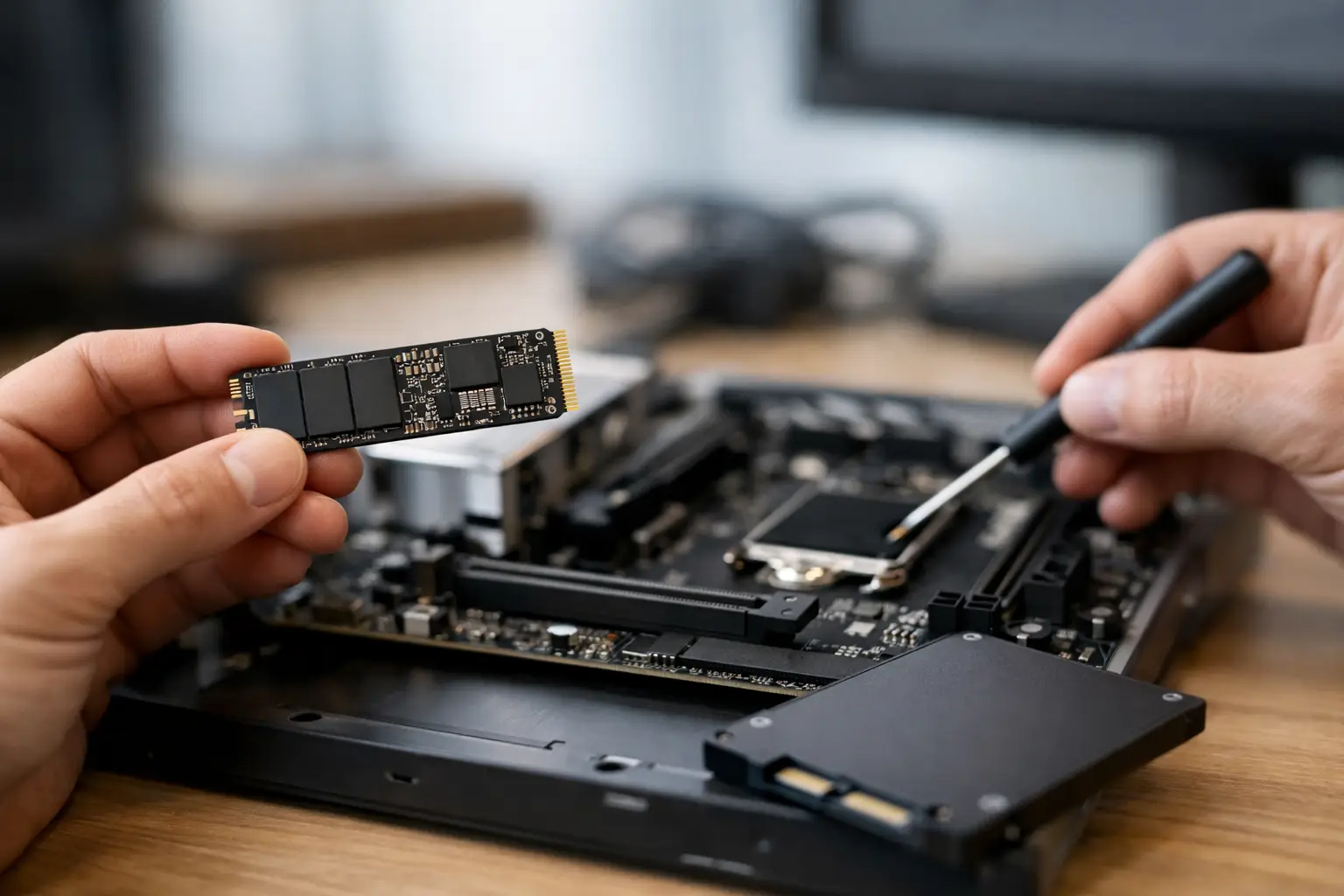
Connection problems are still one of the most common causes. With a SATA SSD, a slightly loose data cable or power connector can be enough to stop detection. With an M.2 SSD, the drive may not be seated properly, the retaining screw may be missing, or the motherboard slot may not support that particular protocol.
This last point catches a lot of people out. Some M.2 slots support SATA, some support NVMe, and some support both. Installing the wrong type into a slot that does not support it can make the drive appear completely dead when it is actually incompatible with that slot.
BIOS configuration also matters. Storage modes, PCIe lane allocation, secure boot settings, and disabled ports can all affect whether an SSD appears. On some boards, using one M.2 slot disables certain SATA ports. On laptops, firmware updates can also change how storage is handled.
Then there are software-side causes. A newly installed SSD may not have been initialised. A drive letter may be missing. A partition table may be damaged. Windows updates or chipset driver issues can interfere with detection, particularly with NVMe devices.
Finally, there is genuine drive failure. SSDs do not usually make the clicking noises people associate with mechanical hard drives, so their failure can seem sudden and silent. One day they work, the next day they disappear, freeze the machine at boot, or intermittently show up and vanish again.
Safe checks you can try without increasing risk
If the data is not critical, you can do a few non-invasive checks. Power the system down fully before touching any hardware. For a desktop, reseat the SATA data and power cables or remove and reinstall the M.2 SSD carefully. If it is an external SSD, swap the USB cable and try a different port. Faulty cables and underpowered USB connections are common, especially with portable drives.
Next, check BIOS or UEFI to see whether the drive is listed there. If it is, boot into Windows and look in Disk Management. A drive that appears as unallocated or offline may simply need the correct configuration. Be careful here. If the SSD contains important data, do not initialise it, repartition it, or format it just to make it visible.
If the drive is visible but inaccessible, avoid running random repair utilities. Tools that write changes to the file system can reduce recovery options if the problem is deeper than it first appears. That is particularly true if the drive contains irreplaceable files.
When DIY troubleshooting becomes risky
The biggest mistake people make is treating a detection issue like a routine IT annoyance when it is actually a data risk event. If the SSD drops in and out, causes freezing, disappears after a reboot, or becomes unusually slow before vanishing, those are warning signs. Continuing to power-cycle the device or force repairs can push a weak SSD further into failure.
This is even more important with business storage, photographer workflows, and project drives where there may be only one copy of current work. SSDs manage data differently from traditional hard drives. Features such as wear levelling, garbage collection, TRIM, and encrypted controllers mean that what helps in one situation can make recovery harder in another.
For example, formatting a detected SSD and planning to recover the files later is a poor gamble. On many SSDs, deleted or discarded blocks may be cleared far more aggressively than on a conventional hard drive. The window for successful recovery can be narrower.
Why is my SSD not detected after installing a new one?
A newly installed SSD often fails to appear for practical reasons rather than failure. The most common are incompatible slot type, disabled storage ports, outdated BIOS, or missing initialisation in Windows.
If it is an NVMe SSD, confirm that the motherboard and slot actually support NVMe boot or storage. If it is a SATA M.2 drive, check that the slot accepts SATA devices. On some systems, using an M.2 slot disables one or more SATA ports, which can make another drive seem to disappear.
It is also worth checking whether the SSD needs to be initialised in Disk Management before it can be used. That said, initialisation is only appropriate for a genuinely new and empty drive. If the SSD already contains data, do not do this.
Signs the problem may be physical SSD failure
A failing SSD often leaves clues, even without noise or obvious physical damage. The system may hang on startup when the drive is connected. The drive may appear with the wrong capacity, show as 0 MB, or identify itself incorrectly. Files may become inaccessible shortly before the SSD stops being detected altogether.
Power-related events can also trigger failure. Sudden outages, faulty power supplies, laptop charging issues, and liquid damage can affect SSD electronics or firmware state. External SSDs are especially vulnerable to connector damage because the port takes repeated physical stress.
If the drive has been dropped, exposed to heat, or removed during file transfer, do not assume the issue is merely logical. What looks like a corrupted partition can sit alongside a hardware fault.
When professional data recovery makes sense
If the SSD is not detected in BIOS, disappears intermittently, or contains important data, the safest move is often to stop testing and get a professional assessment. This is not about alarmism. It is about preserving the best chance of recovery before the drive deteriorates further.
Specialist recovery work on SSDs can involve controlled imaging, firmware-level analysis, controller behaviour assessment, and handling of encrypted or unstable devices. The right approach depends on the exact fault. There is no universal fix, and generic software is not a substitute for diagnosis.
For Canberra clients and customers across Australia, RecoveryGeeks sees this pattern regularly: a drive starts as a detection issue, then becomes a full access failure after repeated DIY attempts. Acting early usually gives better options than waiting until the SSD is completely unresponsive.
A practical way to think about it
If the SSD is empty or fully backed up, basic checks are reasonable. If the data matters, treat a missing SSD as a warning, not just an inconvenience. The right next step depends less on whether the drive is expensive or new, and more on whether the files on it are replaceable.
A drive can be replaced. Your data often cannot. If your SSD has stopped being detected, the most useful decision is not to keep trying everything. It is to recognise when caution will protect more than persistence ever could.