

A drive rarely fails at a convenient time. It may happen while a photographer is importing a client shoot, a business is opening its accounting files, or a family is looking for years of photos. Knowing the top signs of drive failure can help you act before a minor warning becomes inaccessible data.
The key is not to treat every slow computer as a disaster. A full drive, outdated software or a poor network connection can also cause trouble. However, when unusual behaviour is repeated, worsening, or paired with missing files, it is time to stop and assess the storage device rather than continuing to use it normally.
Top signs of drive failure to take seriously
Clicking, beeping or repeated spin-up sounds
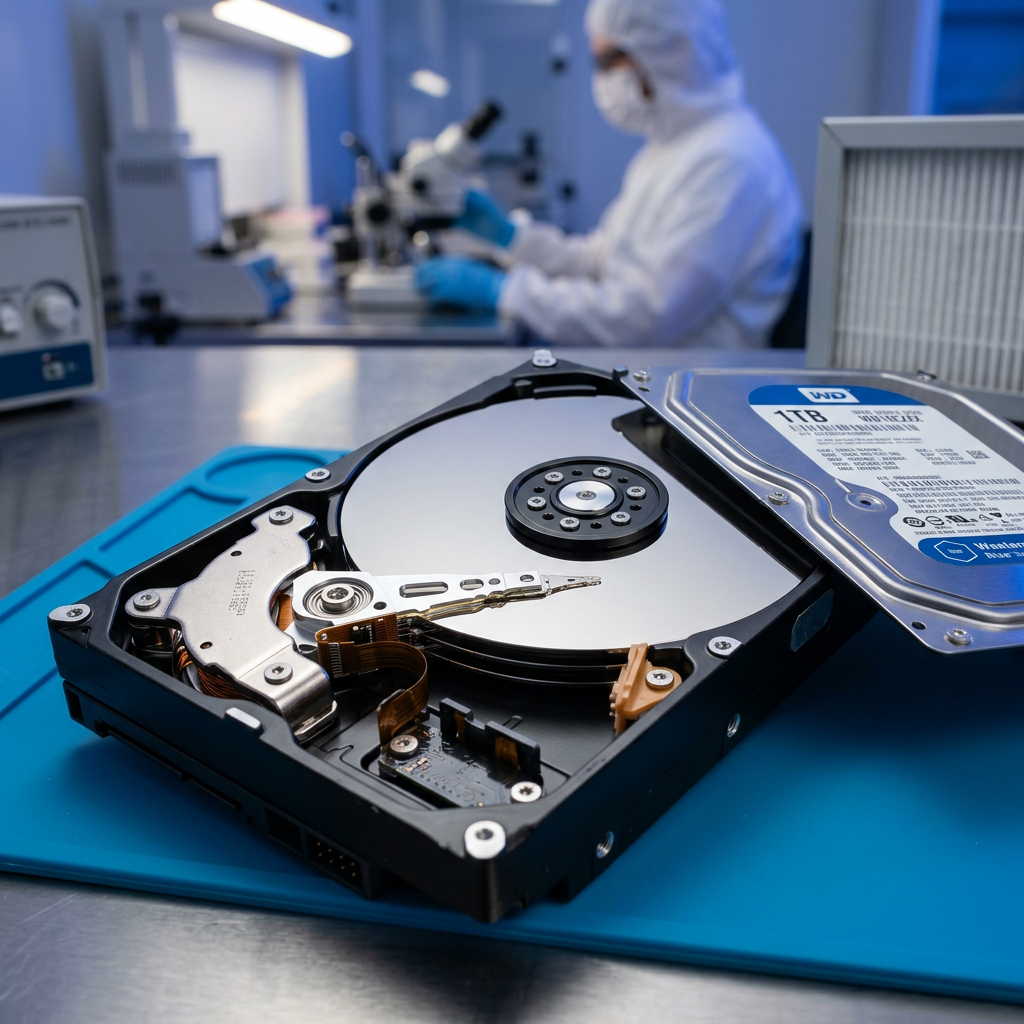
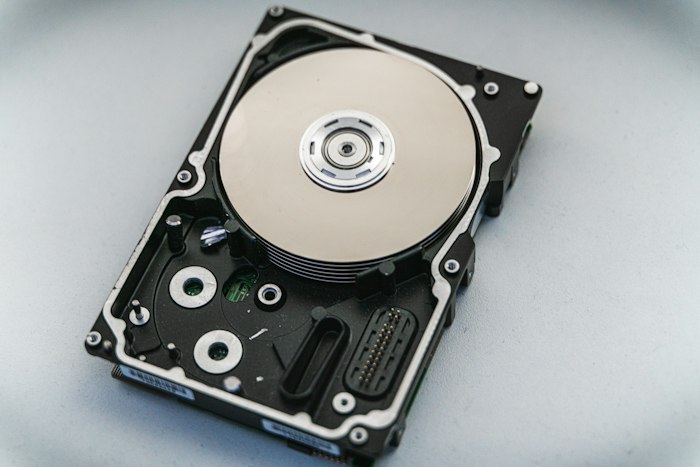
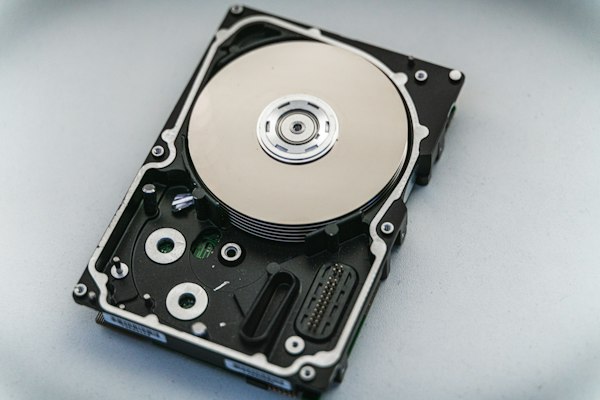
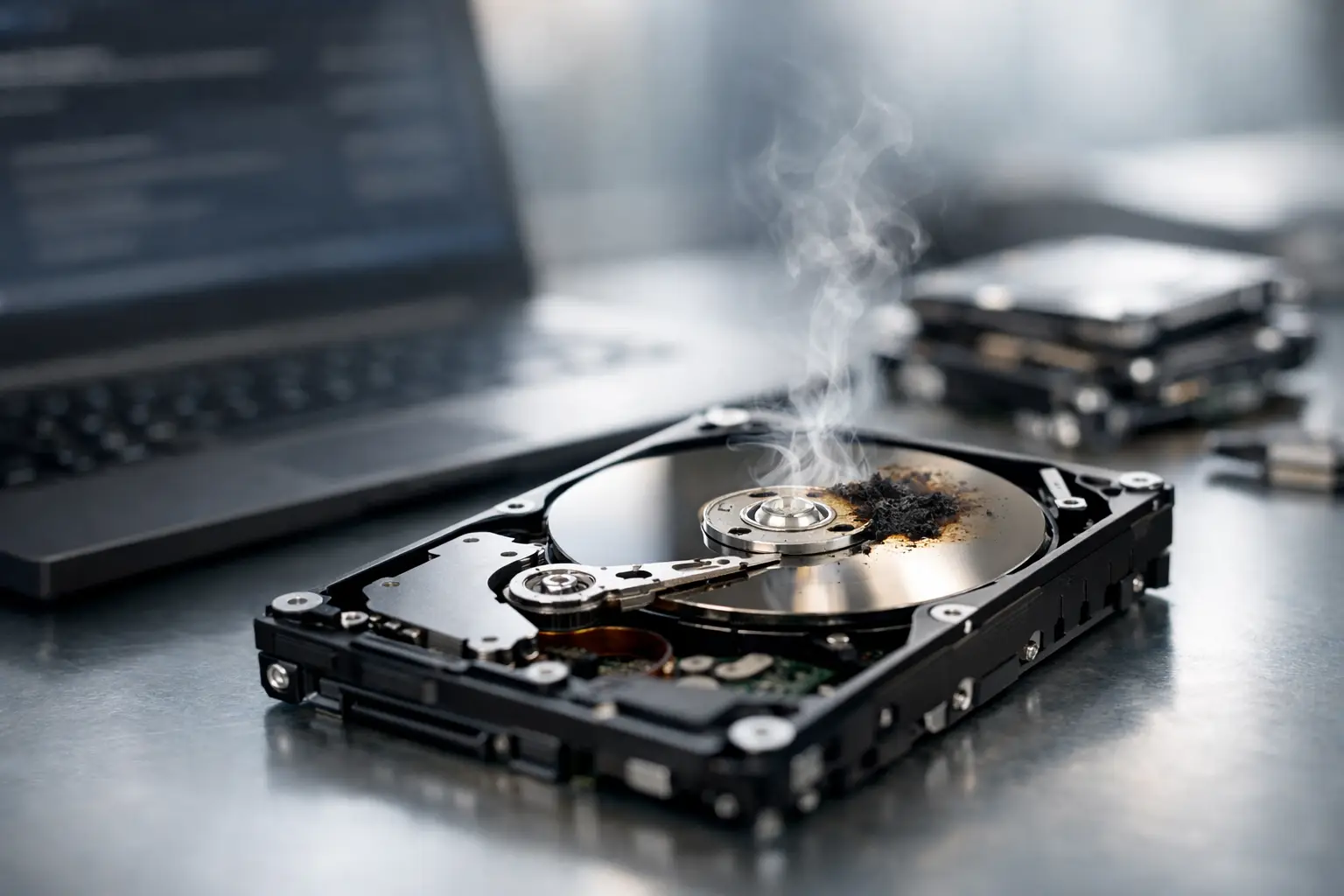
Mechanical hard drives contain moving parts. A healthy drive will usually make a quiet whirring sound during use, but sharp clicking, grinding, scraping or repeated attempts to spin up are different. These sounds can indicate problems with the read/write heads, spindle motor or internal components.
If a hard drive begins clicking and the data matters, turn it off as soon as practical. Do not keep rebooting it to see whether it comes good. Repeated power cycles can make a physical fault worse and may reduce the chance of a successful recovery.
SSDs do not have spinning platters, so they will not produce mechanical clicking. A beep may also come from the computer or enclosure rather than the drive itself, so it is worth identifying the source before assuming the worst.
Files disappear, become corrupted or will not open
Documents that suddenly show as zero bytes, photos that display only partially, folders that vanish, or files that produce corruption messages are all warning signs. The issue may be a damaged file system, failing media, malware, an interrupted transfer or accidental deletion. Whatever the cause, it should not be ignored when the same problem appears across multiple files.
Avoid moving, editing or saving new files to the affected drive. Every write operation can overwrite deleted data or add strain to a device that is already struggling. If the drive remains accessible, copy the most irreplaceable files first to a separate, verified storage device. Do not copy files back onto the suspect drive.
The drive is unusually slow or regularly freezes
A drive that takes minutes to open folders, causes File Explorer or Finder to stop responding, or freezes a computer during file transfers may be having difficulty reading data. This is especially concerning when the problem is limited to one external drive, partition or network share.
Slow performance does not always mean a hardware failure. A nearly full drive, bad USB cable, failing enclosure, software conflict or overloaded NAS can all create similar symptoms. The distinction matters, but it is safer to assume the data is at risk until you have a current backup. If transfer speeds collapse or the device repeatedly disconnects, stop using it for routine work.
The drive disconnects or is no longer detected
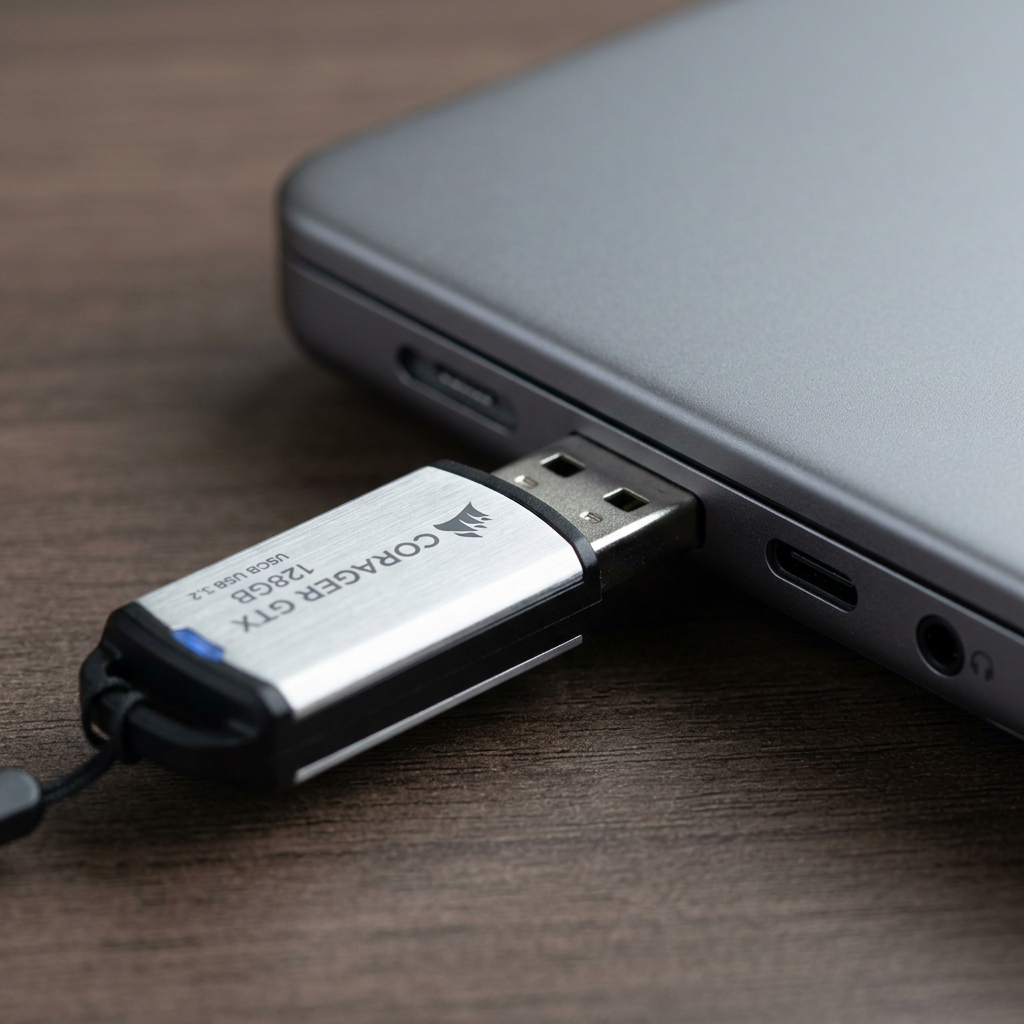
An external hard drive that connects and disconnects, a USB stick that appears only sometimes, or an internal drive that vanishes from the operating system can point to a developing fault. It may be a simple issue such as a damaged cable, loose port or inadequate power supply. It can also indicate controller failure, firmware damage, bad sectors or internal mechanical problems.
Try only low-risk checks first: use a known-good cable, connect directly to another port, and test a different computer if appropriate. For an external drive, do not open the enclosure or swap components from another drive. Modern drives and their enclosures can contain device-specific configuration or encryption, and incorrect handling can complicate recovery.
Error messages, bad sectors and repair prompts
Messages asking to format a drive, initialise a disk, repair a volume, or scan and fix errors should be treated cautiously. Formatting or running repair utilities may restore access in some minor logical cases, but they can also change file system structures and overwrite information needed to recover files.
Bad-sector warnings are particularly significant on traditional hard drives. A small number may be manageable in the short term, but growing bad-sector counts often indicate that the media is deteriorating. The drive should be replaced after data has been safely copied or professionally assessed.
If a device asks to be formatted and the files are important, do not approve the prompt. Formatting is not a fix for the underlying cause, and it can make the next steps more difficult.
Random crashes, blue screens or boot failures
A computer that crashes when accessing certain folders, restarts during startup, or cannot find its operating system may have a drive problem. On a desktop or laptop, this can be confused with memory, motherboard or software faults, so diagnosis needs care.
Listen for unusual hard drive sounds and note whether the failure happens only when a particular drive is connected. If the computer will still start, back up essential files immediately. If it will not start and the drive contains critical data, avoid repeated boot attempts. Each attempt can place the device under further load, particularly if it is trying to read damaged areas.
SSD failure can look different
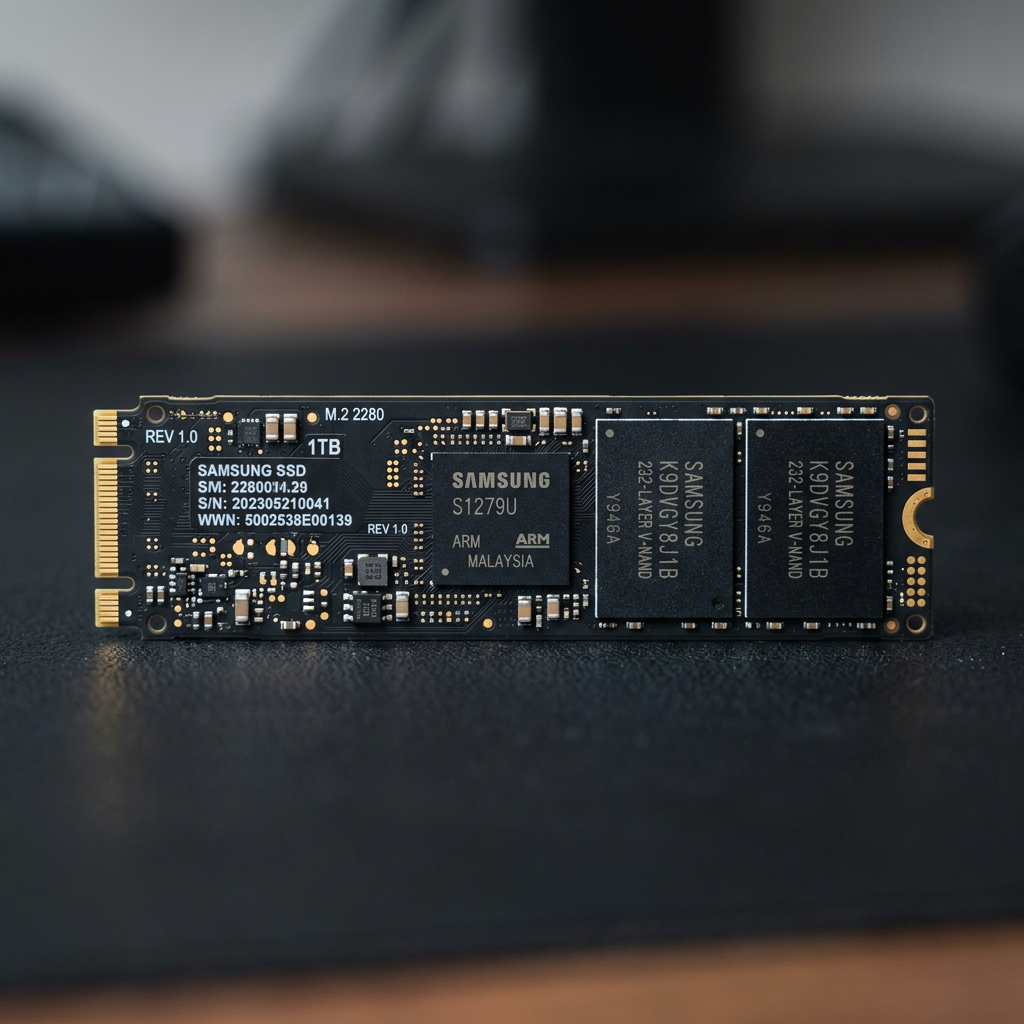
SSDs are fast and reliable, but they do fail. Because there are no moving parts, the warning signs are often less obvious than with a hard drive. An SSD may become read-only, disappear without warning, report incorrect capacity, freeze during writes, or become inaccessible after a restart.
Flash memory cells have a finite write life, although normal consumer use rarely reaches that limit quickly. Controller faults, firmware issues, power events and file system corruption are also possible. One important difference is that deleted data on an SSD can be harder to recover because of TRIM, a command that helps the drive clear unused blocks.
For that reason, if files have been deleted or an SSD is behaving unpredictably, minimise further use. Do not install recovery software onto the affected SSD, and do not use it as the destination for recovered files.
NAS and RAID warning signs need faster action
A NAS or RAID system can create a false sense of security. Redundancy protects against some drive failures, but it is not a backup, and it does not protect against accidental deletion, ransomware, controller faults, multiple drive failures or file system damage.
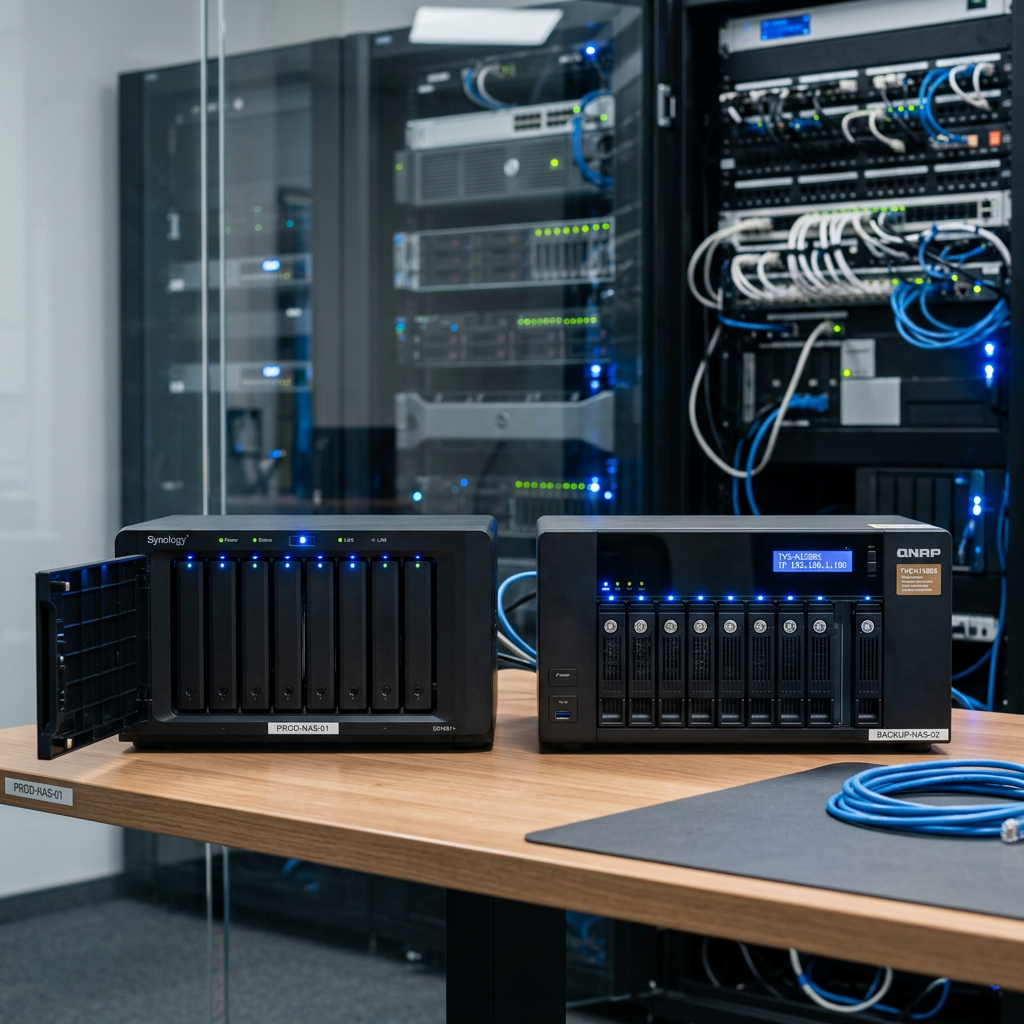
A degraded RAID alert, one or more failed drives, rebuild errors, unusual clicking from a NAS, inaccessible shared folders, or a volume that has gone offline all require prompt attention. Do not replace multiple drives at once, rearrange drive order, or initialise the array without a clear diagnosis. RAID layouts, metadata and configuration details are essential to reconstructing data correctly.
The safest response depends on the array type, number of failed disks and whether the data is still accessible. In a business setting, continuing to use a degraded array while trying several fixes can turn a single-disk event into a wider outage.
What to do when you suspect a drive is failing
Your next action should match the severity of the symptoms. If the drive is stable and accessible, make a careful copy of priority data to separate storage. Start with business records, current projects, databases, photos and any files that cannot be recreated. Verify that copied files actually open.
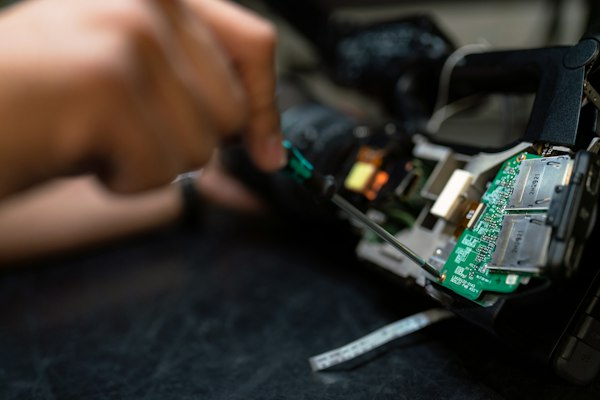
If the drive is making unusual mechanical noises, repeatedly disconnecting, not detected, asking to be formatted, or showing widespread corruption, stop using it. Do not run defragmentation, format it, install software on it, open the drive casing or place it in a freezer. These common DIY attempts can cause further damage or contaminate a clean-room recovery process.
Record what happened instead. Note the device type, operating system, error messages, whether there was a drop or power surge, and any recent changes. For a NAS or RAID, note the drive order, configuration and alerts. This information can make technical assessment faster and more accurate.
When professional data recovery is the sensible option
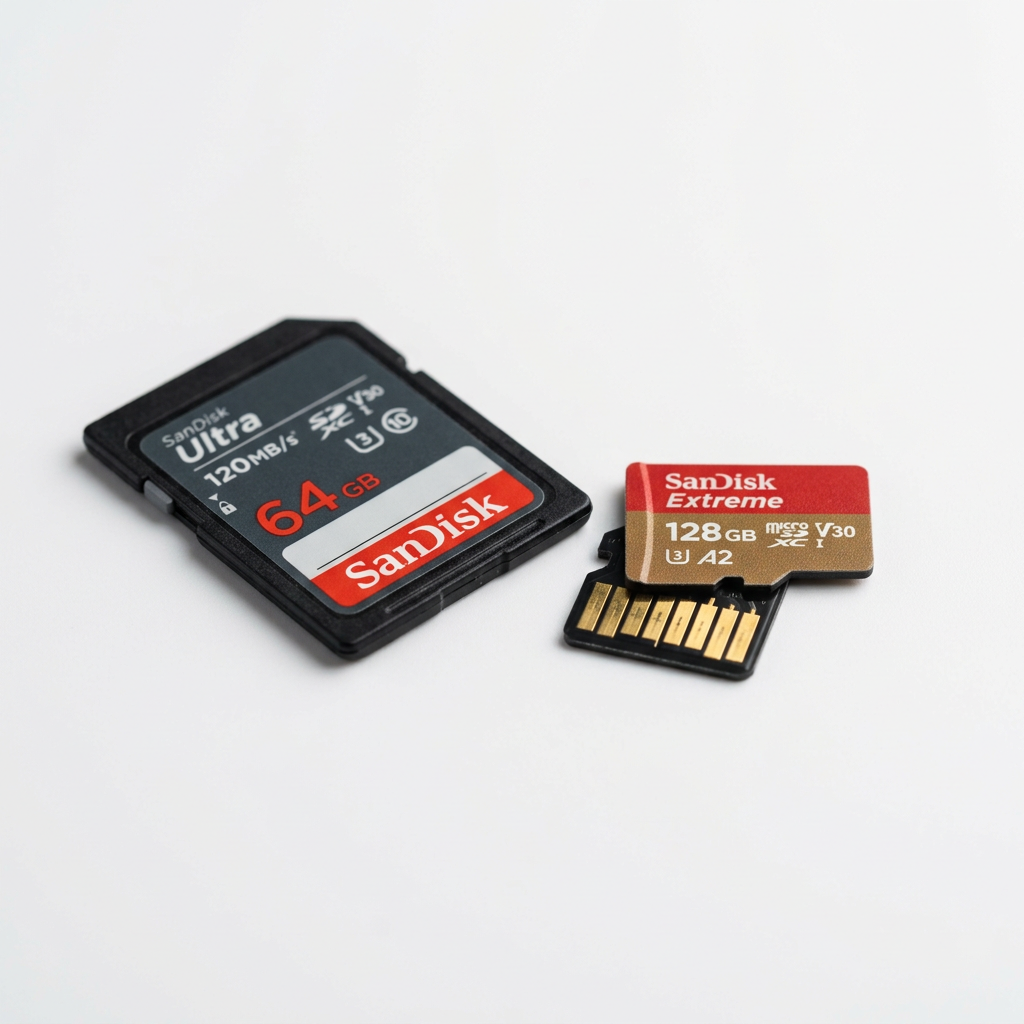
Professional help is most appropriate when the data is irreplaceable, the device has physical symptoms, or a business system is unavailable. This includes hard drives with clicking sounds, failed SSDs, damaged external drives, camera cards with lost images, Apple devices, and complex NAS or RAID systems.
RecoveryGeeks provides specialist assessment and professional data recovery for customers in Canberra and across Australia. The priority is to preserve the best possible recovery path, not to apply a quick fix that risks making the data less recoverable.
A backup strategy will always be your best protection after the immediate incident is resolved. Until then, a failing drive is asking for less activity, not more. Acting early and avoiding destructive troubleshooting gives your files the strongest chance of being recovered.