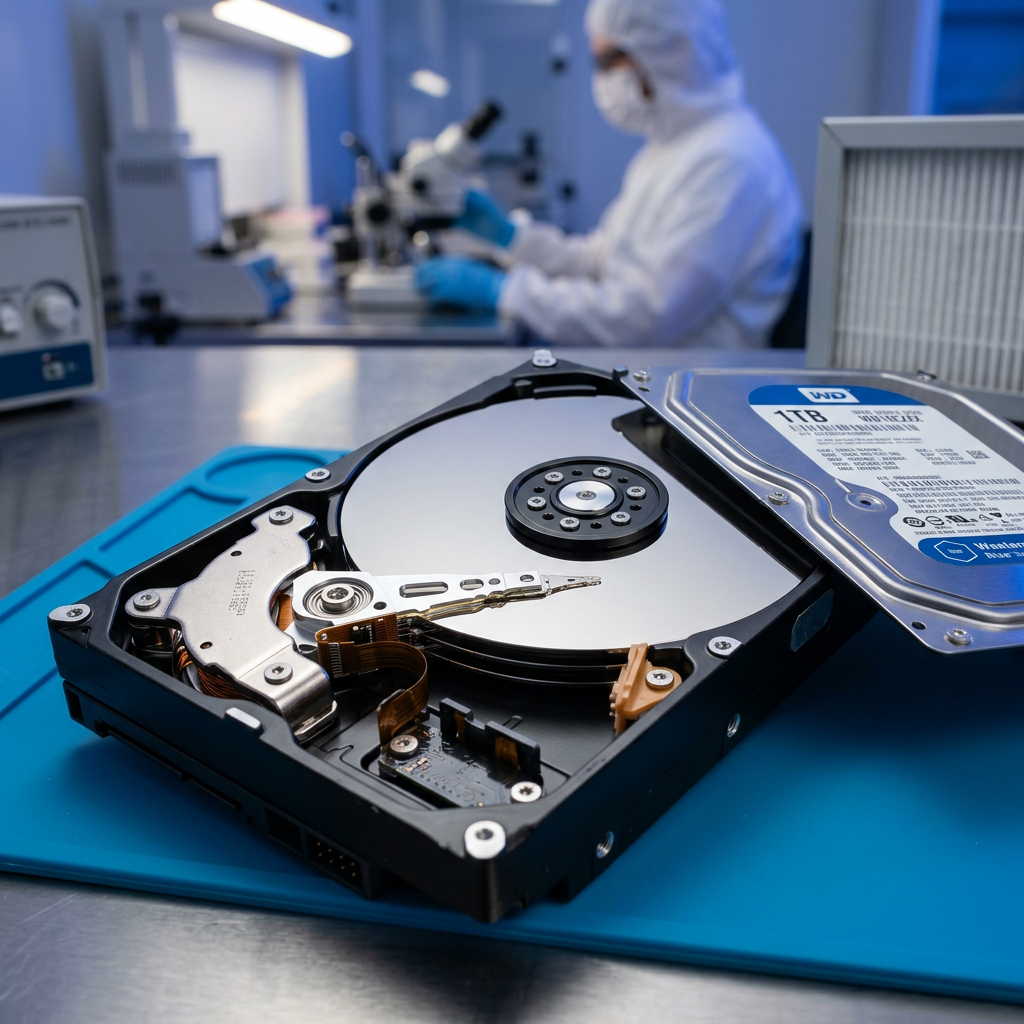
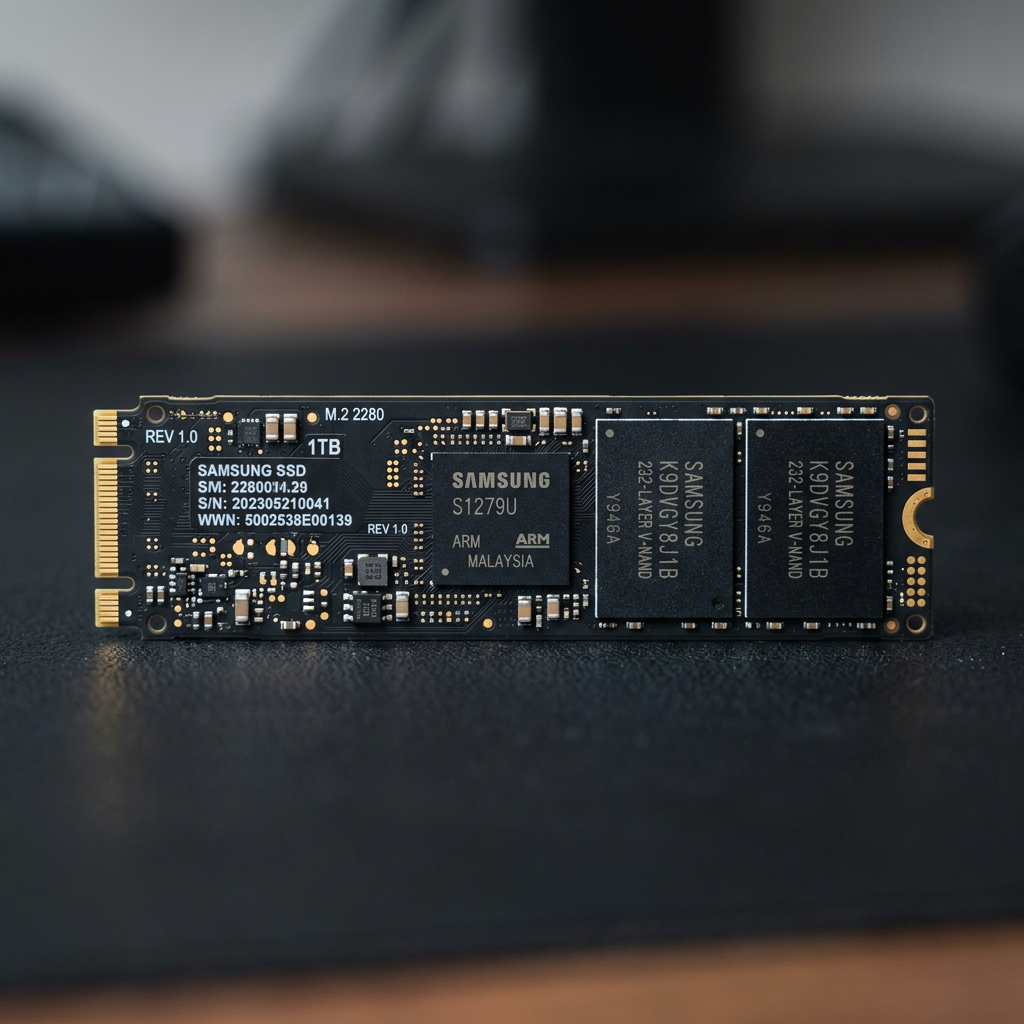





An unallocated drive can look alarming: the disk appears in your computer, but its files, folders and drive letter have vanished. The key point is that unallocated space does not automatically mean the data is gone. To recover files from an unallocated drive safely, you need to stop changes to the disk first, identify why the partition disappeared, and choose a recovery path that does not overwrite what remains.
This is particularly urgent when the drive holds business records, client work, photos, video footage or irreplaceable personal files. A rushed fix can turn a logical recovery job into a far more difficult physical recovery.
What an unallocated drive actually means
A storage device is divided into areas called partitions. Each partition has information that tells the operating system where it begins, how large it is, and which file system it uses. When Windows Disk Management shows a drive or section of a drive as Unallocated, it cannot see a usable partition in that location.
The files may still be present on the disk platters or flash memory. What may be missing or damaged is the map that points the operating system to them. This can happen after an accidental partition deletion, interrupted format, failed operating system update, malware incident, file-system corruption or a power loss during a write operation.
However, unallocated status can also appear alongside hardware failure. A failing hard drive may report incorrect capacity or lose access to sections of the disk. An SSD with controller, firmware or NAND issues can behave similarly. The distinction matters because software recovery is not the right first move for a physically unstable device.
Do not initialise, format or create a new volume
When a computer detects an unfamiliar or damaged disk, it may offer options to initialise it, format it, or create a new simple volume. Do not accept these prompts if you need the existing data.
Initialising writes new partition information. Formatting can write file-system structures. Creating a new volume also changes the very area of the drive needed to reconstruct the original layout. While recovery may still be possible after some of these actions, every write reduces the margin for error.
Avoid copying new files to the affected drive, installing recovery software onto it, or running repeated repair attempts. If the disk is external, disconnect it once you have confirmed the issue. Store it somewhere dry and protected from knocks until you can assess it properly.
Check whether the problem is the drive or its connection
Before assuming a partition has failed, rule out a connection fault. A loose cable, damaged USB lead, failing enclosure, underpowered hub or incompatible adapter can make a healthy drive appear inaccessible.
Try a known-good cable and a direct connection to another USB port. For an external hard drive, avoid opening the enclosure unless you understand its design. Some enclosures include hardware encryption or bridge boards that are required to read the data correctly. Moving the internal drive to another enclosure without that hardware can make recovered data appear scrambled or unreadable.
You can also test the drive on a second computer. Do this only once or twice, not endlessly. If the disk disconnects, takes an unusually long time to appear, clicks, beeps, spins down, or causes the computer to freeze, stop testing. Those are potential signs of physical failure.
Assess the drive in Disk Management or Disk Utility
On a Windows computer, open Disk Management and look for the physical disk entry. Note its reported capacity and status. A drive that shows its expected size but has a black bar labelled Unallocated may have a lost or damaged partition. A drive showing 0 bytes, an incorrect capacity, or frequent disconnections requires more caution.
On a Mac, Disk Utility can show whether the physical device is visible and whether its volumes are mounting. Do not use First Aid as a first response where the files are valuable. File-system repair utilities can make changes to directory structures, which may be helpful for minor corruption but can complicate recovery where the damage is more serious.
Take a photo or screenshot of what you see. It can help a recovery specialist understand the condition before any work begins. Record the drive make, model, capacity, whether it is a hard drive or SSD, and what happened immediately before it became unallocated.
Recover files from an unallocated drive: choose the right approach
The safest method depends on the condition of the media and the value of the data. If the disk is stable, detected consistently, has no unusual sounds, and the missing files are not business-critical, a careful logical recovery process may be reasonable.
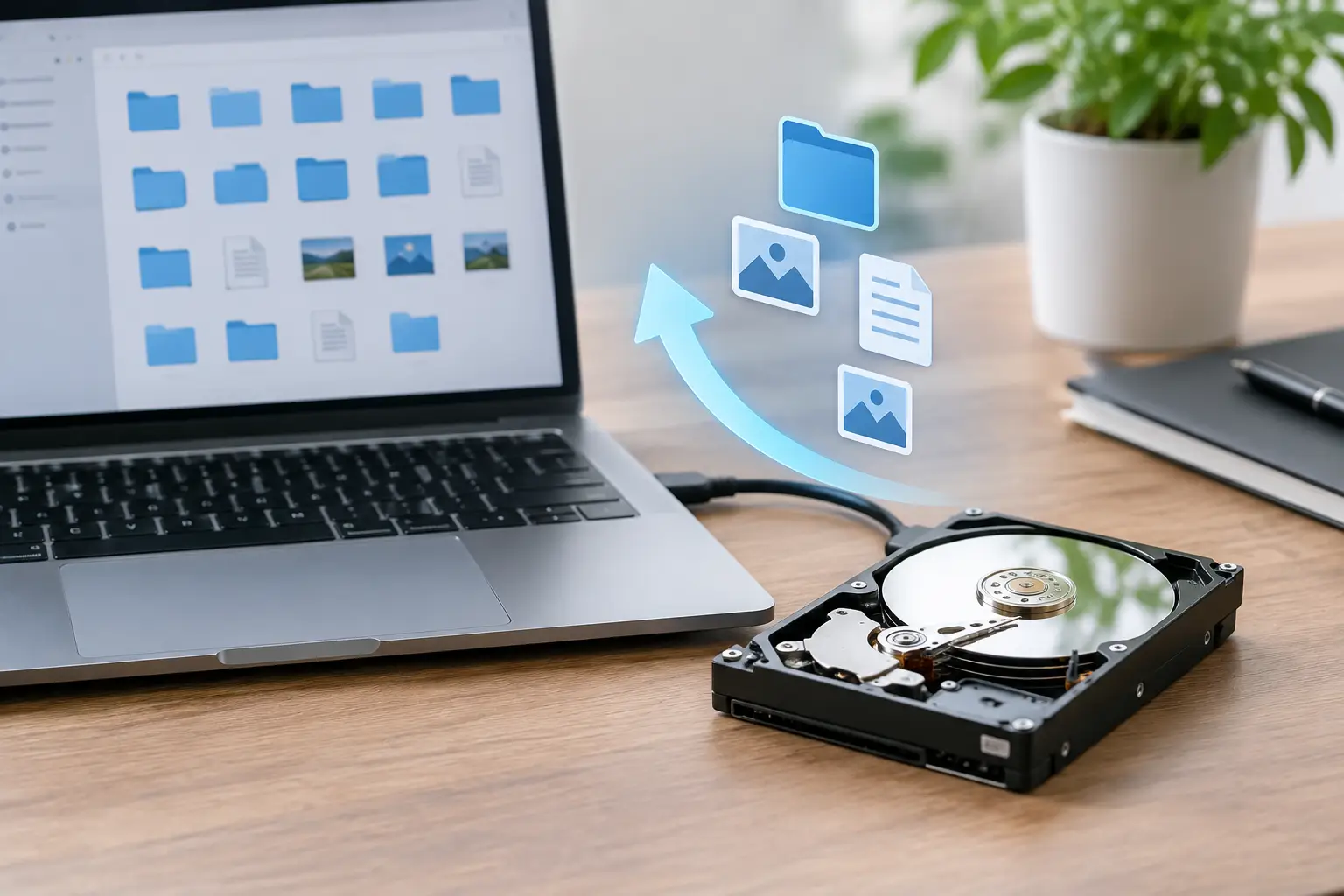
Start by making a sector-by-sector image or clone of the affected disk to a separate, healthy drive with enough capacity. Recovery work should be performed on the copy, not the original. This protects against accidental writes and reduces stress on an ageing or marginal disk.
Partition reconstruction may be possible when the original partition boundaries and file system can be identified accurately. In other cases, file-level recovery is safer. File-level recovery scans the disk for file signatures and extracts what it can find to a different storage device. The trade-off is that original file names, folder paths and timestamps may not always be retained, especially when the file system metadata is badly damaged.
Never recover recovered files back onto the unallocated drive. Use another healthy disk with sufficient free space. If the destination fills during recovery, do not delete data from the source to make room.
When recovery software is not the answer
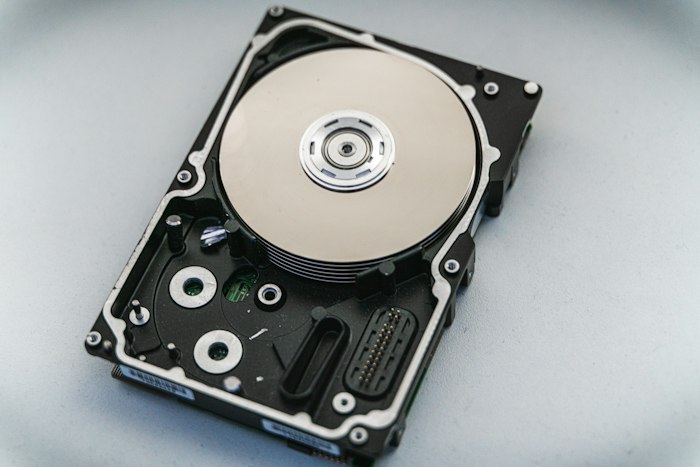
Software cannot repair a failing read/write head, seized motor, damaged platter surface, degraded SSD memory, failed controller or a device that is no longer reliably detected. Continuing to scan a failing drive can worsen the damage and reduce the amount of readable data.
Professional assessment is usually the better choice when any of the following applies:
- The drive clicks, beeps, grinds, repeatedly spins up and down, or disappears during use.
- The computer reports the wrong capacity, shows 0 bytes, or cannot see the physical device consistently.
- The data is commercially sensitive, legally significant or cannot be recreated.
- The unallocated storage belongs to a NAS, RAID array, server, encrypted device or Apple storage system.
- An SSD has become inaccessible following a crash, power event or firmware issue.
RAID and NAS cases deserve particular care. The volume may show as unallocated because one or more members have failed, the RAID configuration is damaged, or the file system on top of the array is corrupted. Rebuilding or replacing drives without documenting the original order and configuration can make recovery much harder.
Why SSDs require a faster decision
With traditional hard drives, deleted or lost partition data may remain readable until it is overwritten. SSDs are different. Features such as TRIM and internal garbage collection can clear blocks that the operating system considers no longer in use. This can reduce the chance of a successful logical recovery after a partition loss.
If an SSD becomes unallocated, minimise power-on time and avoid formats, repair commands and repeated scans. The correct approach depends on the SSD model, controller condition, encryption state and whether the drive is still detected at the hardware level. Fast, informed action is more useful than repeated troubleshooting.
Prepare the drive for professional recovery
If you decide the data needs specialist attention, keep the original drive unchanged. Do not send only screenshots or a copy of a failed scan if the original media is available. The original device contains the best available evidence of the partition structure and file data.
Provide a clear account of the incident: whether the drive was dropped, formatted, disconnected during transfer, affected by a power surge, or used in a RAID or NAS. Include any passwords, recovery keys or encryption details where relevant. Encryption does not prevent recovery assessment, but the correct credentials may be necessary to access usable files after the storage structure is restored.
RecoveryGeeks handles logical data loss and complex hardware faults across hard drives, SSDs, NAS and RAID systems, external storage and other digital media. An early assessment helps determine whether a non-invasive recovery is appropriate or whether the device requires controlled specialist work.
The best next action is often the simplest one: stop writing to the drive, preserve its current state, and seek help before a temporary unallocated status becomes permanent data loss.