


When an SSD vanishes from your laptop, starts asking to be formatted, or stops showing up altogether, the window to recover files from failed SSD storage can shrink quickly. Unlike older hard drives, SSDs often fail with little warning, and the wrong first step can make a bad situation worse. If the data matters, speed and caution both count.
Why SSD failures are different
A failed SSD does not behave like a failed spinning hard drive. Traditional drives often show gradual symptoms such as clicking, slow read times, or bad sectors building over time. SSDs can be far less forgiving. One day they work normally, and the next day the drive is unreadable, invisible in BIOS, or stuck in read-only mode.
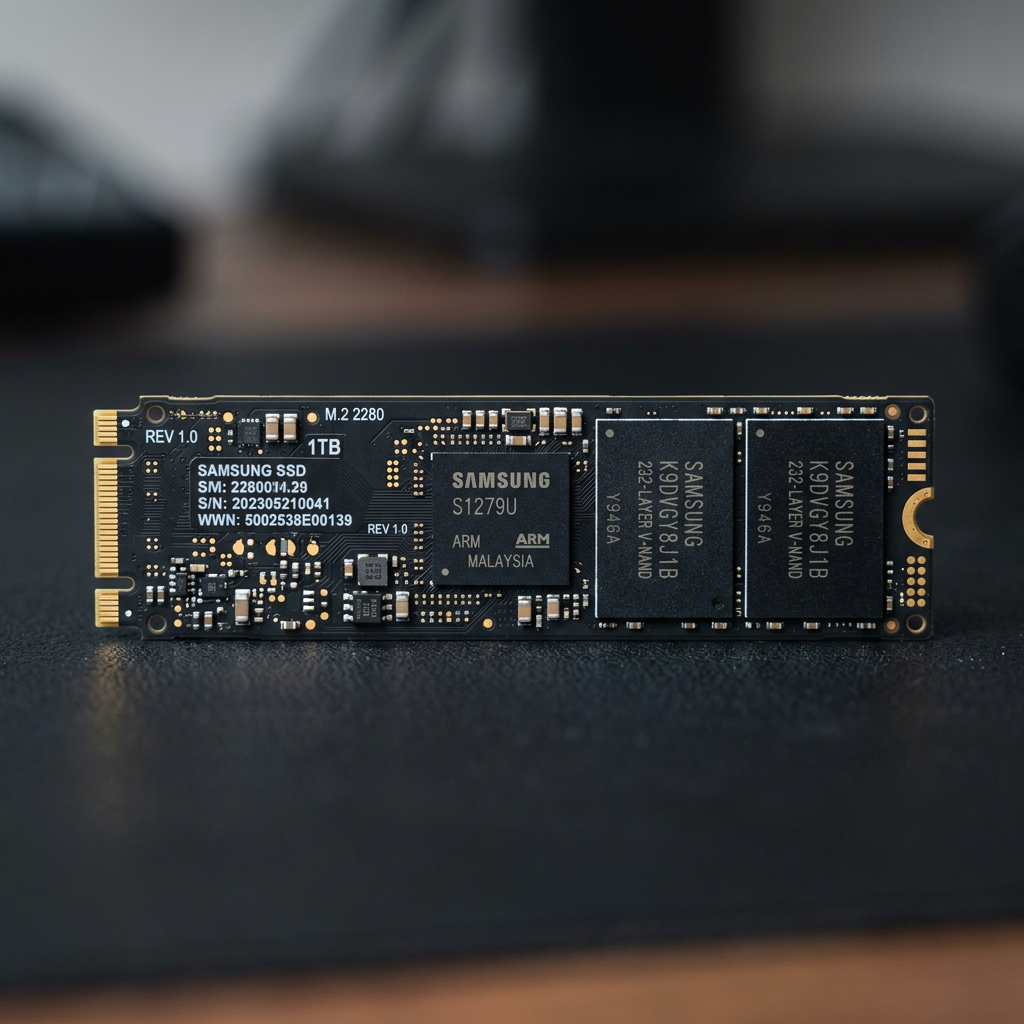
That difference comes down to how SSDs store data. Instead of magnetic platters, they use NAND flash memory managed by a controller. The controller handles wear levelling, block management, error correction, and communication with the rest of the system. When the controller, firmware, power circuitry, or NAND itself fails, access to the stored files can break down very quickly.
There is another complication. Many SSDs use TRIM, rubbish collection, encryption, and proprietary controller behaviour. These features improve day-to-day performance, but they can make recovery more complex. In some cases, deleted or partially overwritten data becomes much harder to retrieve than it would be on a conventional hard drive.
Common signs you may need to recover files from failed SSD media
Some failures are total, but many start with symptoms that are easy to dismiss. Your computer may freeze during boot, the drive may disappear intermittently, or folders may suddenly become inaccessible. You might also see file corruption, operating system errors, or messages saying the disk needs repair or formatting.
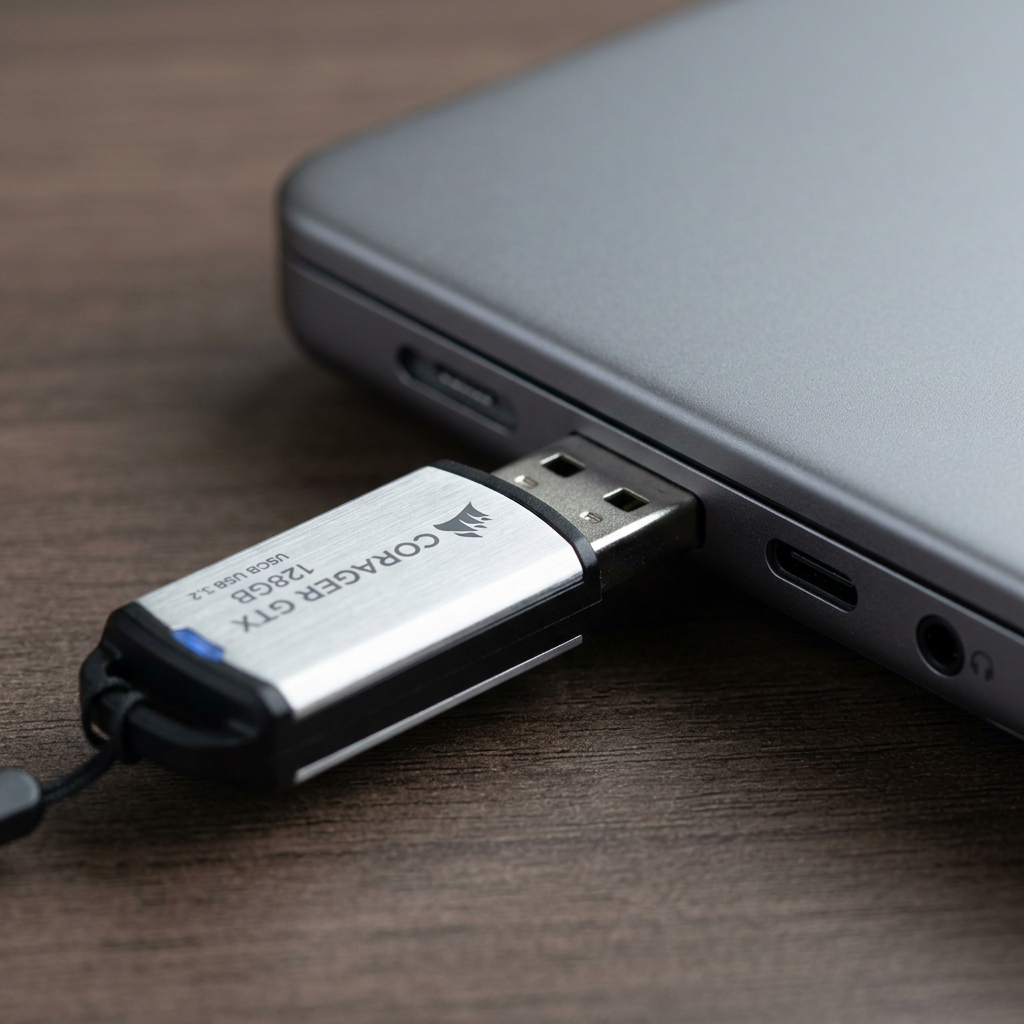
A slow SSD can also be a warning sign, especially if read and write operations stall for long periods. Likewise, if an external SSD disconnects when moved slightly, the fault may be in the USB bridge, port, or power delivery rather than the storage media itself. That sounds like good news, but it still calls for care. Repeated reconnect attempts can worsen instability.
If the drive contains business records, client files, photos, or project data, treat these symptoms as an early recovery event rather than a routine IT annoyance.
What to do first
The safest first move is to stop using the SSD immediately. Do not keep rebooting, reinstalling the operating system, running repair utilities, or copying random files off in a rush. Every extra write operation can reduce the chance of a clean recovery.
If the SSD is your system drive, power the device down properly if possible. If it is an external SSD, disconnect it and leave it disconnected until you have a plan. Make a note of what happened before failure, including any drops, power outages, water exposure, firmware prompts, or unusual errors. Those details can help identify whether the issue is logical, electrical, or physical.
If the data is non-critical and the drive is still detected consistently, a sector-by-sector image may be possible. But if the SSD is disappearing, making the whole system unstable, or showing clear signs of controller failure, home attempts become much riskier.
What not to do
A lot of data loss becomes permanent because people try sensible-sounding fixes that are not sensible for a failing SSD. Formatting the drive, initialising it in Disk Management, running CHKDSK, updating firmware blindly, or using file system repair tools can all change the data structure and interfere with recovery.
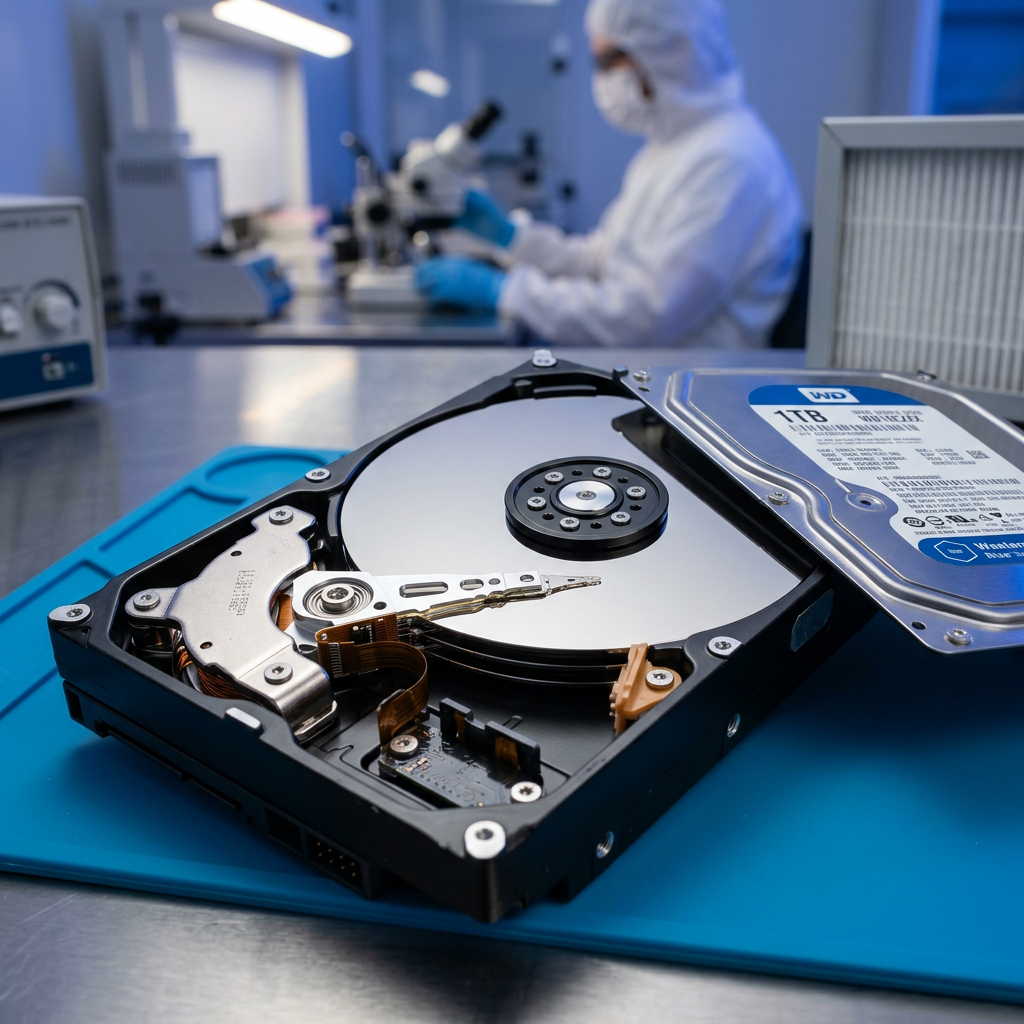
You should also avoid opening the SSD casing. Unlike some other devices, SSD recovery is not a DIY clean-and-check job. The issue is often electronic or firmware-based, and direct handling of components can cause further damage. Freezing the drive, tapping it, or swapping parts between donor devices are also poor ideas.
If the files are valuable, the real trade-off is simple. The more you experiment, the fewer options may remain for professional recovery later.
When software recovery can work
Software tools can help in limited situations. If the SSD is healthy enough to stay online, and the problem is accidental deletion, a damaged partition table, or mild logical corruption, a read-only scan may recover some or even all of the missing files. This tends to work best when TRIM has not already cleared the relevant blocks and when the drive has not been heavily used since the loss.
That said, software recovery is not a cure for every SSD problem. If the drive is not recognised, reports the wrong capacity, causes system lockups, or disconnects during scanning, software tools are unlikely to fix the root cause. Continuing to scan can place extra stress on an unstable controller or memory map.
For many users, the hardest part is knowing whether they are dealing with a logical problem or a hardware-level fault. That is where specialist assessment matters.
When professional SSD recovery is the safer option
Professional recovery is usually the better path when the SSD is completely dead, intermittently detected, physically damaged, affected by liquid or heat, or carrying data that cannot be replaced. It is also the right move when the drive uses encryption, has firmware corruption, or belongs to a business environment where downtime and privacy matter.
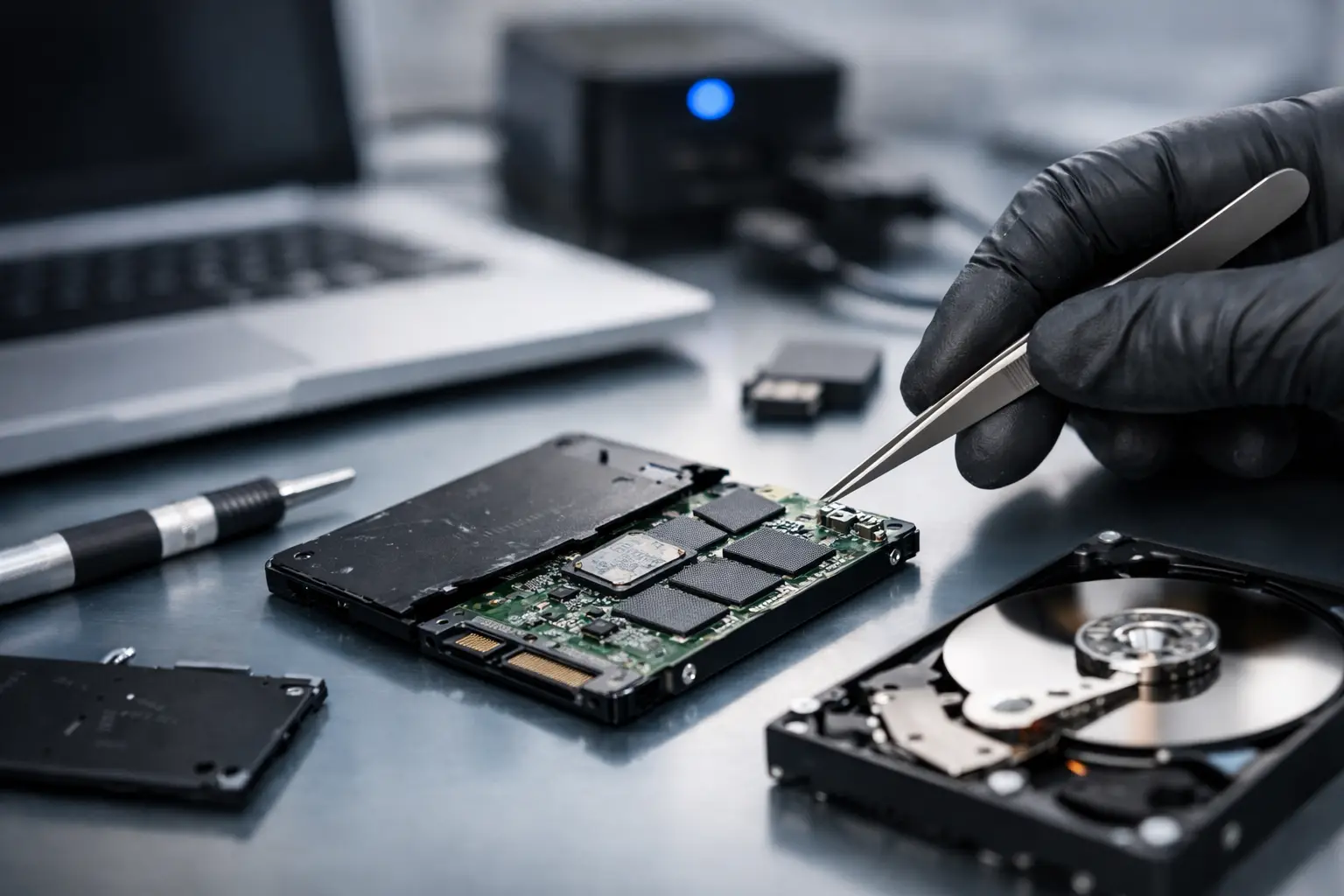
Specialist SSD recovery is not just about plugging the drive into better software. It can involve controlled diagnostics, PCB-level testing, firmware analysis, controller communication, NAND reading, and reconstruction of the data layout outside the failed device. Depending on the model, some cases require advanced methods to extract and rebuild data from memory chips when standard access is no longer possible.
This is one reason SSD recoveries vary so much in difficulty. Two drives with the same symptoms may need very different techniques depending on the controller family, NAND type, encryption scheme, and the condition of the underlying electronics.
Why failed SSD recovery is often urgent
Time matters with SSD failure, but not for the reason many people assume. It is not always that the memory cells are instantly degrading. The bigger problem is that unstable electronics and firmware faults can turn a partly recoverable case into a non-detecting one after repeated power cycles.
There is also the issue of TRIM and background processes. If a drive is still functioning well enough to accept commands, routine system activity may continue altering the data map. That can reduce what remains recoverable, particularly after deletion events or file system damage.
For Canberra businesses, photographers, students, and home users alike, delay often happens because people hope the drive will come good after another restart. Usually, it does not. A faster decision tends to preserve more options.
What a recovery assessment usually looks like
A proper assessment begins with identifying whether the fault is logical, electrical, firmware-related, or due to NAND degradation. That matters because the recovery path changes accordingly. Some drives can be stabilised long enough to image safely. Others need chip-level work or proprietary controller handling.
An experienced recovery provider will also consider the file importance, urgency, and whether the SSD came from a laptop, desktop, server, NAS cache tier, or external enclosure. Those details influence both risk and method. Business devices may also need privacy controls and careful handling of sensitive records.
At RecoveryGeeks, cases like these are approached as technical recovery jobs, not generic computer repairs. That distinction matters when the goal is data first, device second.
Can you always recover files from a failed SSD?
No honest provider should promise a 100 per cent success rate. Some SSD failures are fully recoverable, some are partially recoverable, and some are beyond recovery because the NAND is too degraded, critical metadata is destroyed, or encryption keys are inaccessible.
But failed does not mean hopeless. Many SSDs that appear completely dead still hold recoverable data when handled correctly. The key is avoiding unnecessary writes and getting a proper diagnosis before the failure worsens.
If your SSD has stopped behaving normally, resist the urge to troubleshoot it like a standard computer issue. Treat it like a data recovery event from the start. The calm, careful choice you make in the first hour often has more impact than anything that happens after that.
If the files matter, stop using the drive and get advice before trying another fix.