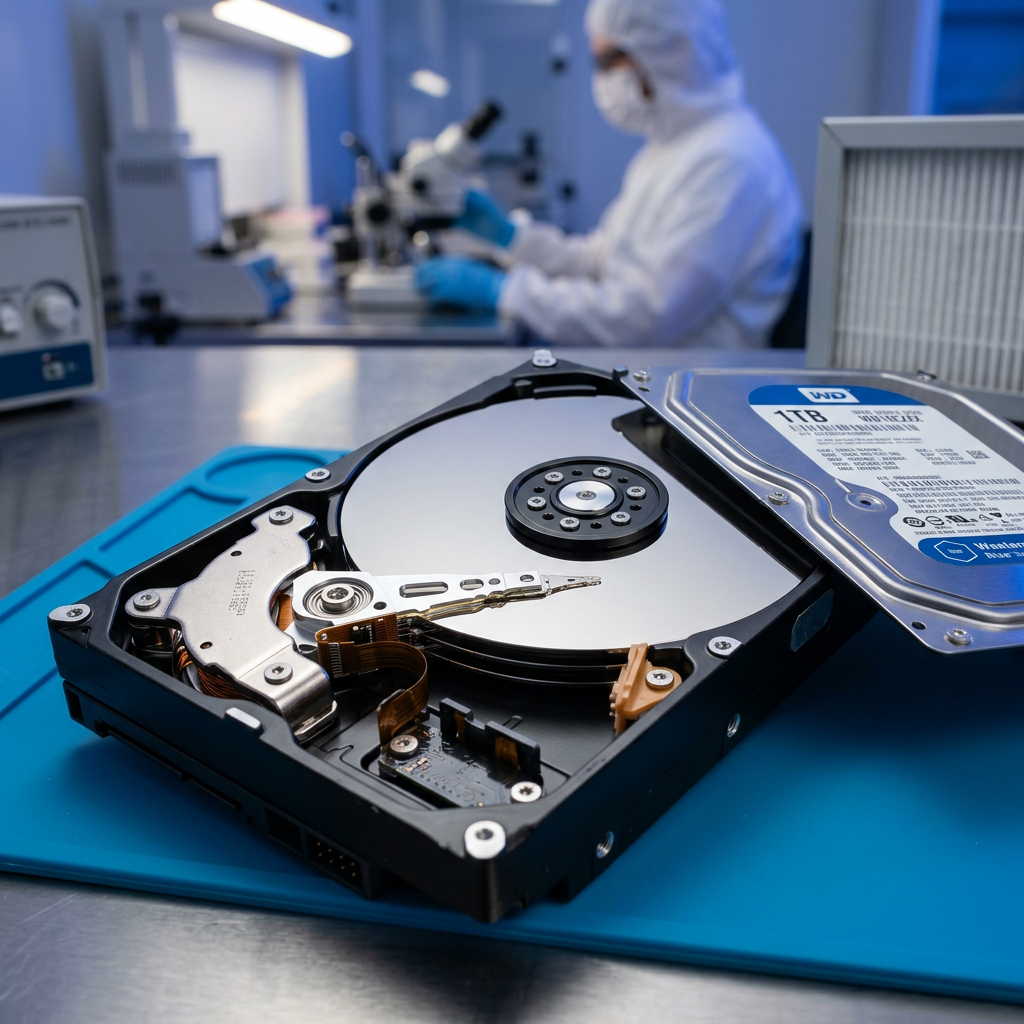
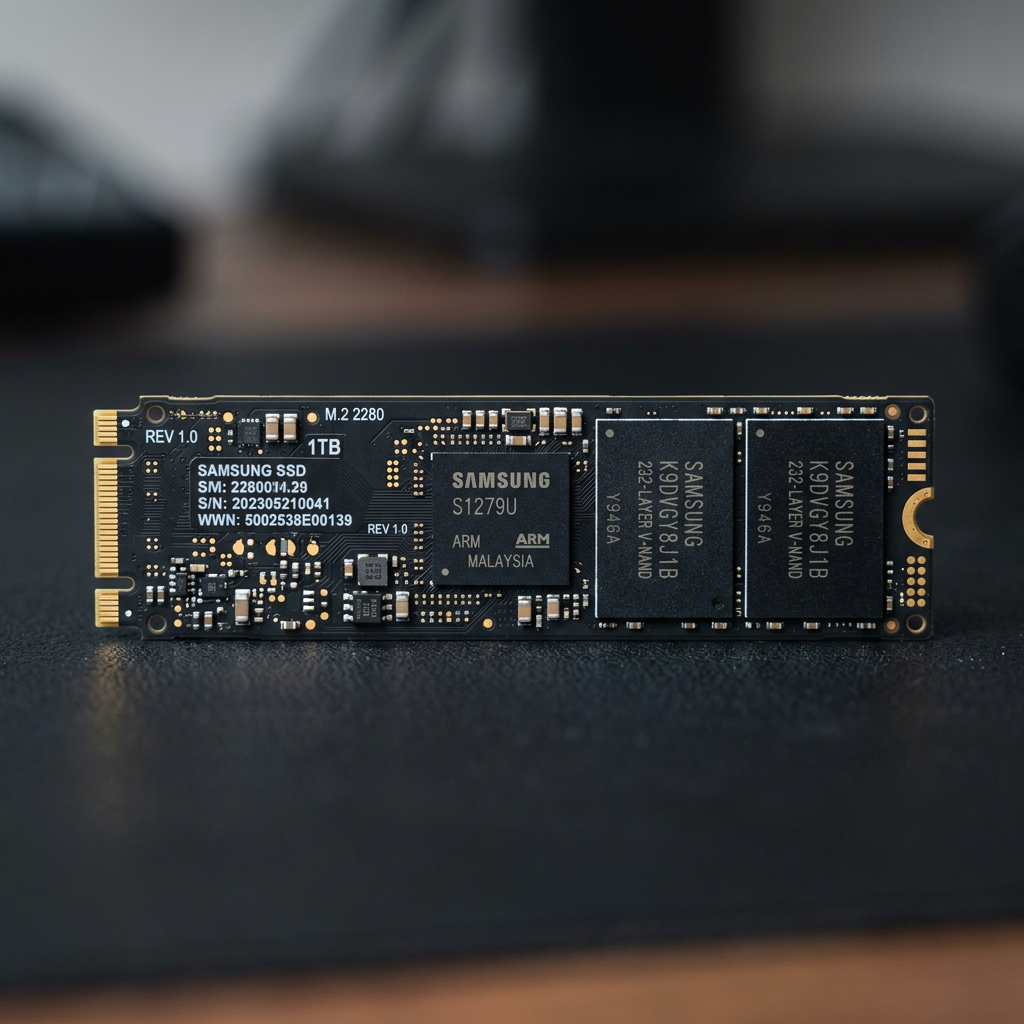
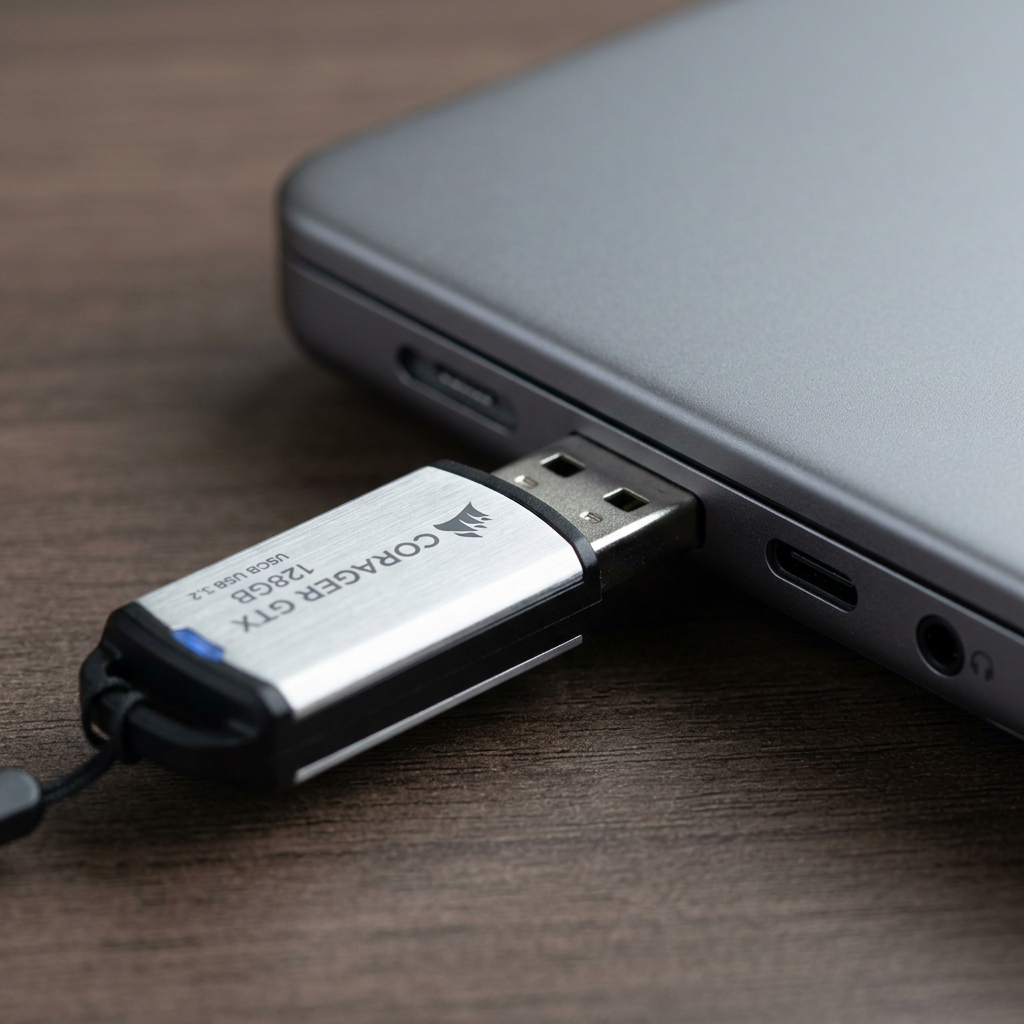
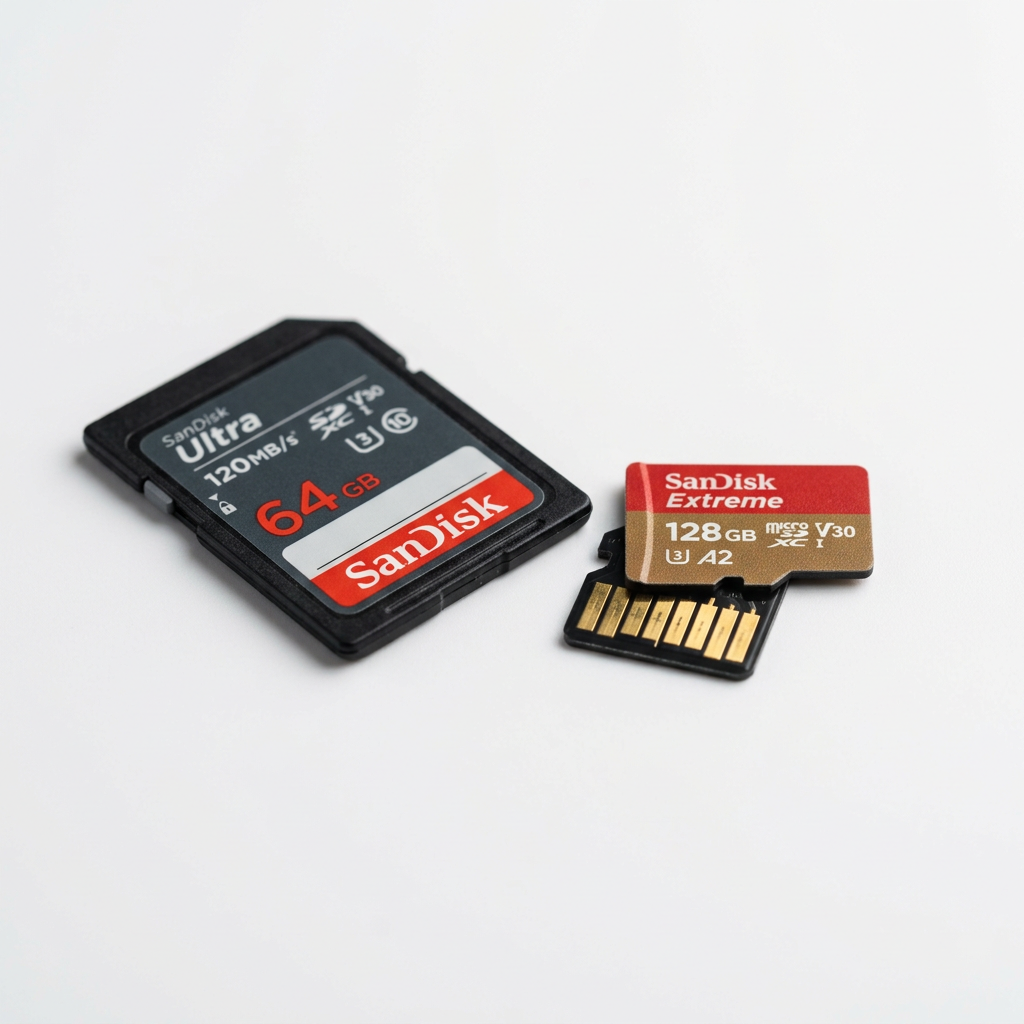





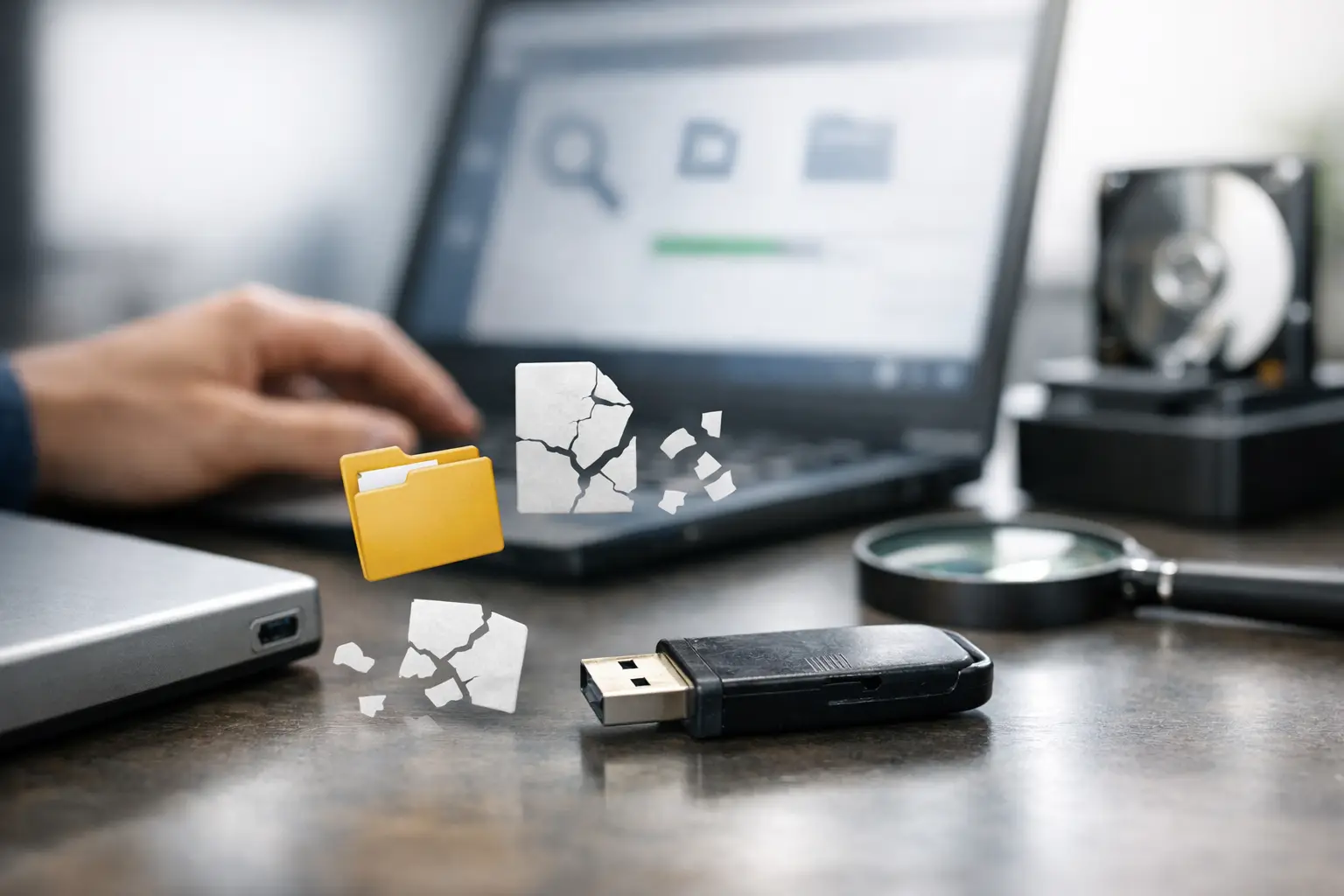
A USB drive that suddenly asks to be formatted, shows empty folders, or disappears from your computer can turn a small device into a major problem. Whether it holds a university assignment, family photos, client documents or business records, the priority is to recover files from corrupted USB storage without making the damage worse. The first action is often the most important: stop writing anything to the drive.
USB corruption does not always mean the files are gone. It can mean the computer can no longer correctly read the file system, directory structure or storage controller. In many cases, the data remains on the flash memory, but careless troubleshooting can overwrite it or make a successful recovery more difficult.
What a corrupted USB drive can look like
A corrupted USB may still appear in File Explorer or Finder, yet refuse to open. You may see a message saying the drive needs formatting before use, an incorrect capacity, files with strange names, missing folders or a drive letter that vanishes after a few seconds.
The cause matters because it affects the safest recovery path. A drive removed during a file transfer may have logical file system corruption. A drive that has been bent, crushed, exposed to moisture or has an unstable connector may have physical damage. USB flash drives can also fail without warning when their memory chips or controller wear out.
It is tempting to keep unplugging and reconnecting the device until it works. A single careful check is reasonable. Repeated attempts are not, particularly where the USB becomes hot, disconnects intermittently, appears as zero bytes, or is not detected at all. These signs can point to a hardware fault rather than a simple software issue.
First steps to recover files from a corrupted USB
Before trying repair software or built-in operating system tools, protect the original media. If the files are important, treat the USB as evidence of the current state of your data, not as a device to experiment on.
Start with a different USB port on the same computer, then try another computer if available. Avoid USB hubs, front-panel ports and loose adapters during this test. If the drive opens normally, copy the most valuable files first to a reliable internal drive or separate external drive. Do not move files, as an interrupted move can create another problem.
If the USB is visible but inaccessible, do not accept any prompt to format it. Formatting creates a new file system structure and can reduce the likelihood of a clean recovery, especially if new files are added afterwards. Likewise, do not save recovery software, recovered files or any other data to the affected USB.
For a USB that is physically intact and consistently detected, a read-only recovery scan may be appropriate. The aim is to identify and copy files to another device, not to repair the original drive in place. This approach can help with accidental deletion, file system errors and some forms of corruption. Results vary according to how much the USB has been used since the failure and the type of damage involved.
Why repair tools can create more risk
Operating systems offer disk repair utilities that may seem like the obvious answer. These tools can be useful for minor logical errors on non-critical media, but they are designed to make a volume usable again, not to preserve every recoverable file. To do that, they may alter directory entries, remove damaged records or mark sections of the drive as unusable.
That trade-off is acceptable when the USB contains replaceable files. It is not a good first choice when the drive holds sole copies of important photos, accounting information, legal material, project files or business data.
The same caution applies to free recovery programs. Some can successfully locate deleted or damaged files, but an incomplete scan or incorrect settings may return files without their original names and folder structure. Others may encourage repairs before extraction. If you are unsure what a tool is proposing to change, stop before confirming the action.
When to stop and seek professional USB recovery
Professional assessment is the safer option when the data has high personal, financial or operational value, or when the USB shows signs of physical failure. A specialist can determine whether the issue is logical corruption, a failed controller, damaged flash memory, connector damage or a more complex electronic fault.
Do not attempt to open the USB casing, solder a loose connector or dry a wet drive with heat. Flash storage devices are compact, and their components can be damaged by static electricity, excess heat and poorly controlled repairs. A broken connector may also be attached to delicate board traces, so forcing it can turn a repairable fault into a more difficult one.
Professional data recovery is particularly worth considering when any of the following applies:
- The USB is not detected by multiple computers or disconnects repeatedly.
- The device has suffered impact, liquid exposure, crushing or connector damage.
- The computer reports zero capacity, asks to insert a disk, or cannot identify the media correctly.
- The files are irreplaceable, confidential or needed for a business deadline.
- DIY software has not found the required files, or the USB has begun behaving differently after a scan.
A recovery service may use specialist hardware to access the memory chips, stabilise the device or rebuild the data structure from a controlled copy. Not every USB can be recovered, particularly after severe chip damage or extensive overwriting, but avoiding further use gives the best starting position.
How USB corruption happens
Many USB failures begin with everyday habits rather than dramatic accidents. Removing a drive while files are copying can interrupt the file system update. A power fluctuation, failing port, unstable hub or computer crash can have a similar effect. The drive may appear fine until the next time it is connected.
Flash memory also has a limited service life. USB drives are convenient for transferring files, but they are not designed to be the only long-term home for critical information. Cheaper drives may have less reliable controllers and fewer safeguards against sudden power loss. Even quality devices can fail unexpectedly after repeated use.
Malware, incompatible file systems and large transfers can contribute too. A USB formatted for one operating system may behave unpredictably when used across different devices, cameras, smart TVs or vehicles. That does not always cause corruption, but it increases the chance of an unsafe ejection or an unsuccessful write operation.
Protect recovered data and prevent a repeat
Once files have been recovered, verify them before relying on them. Open a sample of documents, images, videos and project files from the new location. Check that folders contain the expected content and that larger files play or open fully. A recovered file name alone does not guarantee the underlying file is intact.
Then retire a USB drive that has shown unexplained corruption, intermittent detection or file transfer errors. It may work again for a while, but it should not be trusted with the only copy of valuable data. Keep important files in at least two separate locations, such as a computer and a backup drive, with an additional protected copy for business-critical material.
Safely eject USB devices before removal, wait for transfers to finish, and avoid carrying unprotected drives loose in a pocket or bag. A small protective case costs far less than recovering a damaged device.
For Canberra customers and organisations across Australia dealing with a failed or inaccessible USB, RecoveryGeeks can assess the device and advise on the most suitable recovery path. The key is to preserve the drive in its current state. Put it aside, record what happened, and act before further attempts change what can still be recovered.