
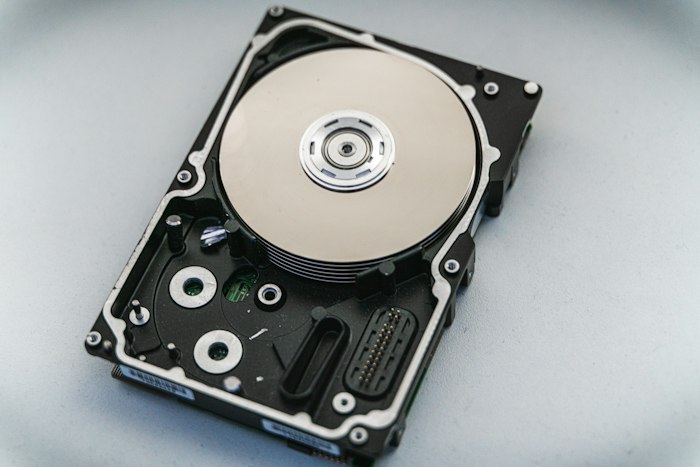




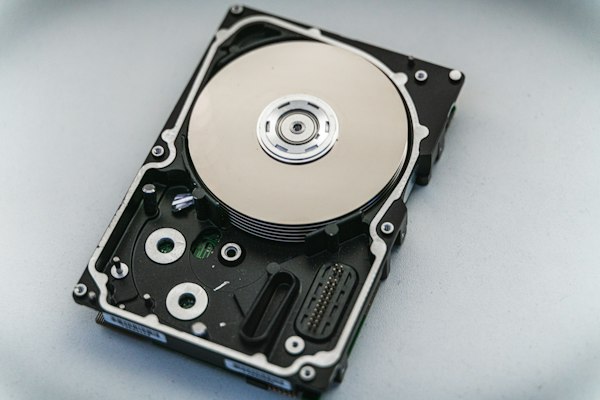


The moment a Mac folder opens empty, or an external drive suddenly refuses to mount, most people make the same mistake - they keep clicking. This Mac data recovery guide starts with the step that matters most: stop using the affected device before deleted or damaged data is overwritten.
Data loss on a Mac can come from a simple accidental deletion, but it can also point to file system corruption, failing SSD storage, macOS update issues, liquid damage, or a fault on an external hard drive. The right response depends on what has actually failed. If you treat every problem as a quick software fix, you can make a recoverable case far harder.
Mac data recovery guide: start with the safest first steps
Before you try any recovery method, disconnect anything that does not need to stay connected. If the problem is on an external drive, eject it if possible and avoid repeated reconnection attempts. If the issue is on the Mac's internal storage, save as little as possible to the machine and avoid installing recovery apps directly onto the same drive.
This matters because deleted files are not always gone straight away. In many cases, the file system simply marks the space as available. The more you use the Mac, the greater the chance that old data is replaced by new system files, caches, downloads or app updates.
If the files were deleted recently, check the Bin first. It sounds obvious, but in stressful situations people often skip the basic checks. Also look in the correct iCloud Drive folder if Desktop and Documents syncing is enabled. Sometimes the data has moved rather than disappeared.
Time Machine is the next sensible check. If you have a current backup, recovery can be straightforward and low risk. Open the folder where the files originally lived, enter Time Machine, and restore the version you need. For many users, that is the cleanest outcome.
Understand what type of Mac data loss you are dealing with
Not every recovery job is the same, and identifying the symptom helps you avoid the wrong fix.
If files were deleted by mistake and the drive is otherwise healthy, software-based recovery may be possible. If the Mac starts normally but specific folders are missing, the issue may be logical rather than physical.
If the Mac is very slow, freezes during boot, shows a flashing folder, or the drive disappears intermittently, that can indicate hardware failure or serious file system damage. In those cases, every restart and every scan puts more strain on the device.
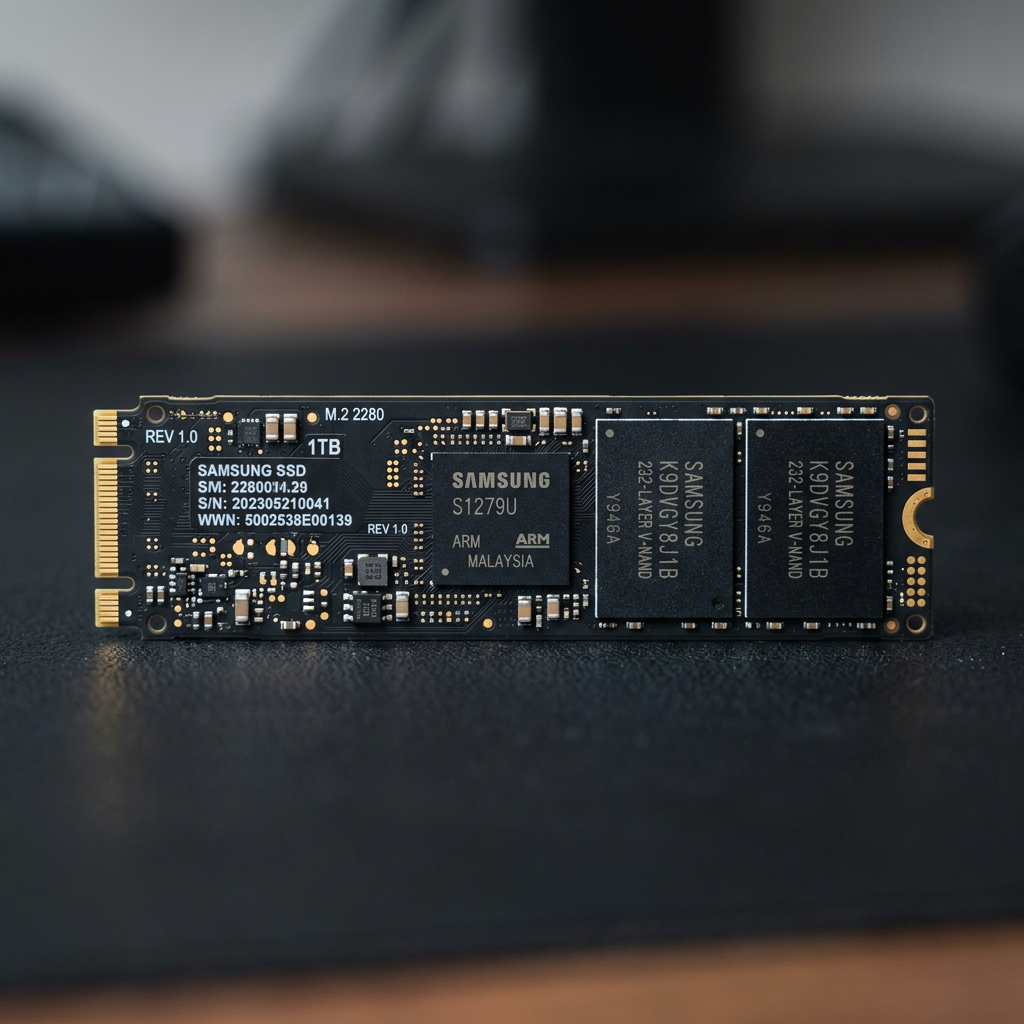
Apple hardware adds another layer of complexity. Modern MacBooks often use integrated SSD storage and security features that change how recovery is handled. A recovery approach that worked on an older Intel iMac with a removable drive may not apply to a newer Apple silicon machine. That is why broad internet advice can be misleading.
External drives used with Macs also create mixed environments. You may be dealing with APFS, HFS+, exFAT or NTFS, depending on how the drive was formatted and shared. Recovery options vary across those file systems, especially when corruption is involved.
When DIY recovery on a Mac makes sense
There are situations where a careful do-it-yourself attempt is reasonable. If the data is not business-critical, the drive is behaving normally, and the loss happened recently through deletion or formatting, recovery software may help. The key word is careful.
Run any recovery tool from a different drive, and if possible recover the found files to another device altogether. Never recover data back onto the same affected volume. Doing so can overwrite the very files you are trying to restore.
Disk Utility can also help with diagnosis, but it is not a recovery solution by itself. First Aid may repair minor directory issues, yet it can also fail or make changes that do not help in more serious cases. Use it when the symptoms suggest a mild logical problem, not as an automatic first response to every inaccessible drive.
Safe Mode, another user account, or a different Mac can also help confirm whether the issue is with the files, the user profile, the cable, the enclosure or the storage device itself. These checks are useful because they narrow down the fault without immediately changing the data.
When to stop and get professional help
A good rule is simple: if the data matters and the device is showing signs of failure, stop early.
That includes clicking noises from an external hard drive, a Mac that no longer recognises the internal drive, a drive that disappears during transfer, water-damaged MacBooks, burnt circuit smells, or SSDs that suddenly become unreadable. It also includes encrypted drives, failed Fusion Drives, damaged APFS containers, and storage from business environments where file integrity matters as much as file retrieval.
Professional recovery is also the better option when the Mac holds irreplaceable photos, legal documents, accounting records, design work, research data or business operational files. The cost of a failed DIY attempt is often far greater than the cost of getting the case assessed properly.
For Canberra customers and clients across Australia, specialist services such as RecoveryGeeks are typically most relevant when standard Mac troubleshooting has stopped working and the risk of permanent loss is rising. What you want at that point is not guesswork. You want a controlled process, suitable tools, and a team that understands Apple devices as well as external drives, SSDs and complex storage systems.
Common Mac recovery scenarios and what they mean
Deleted files after emptying the Bin
This is one of the better cases for software recovery, provided the Mac has not been heavily used since deletion. The less write activity, the better the chances. Time is a factor here.
External hard drive not mounting on Mac
This may be a cable, power, enclosure, formatting or file system issue. It may also be physical failure inside the drive. If the device appears in Disk Utility but will not mount, do not jump straight to formatting it. macOS may suggest initialising the disk, but that is not advice you should follow if the data still matters.
MacBook won't boot and files are needed urgently
If the issue is unrelated to the internal storage, Target Disk Mode on supported Intel Macs, or other controlled data access methods, can sometimes help. On newer machines, the process can be more limited. If the storage itself is failing, repeated boot attempts are more likely to reduce your recovery options than improve them.
Corrupted SD cards or USB drives used with a Mac
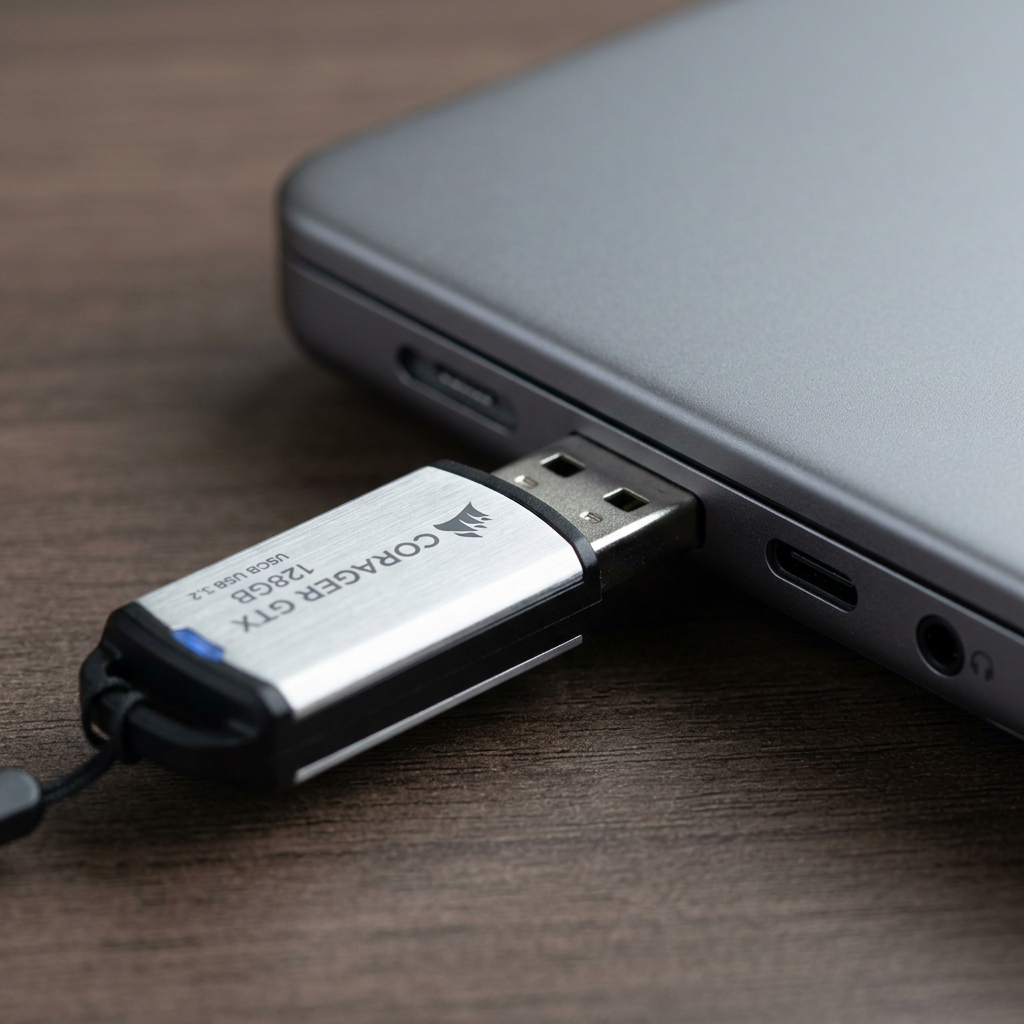
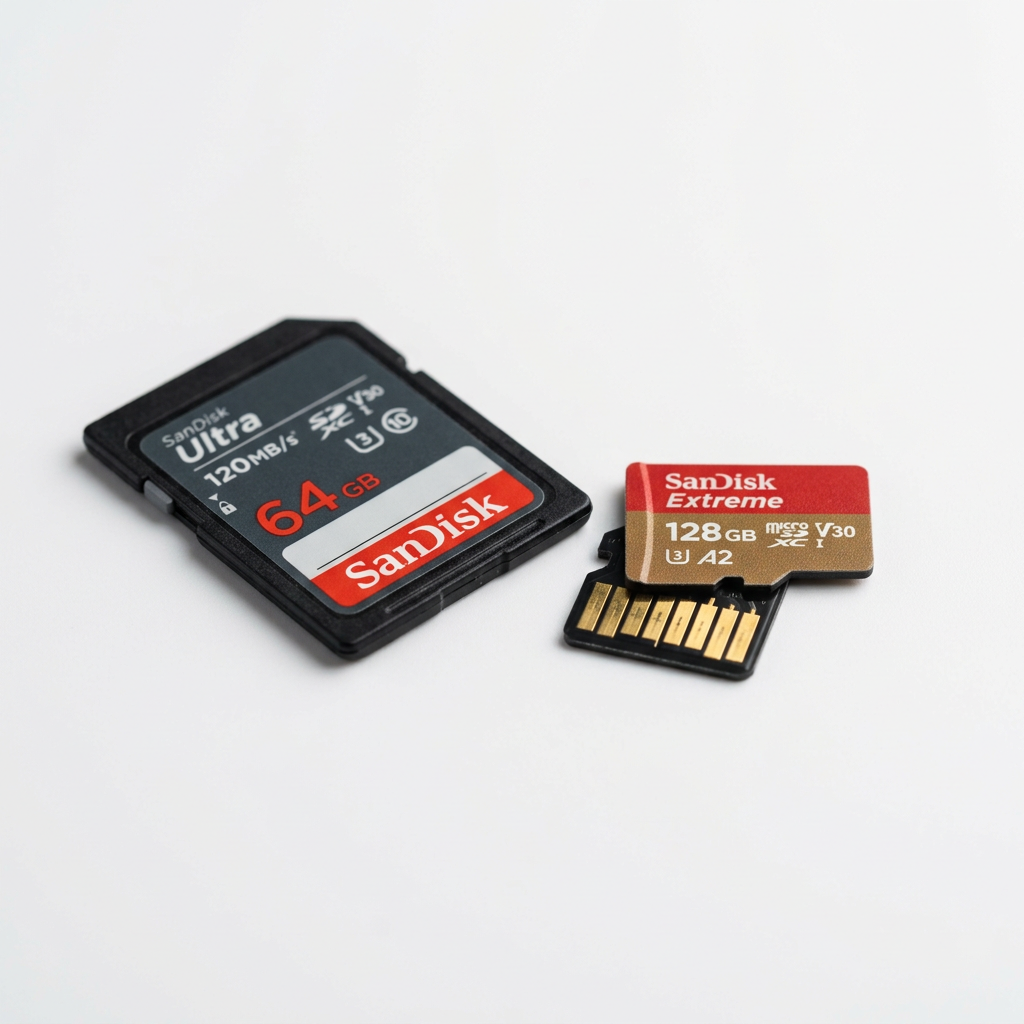
These are common with photographers, drone users and field workers. If the card asks to be formatted, stop using it immediately. Continued shooting or file transfer attempts can overwrite deleted content. With flash media, there is often less margin for error than people expect.
What to avoid during Mac data recovery
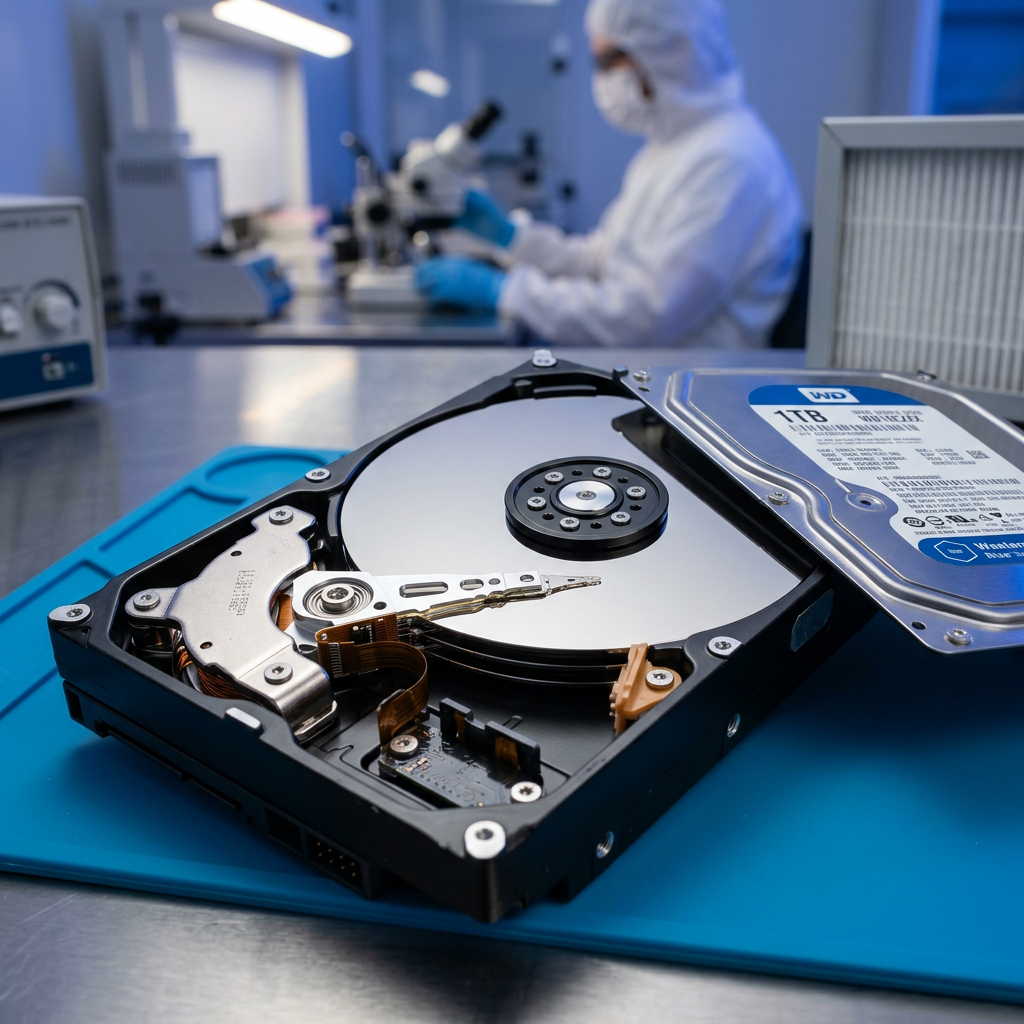
The biggest risks usually come from well-meant actions taken in a panic. Formatting a drive because macOS says it is unreadable, reinstalling macOS over the affected disk, running multiple repair tools one after another, and opening a failed hard drive outside a controlled lab environment are all classic ways to turn partial loss into permanent loss.
Be careful with online advice that treats recovery as universal. Mac storage has changed significantly over the years. T2 security chips, Apple silicon architecture, APFS snapshots, TRIM behaviour on SSDs, and hardware integration all affect what is possible. Sometimes a method is sound for one machine and the wrong choice for another.
It also depends on how valuable the data is. If you are trying to recover a few downloaded files, your risk tolerance is different from a business trying to recover project archives or a family trying to save years of photos. The recovery path should reflect that.
Building better protection after recovery
Once files are restored, the next job is reducing the chance of going through it again. For most Mac users, that means a proper backup routine rather than a vague plan to sort it out later.
Time Machine is a solid starting point, but one backup is not always enough. External drives can fail. Laptops can be stolen. Sync services can also replicate deletions. A sensible setup usually includes local backup plus a separate copy that is not always connected.
For small businesses, creatives and professionals, backup planning should match operational risk. A freelance videographer, a medical practice and a design studio do not all need the same schedule or storage setup. What they do need is a tested recovery path, not just a backup device sitting on a shelf.
The best result in any data loss case is still early restraint. If your Mac files disappear, your drive starts acting strangely, or your machine suddenly stops booting, resist the urge to keep trying random fixes. Careful first steps preserve options, and preserved options are what give recovery the best chance.