


A hard drive usually gives you a warning before it fails completely. Files take longer to open, folders disappear, the computer freezes during startup, or you hear clicking from the drive itself. If you are searching for how to recover hard drive data, the first priority is not software - it is avoiding further damage.
That matters because the wrong next step can turn a recoverable problem into permanent data loss. A drive with logical corruption may respond well to careful recovery software. A drive with physical damage can deteriorate quickly if it is repeatedly powered on, scanned, or opened outside a controlled environment. Knowing the difference saves time, money, and in many cases the data itself.
How to recover hard drive data without making it worse
The safest first move is to stop using the affected drive immediately. Do not save new files to it, do not install recovery programs onto it, and do not keep rebooting in the hope that it will suddenly behave. Every new write can overwrite deleted data, and every extra read attempt can place more stress on a failing mechanism.
If the drive is external, disconnect it properly and set it aside. If it is inside a desktop or laptop, shut the machine down. Where the lost data is business-critical, sentimental, or difficult to replace, caution is far more valuable than speed.
From there, think about the kind of failure you are dealing with. In practical terms, hard drive data loss usually falls into three categories: deleted files, logical damage, or physical failure. Deleted files might still exist on the drive until they are overwritten. Logical damage includes corrupted file systems, accidental formatting, partition loss, and drives that appear as RAW or inaccessible. Physical failure includes clicking, grinding, burning smells, water damage, drops, power surges, or a drive that does not spin up properly.
Start by identifying the type of hard drive problem
A drive that is detected by your computer, shows the correct capacity, and stays reasonably stable may be suffering from a logical issue rather than a hardware one. You might see error messages asking you to format the disk before use, or the operating system may show the drive but not allow access to files. In these cases, software-based recovery can be appropriate if handled carefully.
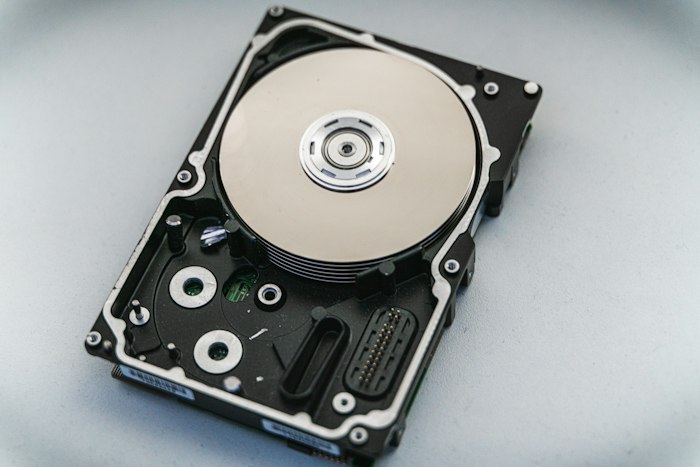
A drive that clicks, disappears intermittently, reports wildly incorrect capacity, spins down unexpectedly, or causes the whole system to hang is a different story. That behaviour often points to internal hardware faults, damaged heads, firmware issues, or platter problems. DIY software is unlikely to help and can make professional recovery more difficult by pushing a damaged drive too hard.
There is also the middle ground. Some drives begin with logical-looking symptoms but are actually deteriorating physically. That is why repeated scans are risky. If the drive becomes slower, hotter, noisier, or less detectable during your attempts, stop.
When DIY recovery is reasonable
DIY recovery makes sense when the drive is stable, quiet, recognised correctly, and the data is important but not irreplaceable. It is best suited to accidental deletion, recently emptied recycle bins, and some cases of file system corruption.
Before you do anything else, prepare a second storage device with enough free space to hold the recovered data. Never recover files back onto the same hard drive. Doing so can overwrite exactly what you are trying to retrieve.
If possible, create a sector-by-sector image of the affected drive first and work from that copy rather than the original. This is a more cautious approach because it preserves the current state of the drive and reduces repeated access to the source media. Imaging is especially useful when a drive is still readable but showing early signs of instability.
Recovery software can then scan the image or the source drive for deleted files, lost partitions, or damaged file system records. Results vary. A clean deletion from a healthy drive may yield excellent recovery. A drive that has been used heavily since the loss may return partial or corrupted files. The main point is to keep the process controlled and avoid unnecessary write activity.
When not to try recovery software
There are clear situations where software is the wrong tool. If the hard drive is clicking, beeping, not spinning, has suffered impact damage, or was exposed to water or fire, do not keep powering it up. If the computer freezes when the drive is connected, that is another warning sign. So is a burnt smell or visible PCB damage.
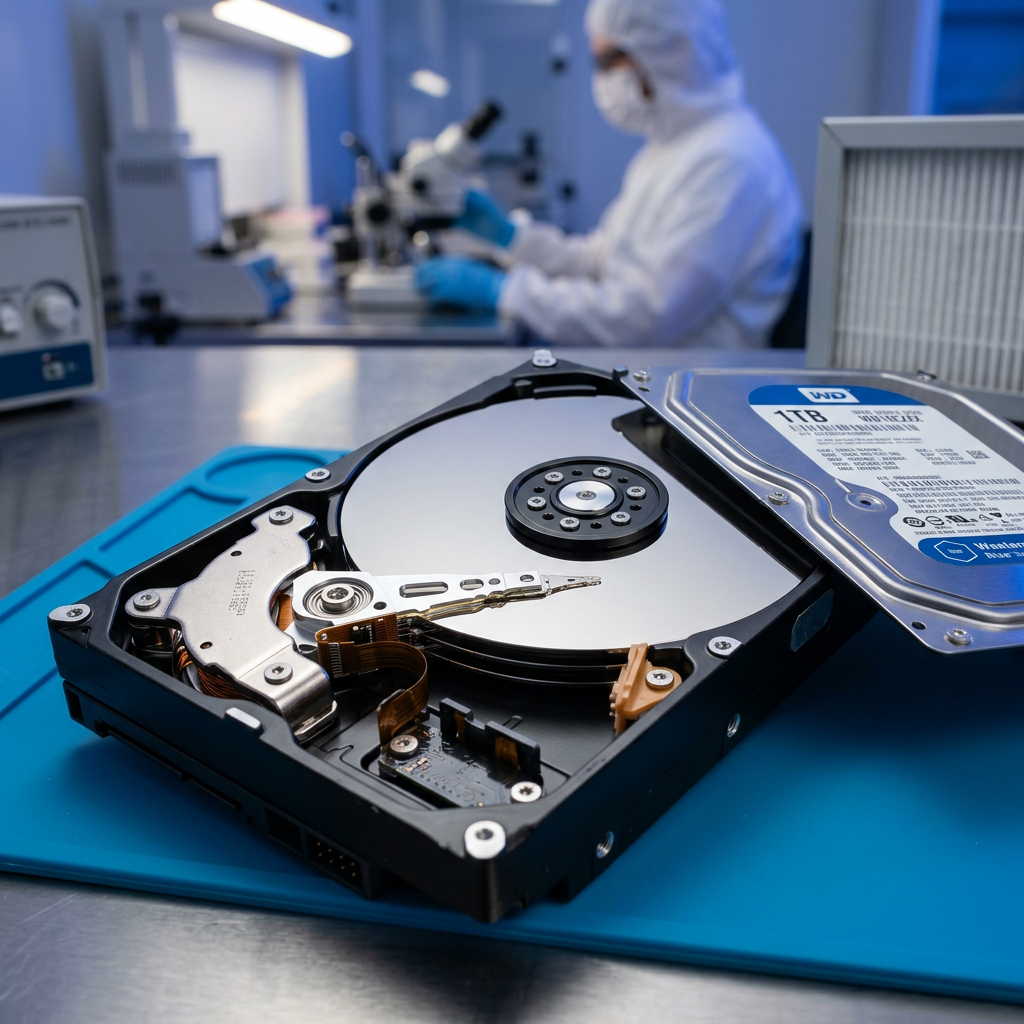
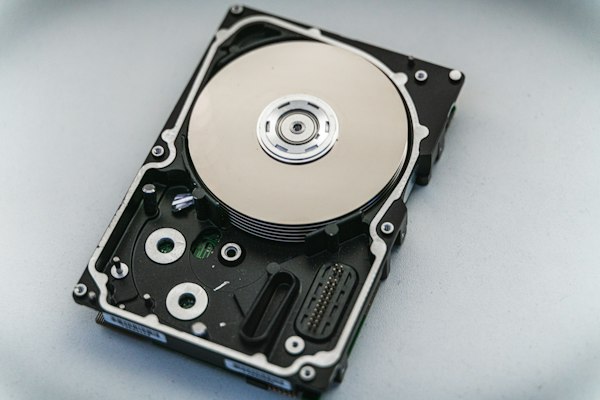
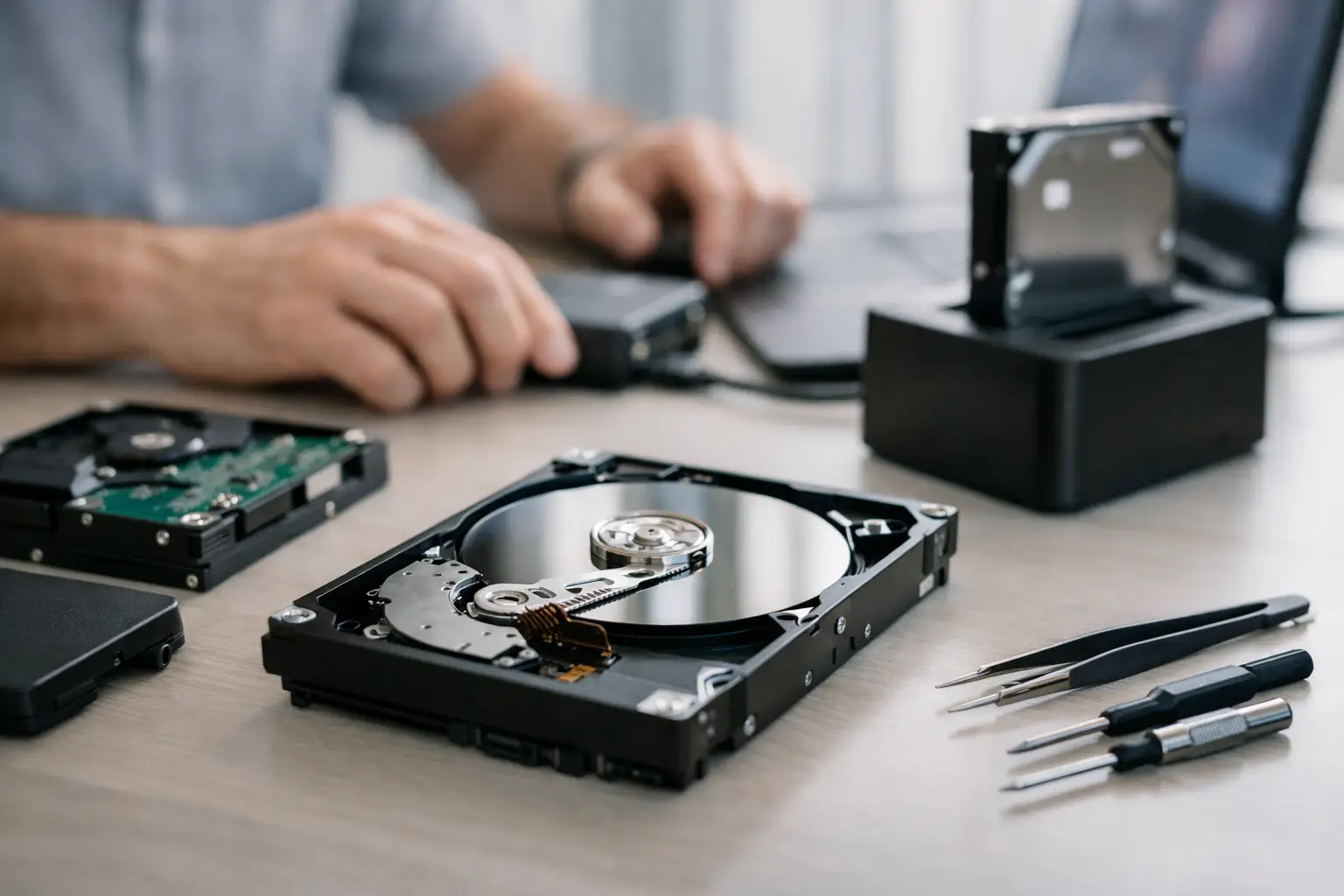
These faults usually require specialist diagnostics, controlled parts handling, firmware tools, or cleanroom procedures. Opening a hard drive on a kitchen table or office desk is not a shortcut. Even a small amount of dust contamination can damage platters and reduce recovery chances.
This is also where the value of a professional service becomes clear for businesses and time-sensitive cases. If the lost data includes accounting records, project files, legal documents, surveillance footage, creative work, or family photos with no backup, the cost of a failed DIY attempt can be far higher than the cost of doing it properly from the start.
Common hard drive data loss scenarios
Not every recovery job looks the same. A dropped external hard drive from a home office, a formatted photographer’s backup drive, and a business file server with a failed RAID member all need different handling.
For home users, the most common issue is an external USB drive that suddenly becomes inaccessible or prompts for formatting. Sometimes the data is still intact and only the partition structure is damaged. Sometimes the enclosure or cable has failed rather than the drive itself. Testing with a known-good cable, power supply, or enclosure can help, but only if the drive shows no signs of physical distress.
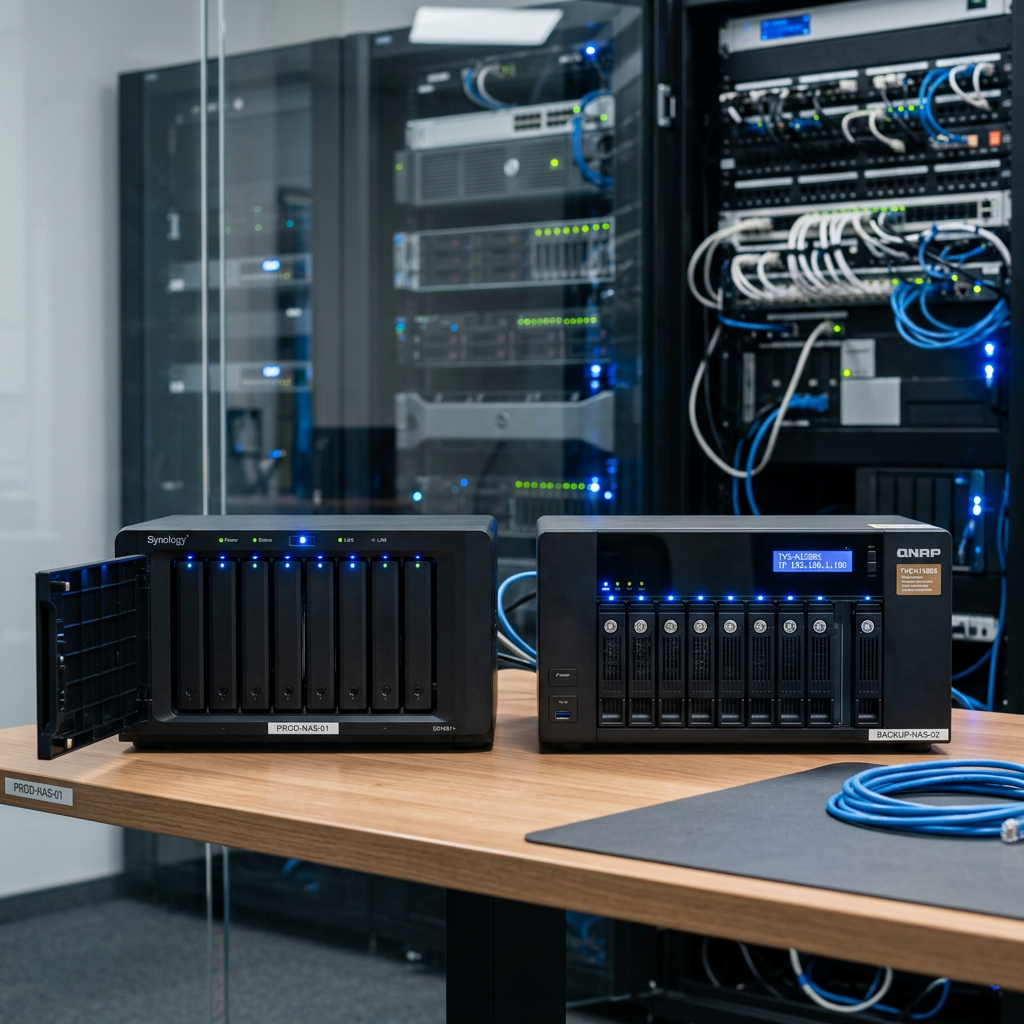
For businesses, failure often involves larger consequences. A single bad disk in a server environment can affect multiple staff, halt shared access, and create pressure to get the system running again quickly. That urgency can lead to mistakes such as rebuilding over the wrong disk, forcing initialisation, or continuing to run degraded storage for too long. Where NAS and RAID systems are involved, careful assessment matters because the risk is not limited to one file set - it can affect the entire array.
What professional recovery actually involves
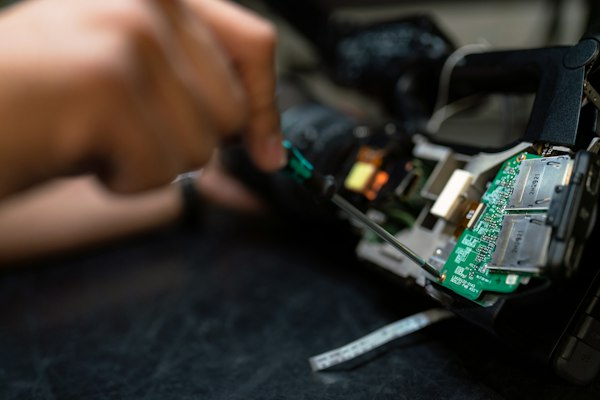
Professional recovery is not just running better software. In many cases it begins with diagnosis to determine whether the issue is logical, electrical, firmware-related, or mechanical. The right process may involve repairing electronics, accessing the drive through specialised hardware, stabilising firmware, imaging weak sectors in a controlled sequence, or transplanting parts under clean conditions.
That technical workflow is why high-stakes recoveries are often still possible even after a drive stops responding normally. It is also why DIY fixes found in forums can be so misleading. Tricks such as freezing a drive, tapping it, or swapping boards without matching firmware are unreliable at best and destructive at worst.
For Canberra customers and organisations across Australia, specialist providers such as RecoveryGeeks are typically engaged when the drive has failed physically, the data is business-critical, or previous software attempts have not worked. The key advantage is not only equipment, but judgement - knowing when to image first, when to avoid powering a device, and how to preserve recoverable data during the process.
How to improve your chances before handing the drive over
If you decide the job needs professional help, keep the drive powered off and package it carefully. Use anti-static protection if available, add padding, and avoid loose transport. Label the symptoms clearly. Notes such as clicking after a drop, accidental format, or not detected after a power outage can help guide the initial assessment.
It also helps to be specific about what data matters most. If there are priority folders, business databases, family photos, or project directories, say so early. Recovery is often about triage as much as technology, especially when a drive is unstable.
Be honest about any previous attempts. If software has already been run, if the drive was opened, or if boards were swapped, that context matters. It does not always prevent recovery, but it changes the technical picture.
The recovery decision is really about risk
When people ask how to recover hard drive data, they are usually asking two questions at once. Can the files be recovered, and should I try this myself? The answer depends on the symptoms, the value of the data, and how much risk you can afford.
If the drive is healthy enough for a controlled software attempt, DIY may be reasonable. If the drive is physically failing or the files are too important to gamble with, stop early and get expert advice. The best recovery outcomes often come from restraint, not persistence.
A failed hard drive is stressful, but it is not automatically the end of the story. The smartest next step is the one that protects what is still there.