


When a computer suddenly stops powering on, most people assume the files are gone with it. In many cases, that is not true. If you need to know how to recover hard drive data from dead computer hardware, the key is to separate the failed computer from the storage device and avoid anything that could make the damage worse.
A dead computer does not always mean a dead hard drive. The fault may sit with the power supply, motherboard, charging circuit, screen, or another component entirely. That distinction matters, because if the drive itself is still healthy, recovery can be straightforward. If the drive has also failed, the right next step is very different.
How to recover hard drive data from dead computer systems safely
The first priority is to stop guessing and start ruling things out. If the machine is making no sign of life at all, resist the urge to repeatedly power it on. Repeated start attempts can stress a failing drive, especially if you hear clicking, grinding, or repeated spin-up sounds.
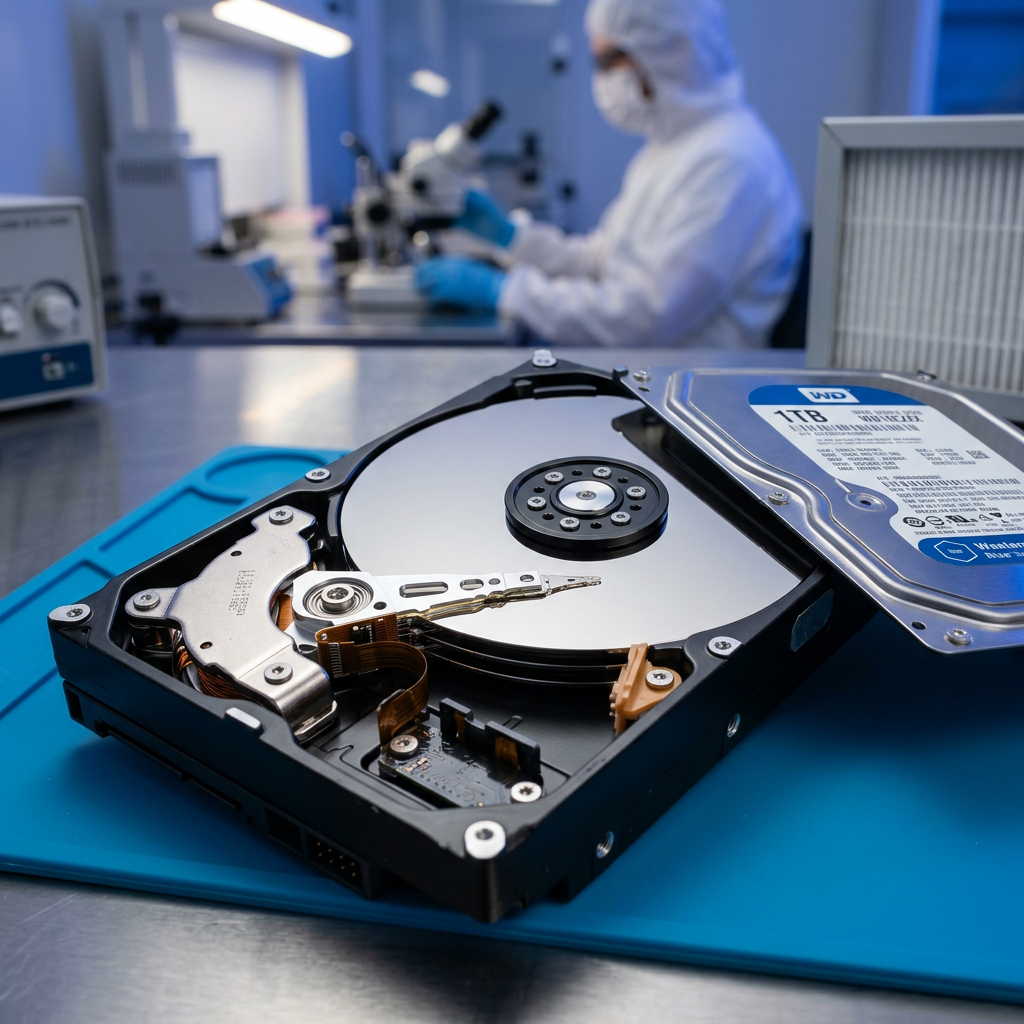
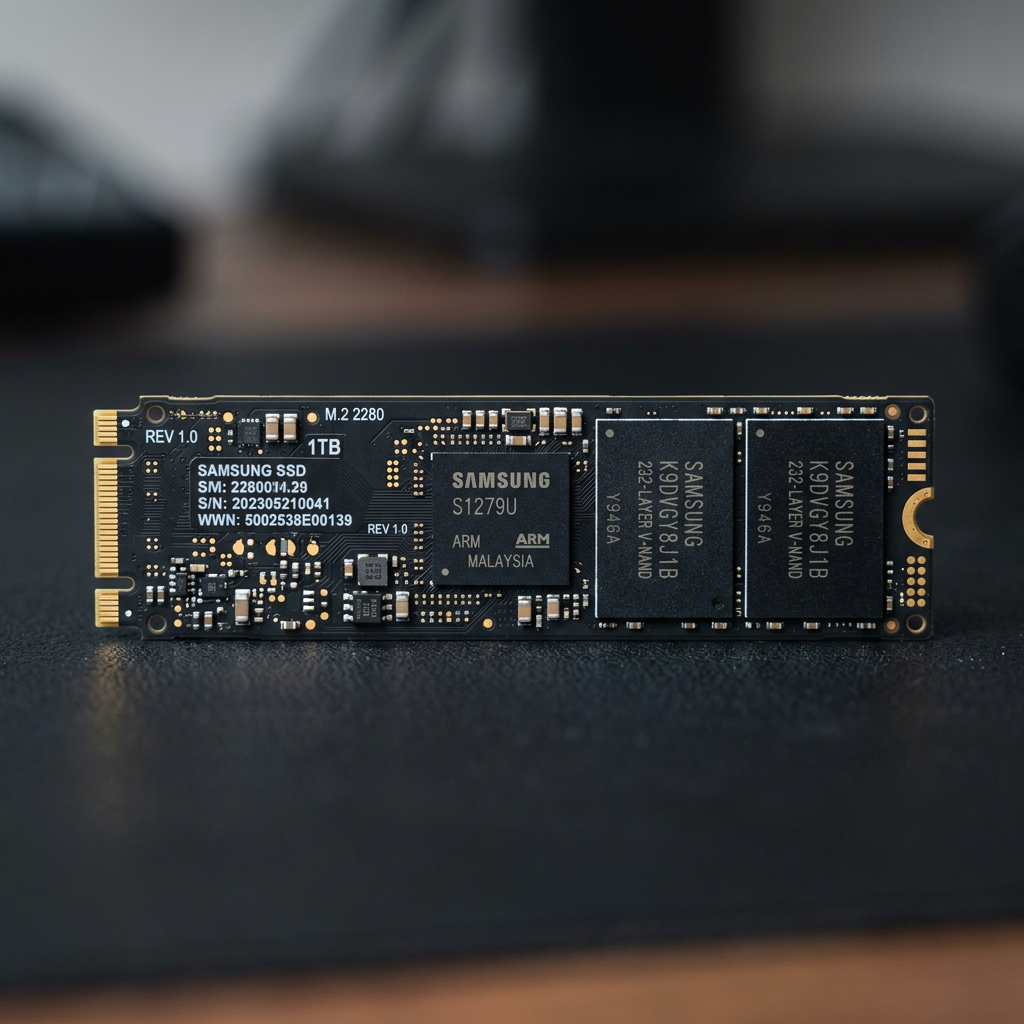
Before touching the storage device, confirm what type of drive the computer uses. Older desktops and laptops usually contain a 3.5-inch or 2.5-inch hard disk drive. Newer systems may use a 2.5-inch SSD or an M.2 NVMe or SATA SSD mounted directly to the motherboard. The recovery method depends on that format.
If the computer died after a liquid spill, power surge, drop, or overheating event, be more cautious. Physical trauma and electrical damage can affect both the computer and the drive. In those cases, a quick DIY attempt may turn a recoverable situation into a more serious one.
Step 1: Work out whether the issue is the computer or the drive
A computer can be "dead" in several ways. It may not power on at all, it may light up but show nothing on screen, or it may boot into BIOS but not into the operating system. These scenarios point to different causes.
If there are no lights, no fan movement, and no startup sound, the failure may be with the power supply, battery, charging port, or motherboard. That often means the internal drive is still intact. If the system powers on but the drive is missing from BIOS, makes unusual noises, or causes freezing during startup, the storage device itself may be the problem.
That distinction tells you whether your best option is drive removal and file access, or a proper data recovery assessment.
Step 2: Remove the drive carefully
If you are comfortable working with hardware, shut everything down fully and disconnect the machine from power. For a laptop, remove the charger and battery if possible. Ground yourself to reduce static risk.
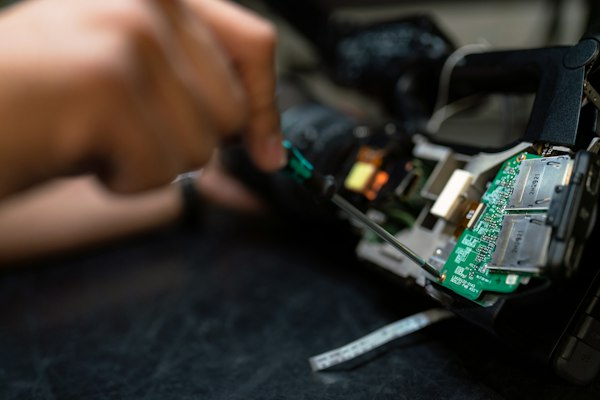
Then remove the hard drive or SSD carefully. Avoid force. Desktop drives are usually simple to disconnect, while some laptops require far more disassembly. Apple devices and ultra-thin laptops can be significantly harder, and some storage is soldered or secured in ways that make casual removal risky.
If you are not confident, this is the point where professional help makes sense. Damage caused during removal is common, especially with fragile connectors, flex cables, and compact internal layouts.
Accessing data from a removed drive
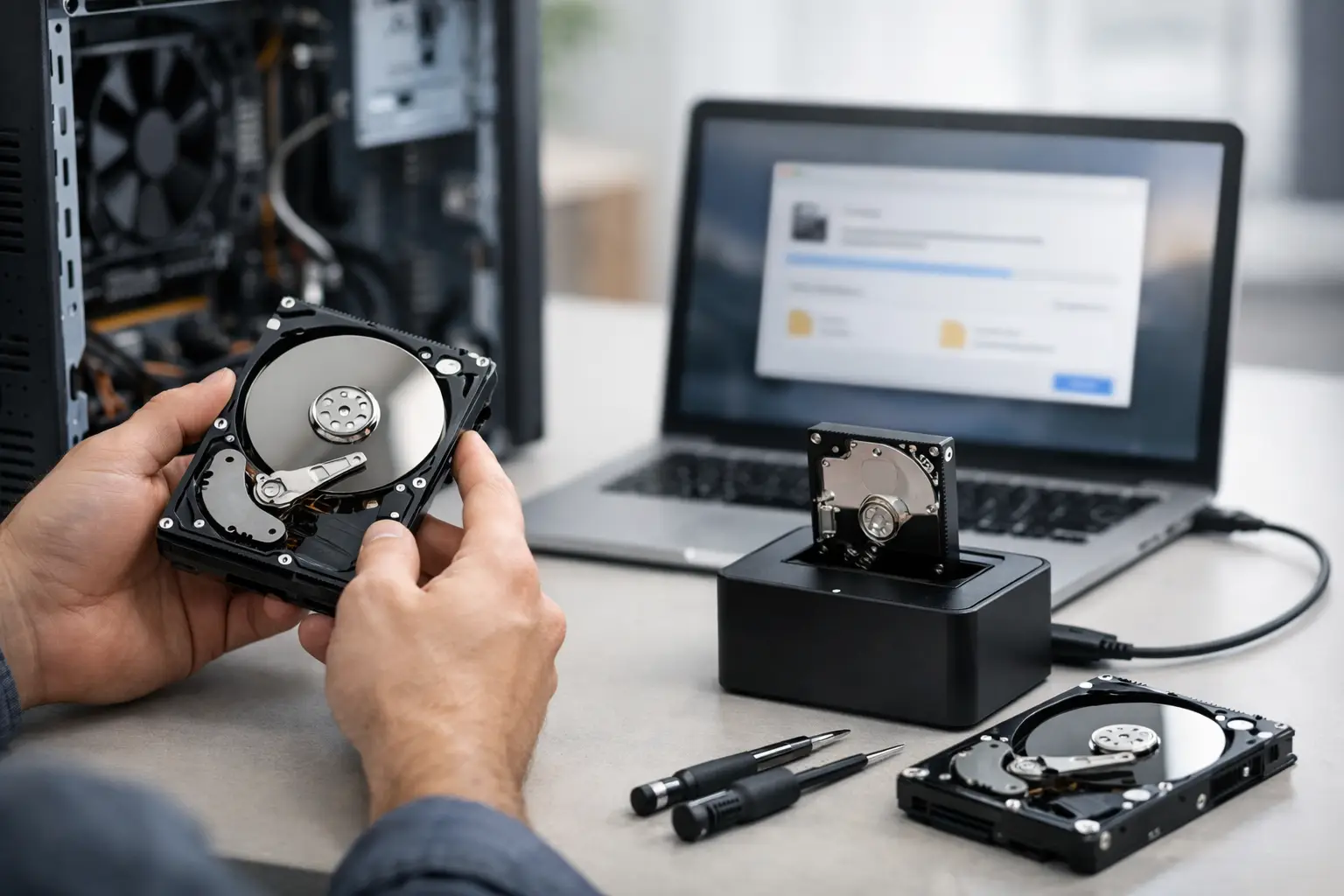
Once the drive is out, the usual next move is to connect it to a working computer. For standard SATA hard drives and 2.5-inch SATA SSDs, this is often done with a USB-to-SATA adapter, external enclosure, or docking station. For M.2 drives, you need the correct enclosure or adapter for the exact interface type, because NVMe and SATA M.2 are not interchangeable.
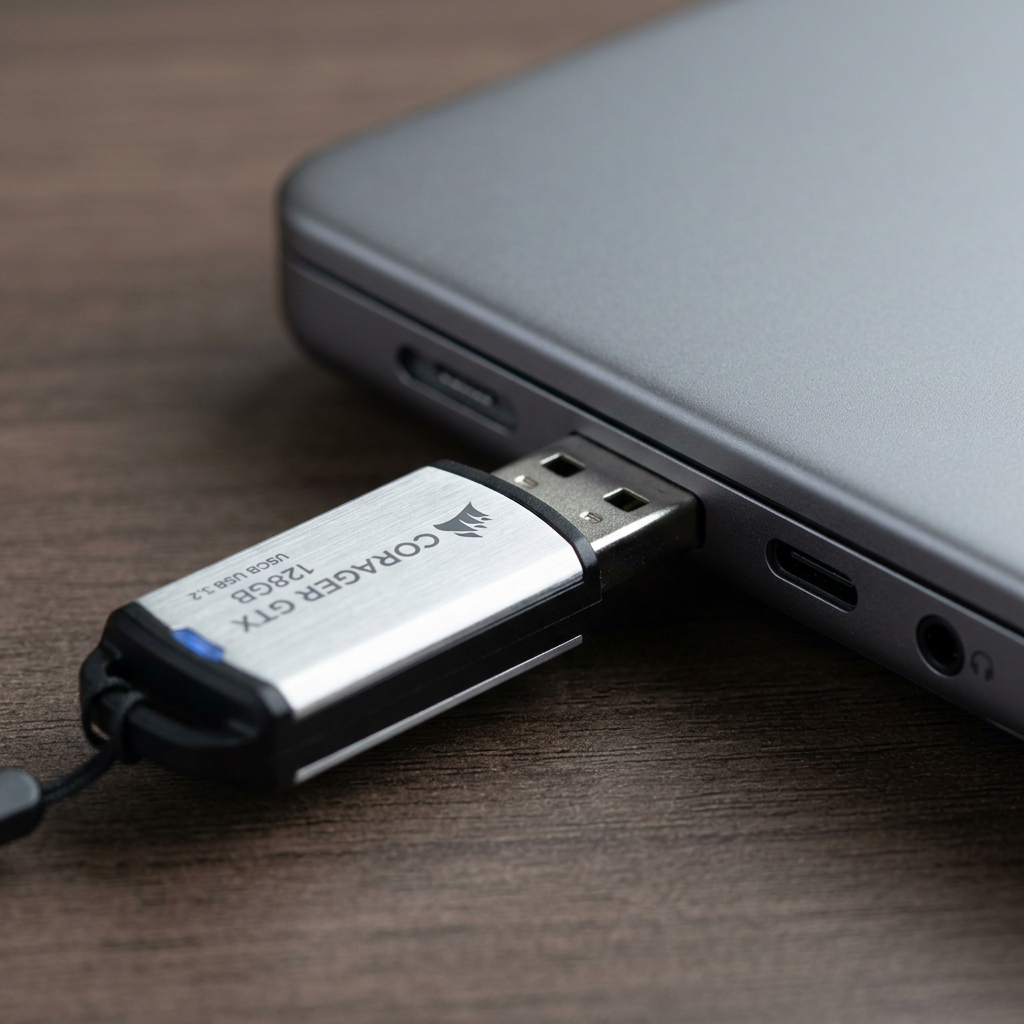
When connected, the host computer may detect the drive automatically. If it appears normally and files are accessible, copy the most important data first. Start with business records, irreplaceable photos, project files, client documents, and anything else that cannot be recreated. Leave large media libraries and non-essential software files until later.
If the drive appears but access is slow, inconsistent, or triggers errors, do not keep browsing through folders for hours. A failing drive can deteriorate rapidly under load. The safer approach is to create a sector-by-sector image or have the drive assessed before more damage occurs.
If the drive asks to be formatted
Do not format it. That message usually means the file system is corrupted, the partition is damaged, or the drive is not being read correctly. Formatting can overwrite critical metadata and complicate recovery.
The same applies if Windows suggests repairing the drive immediately. Built-in repair tools can help in minor logical cases, but they can also cause further issues if the problem is physical or if the file system damage is more severe than it first appears.
If the drive is BitLocker or FileVault protected
Encryption changes the situation. You may be able to access the data only if you have the recovery key, password, or original user credentials. Without those, even a healthy drive may remain inaccessible. This is not a drive failure problem so much as a security barrier, and it needs to be treated that way.
When DIY recovery is reasonable
There are cases where a do-it-yourself approach is entirely sensible. If the computer itself has failed but the removed drive connects normally, mounts cleanly, and allows file copying without strange behaviour, a basic recovery may be all you need.
This is more likely when the problem sits with the power supply, motherboard, laptop screen, or battery rather than the storage device. It also helps if the drive has no history of slowing down, disappearing, clicking, or causing blue-screen crashes before the computer died.
In that situation, the goal is not to test the drive extensively. It is simply to retrieve the data as quickly and safely as possible, then retire or properly assess the old storage device.
When not to keep trying
There is a point where continued DIY effort becomes expensive. If the drive clicks, buzzes, spins down repeatedly, fails to identify, smells burnt, or only appears intermittently, stop. Those signs often indicate internal mechanical failure, firmware issues, electronic damage, or degraded heads and platters.
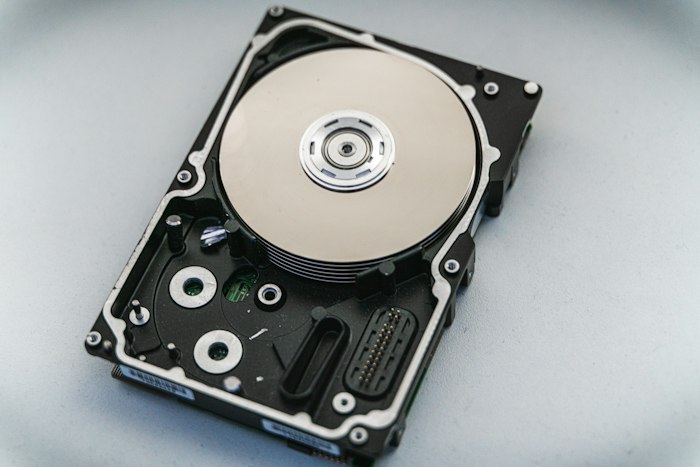
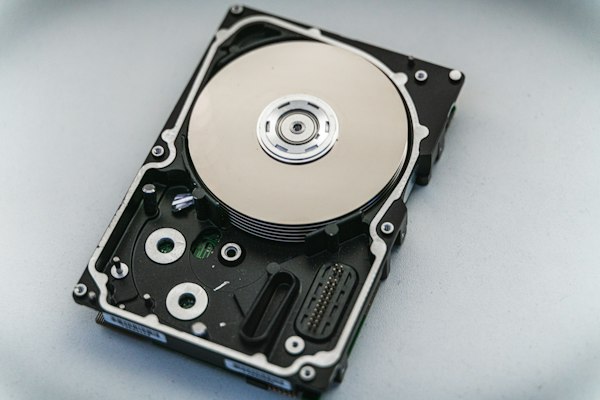
Hard drives are especially vulnerable here. Opening them outside a controlled clean environment almost always leads to contamination and worse damage. Freezer tricks, tapping the drive, swapping random circuit boards, and repeatedly reconnecting it are all common mistakes that reduce recovery chances.
SSDs can be just as deceptive. They often fail without warning and may not produce obvious noises. A dead SSD may involve controller failure, firmware corruption, power damage, or NAND issues. Because SSD behaviour is more complex than many users expect, repeated home attempts can also make matters worse.
How to recover hard drive data from dead computer after physical damage
If the computer has been dropped, exposed to water, hit by a surge, or involved in a fire or severe overheating event, treat it as a high-risk recovery case. Do not dry a drive with a hair dryer, do not apply power to a wet device, and do not keep testing it to see if it comes good.
Physical and environmental incidents often create hidden damage. A machine may look recoverable while the drive electronics or internal components have already been compromised. In these cases, stabilising the device and arranging proper assessment is usually the safest path.
What a professional recovery service actually does
Professional recovery is not just "trying harder" than a home user. It usually involves controlled diagnostics, safe imaging methods, specialised hardware access, firmware-level work, and, for mechanical hard drives, clean environment procedures where required.
That matters for home users with family photos and for businesses facing downtime, lost accounts, damaged project files, or inaccessible shared data. A good recovery process is designed to preserve the original media, minimise further degradation, and extract data in a structured way rather than through trial and error.
For Canberra clients and customers across Australia, a specialist service such as RecoveryGeeks can assess whether the issue is logical, electrical, firmware-related, or mechanical, then choose the least destructive path to recovery.
What to do once your data is back
After recovery, do not put the returned data straight back onto the same suspect drive. Save it to a new, healthy storage device first. Then set up a proper backup routine. For most people, that means at least one local backup and one separate copy kept offsite or in the cloud.
If the failed computer belonged to a business, use the incident as a prompt to review backup frequency, endpoint coverage, and whether key data is tied too closely to one workstation. Many urgent recoveries happen not because the failure was rare, but because there was no current backup when it mattered.
The good news is that a dead computer and lost files are not always the same problem. The bad news is that the wrong recovery attempt can join them together. If the drive is healthy, act quickly and copy what matters. If it shows any sign of real failure, preserve it carefully and get proper advice before the situation gets harder to fix.