



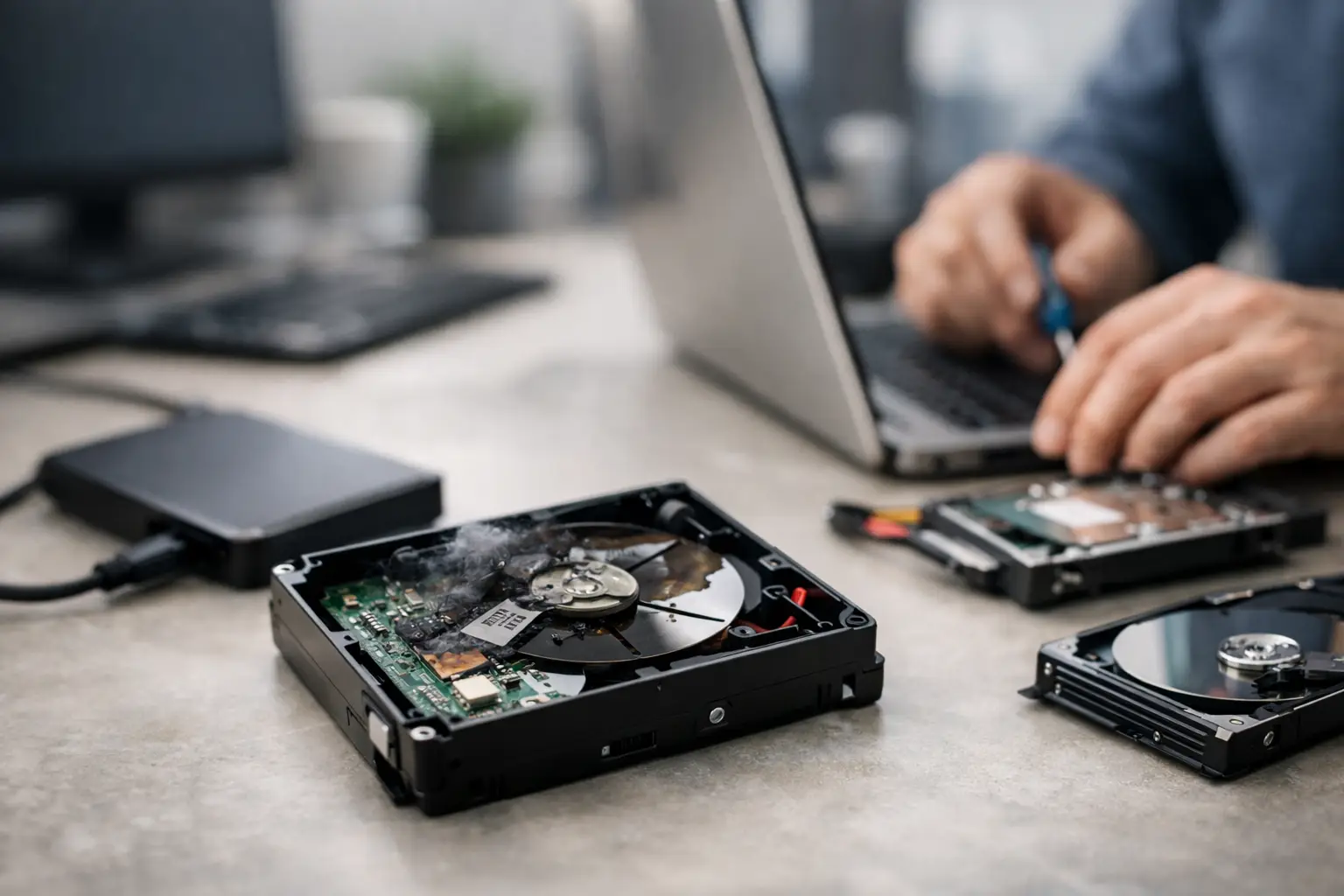
An external drive can appear to fail without warning: a folder refuses to open, the drive asks to be formatted, or it disappears halfway through a backup. This guide to external drive failure explains what those symptoms can mean, what to do first, and when stopping is the best way to protect recoverable data. Whether the drive holds family photos, client work or essential business records, the early decisions matter.
Guide to external drive failure: take the right first steps
If the drive is making clicking, grinding, beeping or repeated spin-up and spin-down sounds, disconnect it immediately. Mechanical hard drives can suffer internal damage, and every additional attempt to start a damaged drive may worsen the condition of the platters or read heads.
For a drive that is silent but not recognised, avoid repeatedly reconnecting it or trying every available recovery program. Check the basics once: use a known-working cable, connect directly to another USB port, and, if possible, test it on a second computer. Desktop external drives with their own power adaptor should also be checked with the correct compatible power supply. A faulty cable, port or enclosure can look exactly like a failed drive.
Do not initialise, format or repartition a drive simply because your computer suggests it. These prompts often appear when the file system has been damaged or the partition information cannot be read. Formatting may not always make recovery impossible, but it can overwrite information that helps identify and reconstruct your files.
If the drive becomes accessible, copy the most important files first to a different storage device. Start with documents, databases, photos, videos and current project folders rather than attempting a full tidy-up or running a backup that could stall midway. If copying produces read errors, slows dramatically or repeatedly disconnects, stop the transfer.
What causes an external drive to fail?
External drive failure is not one single fault. The external enclosure, USB cable, power delivery, drive firmware, file system and the storage device itself can all be responsible. Identifying the likely layer of failure helps determine whether a simple replacement part is appropriate or whether professional recovery is safer.
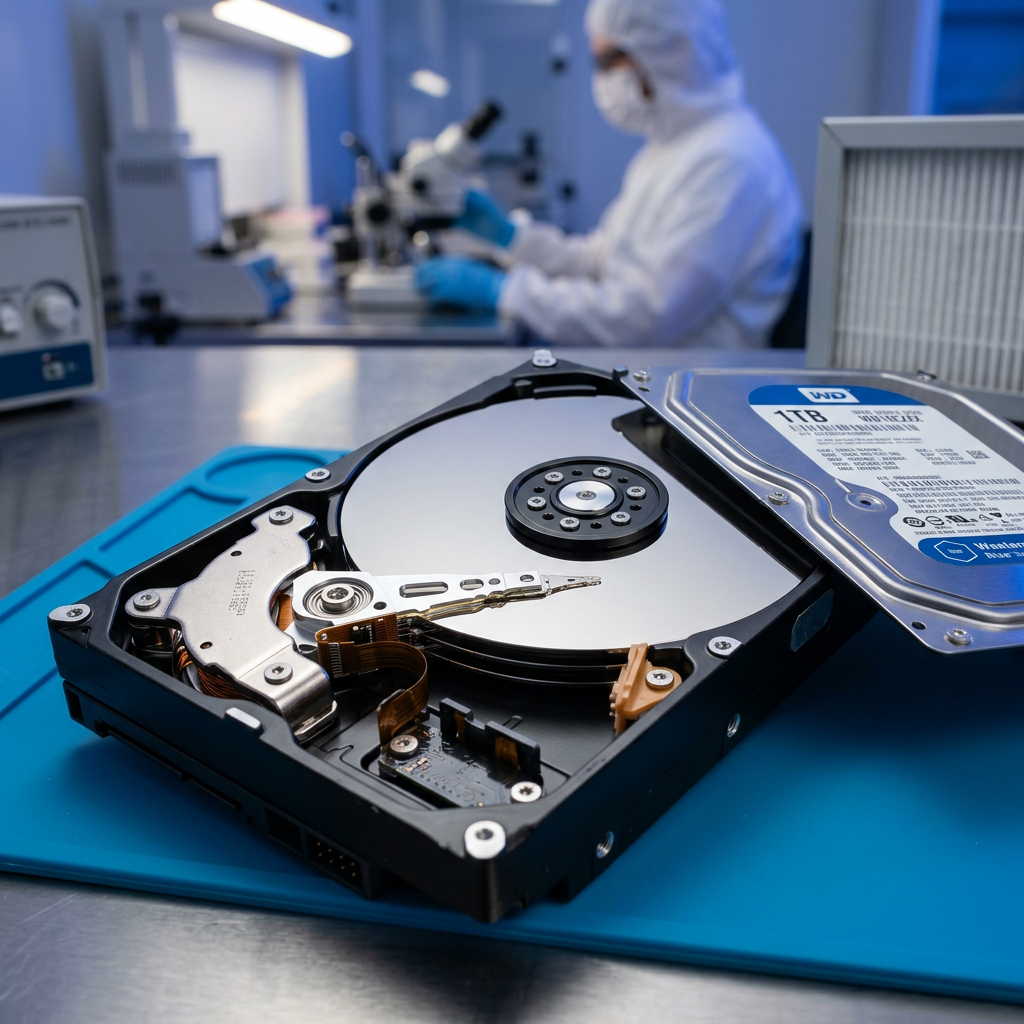
Traditional external hard drives contain spinning magnetic platters and moving heads. They are vulnerable to drops, knocks, wear, overheating and power interruptions. A drive that was knocked off a desk, moved while operating, or suddenly lost power may have physical damage even if its casing looks fine.
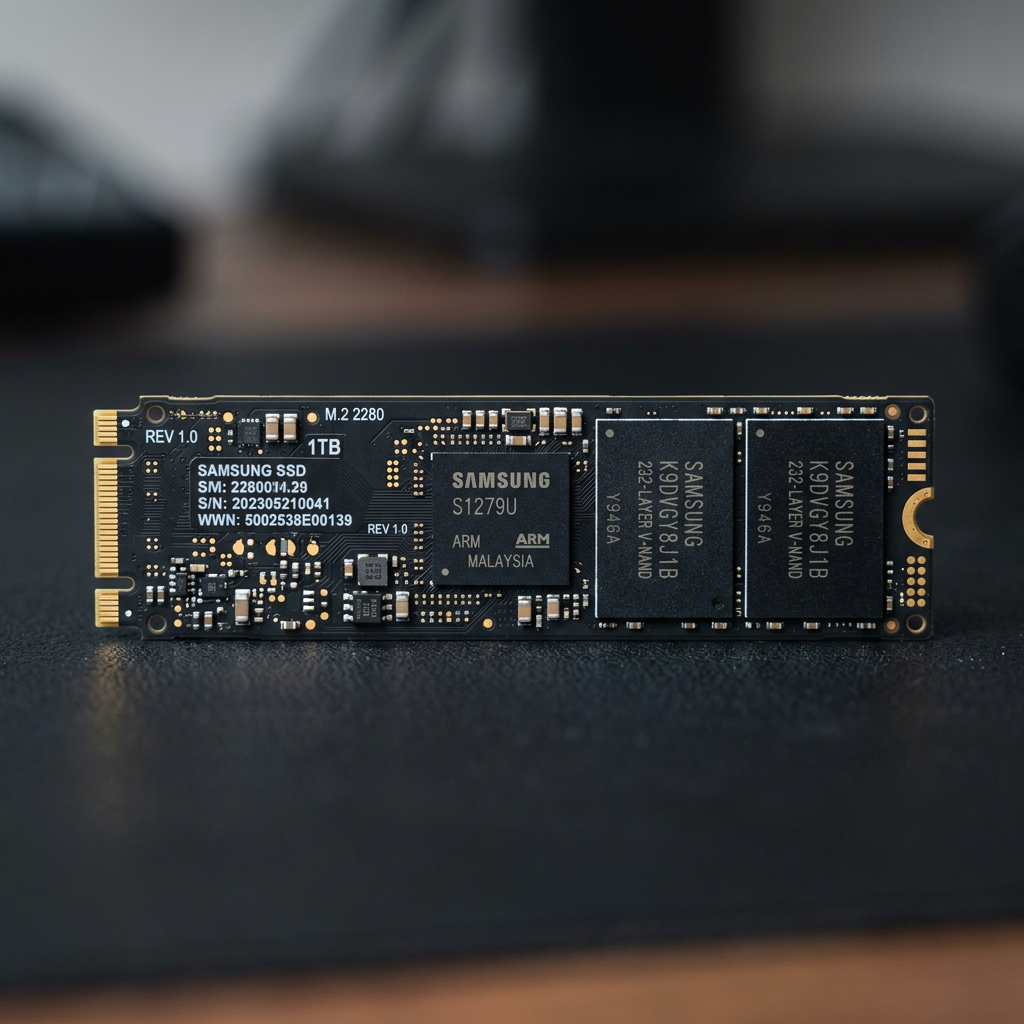
External SSDs have no moving parts, but they are not immune to failure. Their controllers, flash memory, firmware and USB interfaces can fail suddenly. SSD data recovery can be more time-sensitive because some systems issue TRIM commands that remove data blocks after files are deleted or file system changes occur.
Logical damage is another common cause. Unsafe ejection, a computer crash, malware, interrupted file transfers or file system corruption can leave a healthy drive inaccessible. In these cases, the device may still appear in Disk Management or Disk Utility but show as RAW, unallocated, unreadable or in need of formatting.
Warning signs that should not be ignored
A slow external drive is not automatically failing, particularly when transferring large video files or working through a slower USB connection. However, a noticeable change in normal behaviour deserves attention. Files that take minutes to open, folders that freeze File Explorer or Finder, and repeated error messages can indicate the drive is struggling to read data.
For a hard disk drive, clicking or rhythmic ticking is a serious warning sign. So are scraping sounds, a drive that does not spin up, or one that disconnects whenever it is accessed. Avoid placing the drive in a freezer, opening the casing or striking it to make it work. These internet fixes can turn a recoverable fault into a more complex recovery case.
A drive that appears with the wrong capacity, reports zero bytes, has a generic name, or requests formatting may have firmware, partition or file system damage. Similarly, an external SSD that is detected intermittently or becomes read-only should be treated carefully. Continued write activity can reduce recovery options.
Is the external enclosure the problem?
An external drive is often an internal SATA hard drive or SSD installed in a USB enclosure. The enclosure board can fail while the storage drive remains intact. A failed USB bridge board, loose connector or damaged cable may prevent a perfectly healthy drive from mounting.
Testing another cable and computer is reasonable, provided the drive is not showing signs of physical failure. Replacing the enclosure is more complicated. Some manufacturers use hardware encryption built into the original USB board, even where the owner never set a password. Removing the drive and placing it in a different enclosure can then make the data appear unreadable.
This is why an enclosure swap should not be treated as a universal fix. If the data is valuable, preserve the original enclosure, cable and power adaptor with the drive. They can be relevant during assessment and recovery.
When recovery software can help - and when it can hurt
Software recovery tools can be useful for an external drive with a stable connection, no physical symptoms and a logical problem such as accidental deletion or a damaged file system. The safest approach is to create a sector-by-sector image of the drive first, then perform recovery work from that copy. Recovery should always save files to a separate device, never back onto the affected drive.
The trade-off is that consumer software usually needs the drive to remain readable for a long period. If a hard drive has bad sectors, clicking sounds or unstable detection, a scan can place considerable stress on already failing hardware. Tools such as CHKDSK, repair utilities and file system repair commands can also modify structures on the drive. They may restore access in some cases, but they can make later reconstruction of folders and filenames more difficult.
For business drives, the risk is higher. A single external disk may contain accounting records, design files, legal documents or years of archived work. If there is no verified backup, treat the drive as the only copy until proven otherwise.
When to seek professional data recovery
Professional assessment is the sensible next step when an external drive has physical symptoms, cannot be detected reliably, has suffered impact or liquid exposure, or contains data that cannot be replaced. It is also appropriate when software has failed, the drive was formatted unexpectedly, or you need a clear understanding of recovery prospects before further attempts are made.
A specialist recovery process may involve diagnosing the drive electronics, imaging unstable media with controlled hardware, rebuilding damaged file systems, or addressing firmware and component faults. The correct method depends on the device and failure type. A desktop hard drive, portable USB drive and external SSD do not present the same recovery challenges.
For complex cases, keep notes on what happened before the failure: whether the drive was dropped, whether it was connected to a Mac or Windows computer, any error messages seen, and whether recovery software has already been run. This information can help guide assessment. RecoveryGeeks provides expert professional data recovery for external drives and other storage devices for Canberra customers and clients across Australia.
Reducing the chance of another failure
External drives are useful for backup, transport and extra capacity, but they should not be the sole home for important files. Keep at least one separate backup and, for critical personal or business data, maintain another copy stored away from the primary device. The best backup arrangement depends on your workload, budget and privacy requirements, but separation is what protects against a single failure.
Use the operating system's eject function before disconnecting a drive, especially after large transfers. Keep portable drives in a protective case, avoid moving hard drives while they are operating, and replace cables that feel loose or show visible wear. For drives used constantly in an office, monitor their health and refresh ageing hardware before it becomes the only place a vital archive exists.
When an external drive starts behaving differently, treat it as an early warning rather than an inconvenience. A calm pause, a protected copy where possible, and the right technical help can make the difference between a short interruption and permanent data loss.