


A drive that was working yesterday can suddenly vanish from your computer just when you need a client folder, family photos or a project archive. This external drive not detected guide helps you separate a simple connection problem from a failure where further attempts could put your data at greater risk.
The priority is not getting the drive working at any cost. It is protecting the data on it. Avoid formatting, initialising or repeatedly restarting a drive that contains files you cannot replace. Those prompts can appear harmless, but they may complicate a successful recovery.
Start with the least risky checks
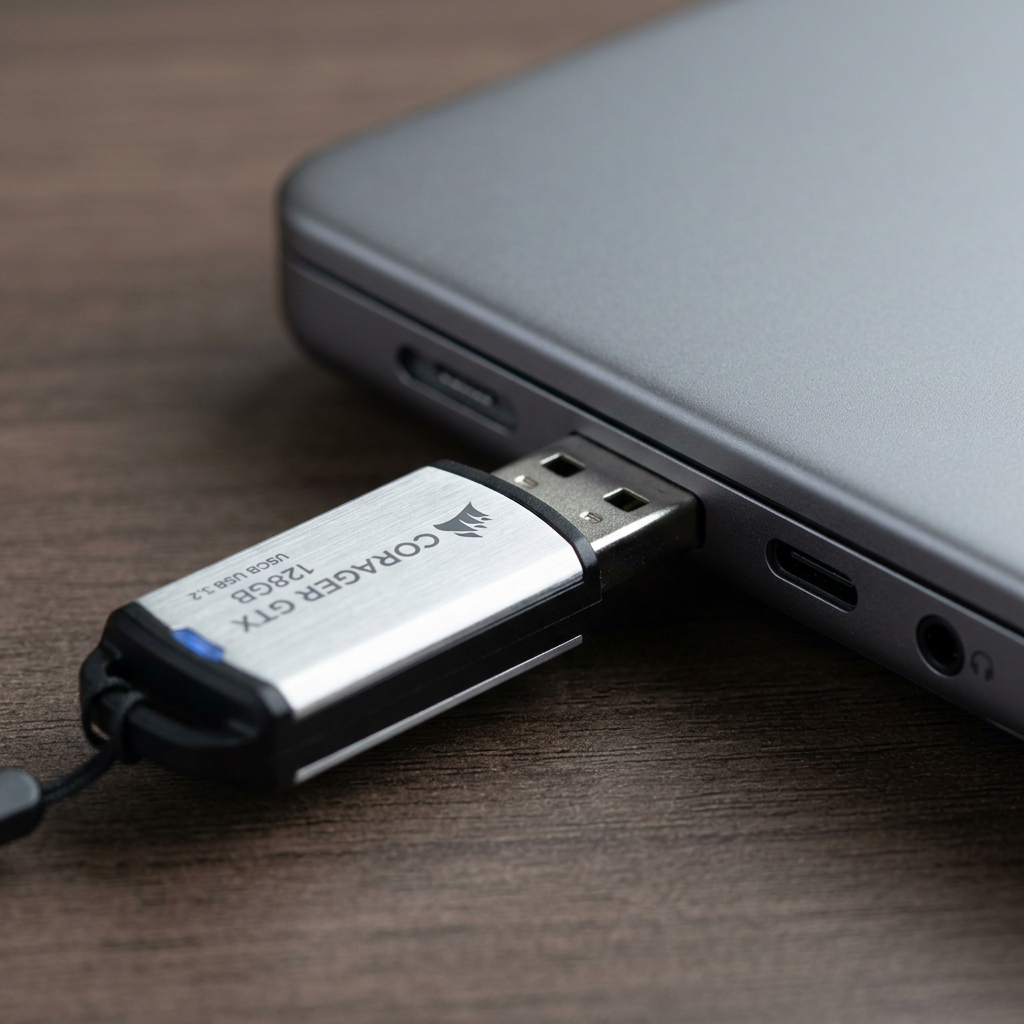
Before assuming the drive has failed, check the physical connection. Disconnect the drive safely, restart the computer, then connect it directly to a different USB port. Avoid USB hubs, keyboard ports and docking stations during testing, as they may not supply enough stable power or may introduce another point of failure.
Try a known-good cable if your drive uses a removable USB cable. Cables are a common cause of detection issues, particularly Micro-B and USB-C cables that have been bent, strained or frequently moved. If the drive has its own power adaptor, make sure it is connected to a working wall socket and that the adaptor is the correct one for that model.
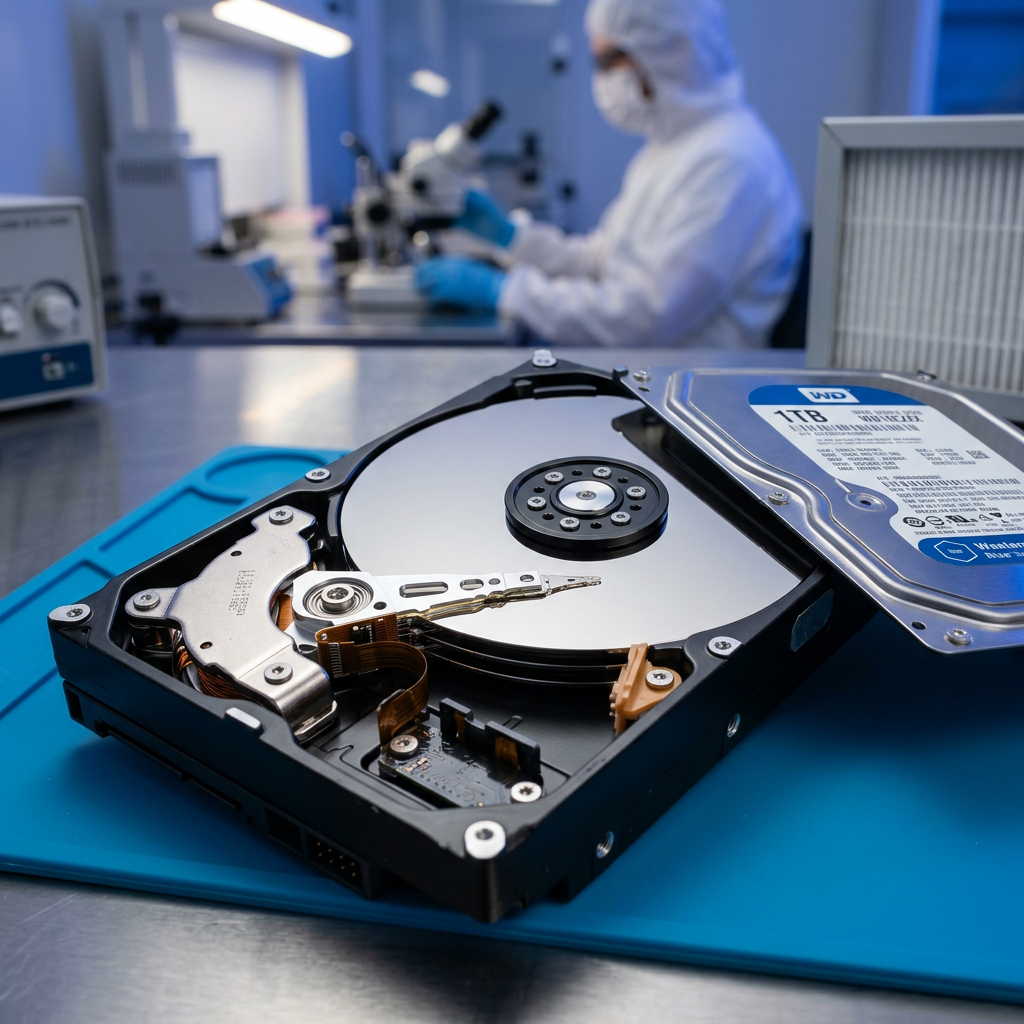
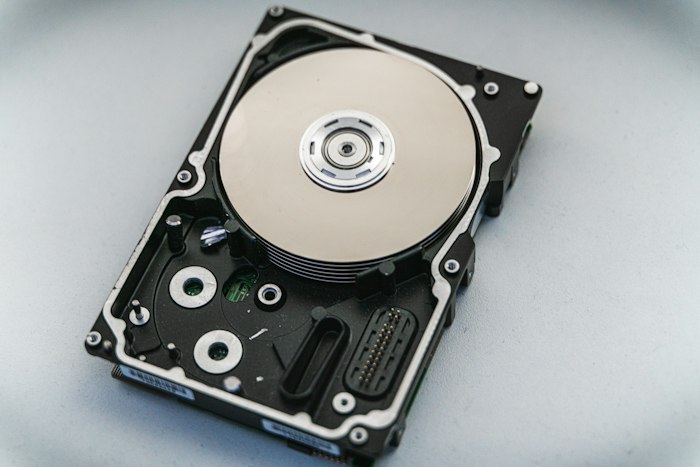
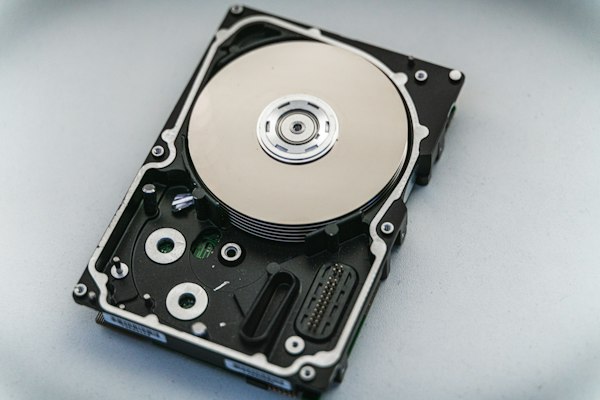
For a portable hard drive, listen carefully after connecting it. A normal drive may spin quietly and vibrate slightly. Repeated clicking, beeping, spin-up and spin-down cycles, or no movement at all can indicate a mechanical or power fault. If you hear unusual noises, disconnect it and do not keep testing it. Each power cycle can worsen damage inside a failing hard drive.
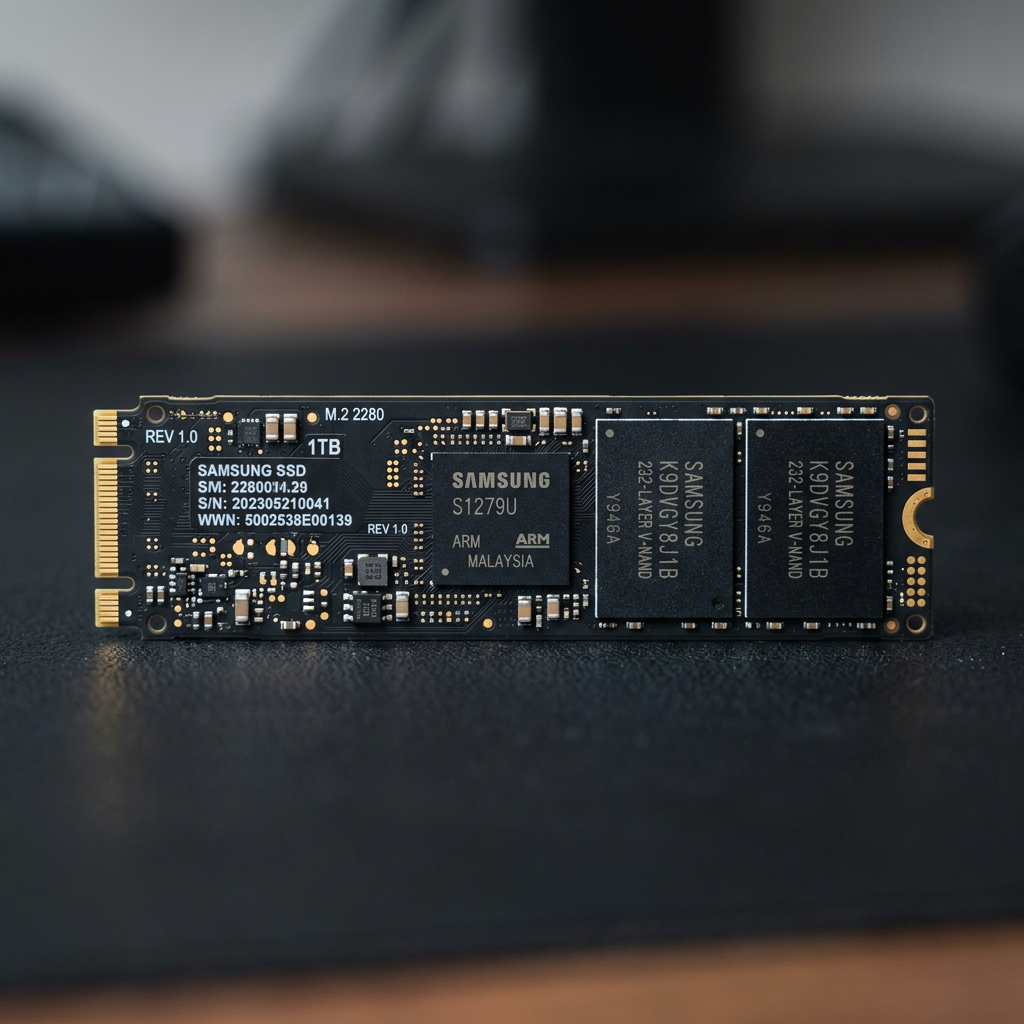
A solid-state external drive does not have moving parts, so it will not click. However, it can still fail without warning due to controller, firmware, connector or flash-memory faults.
Check whether the computer can see the drive
A drive may be detected by the operating system but not appear in File Explorer or Finder. This usually means the hardware connection is working, while the partition, file system or drive letter needs attention.
On Windows
Open Disk Management by right-clicking the Start button and selecting Disk Management. Look for the external drive in the lower panel. It may appear as a healthy volume without a drive letter, as unallocated space, as offline, or with a file system Windows cannot read.
If the drive appears healthy and the data is already backed up elsewhere, assigning a drive letter may resolve the issue. If the disk is marked offline, bringing it online can also help in some cases.
Take care with any drive shown as Unknown, Not Initialised, Unallocated or RAW. Windows may offer to initialise or format it. Do not accept these prompts if the files matter. Initialising writes new disk information, and formatting can overwrite structures recovery specialists rely on to locate your data.
You can also check Device Manager under Disk drives and Universal Serial Bus controllers. If the drive appears there but not in Disk Management, the enclosure, driver or controller may be involved. If it appears intermittently, treat that as a warning sign rather than a reason to continue copying files without a plan.
On Mac
Open Disk Utility and select View, then Show All Devices. If the external drive is visible but its volume is greyed out, it may not be mounted. A straightforward mounting issue can sometimes be resolved without affecting data.
First Aid can be useful for a drive with minor file-system corruption, but it is not appropriate for every situation. Do not run it on a drive that disconnects, produces unusual sounds, is extremely slow, or contains irreplaceable files without first considering a recovery assessment. Repair utilities make changes to the file system. When a drive is physically unstable, those changes can be risky.
Also check whether the disk was formatted for Windows, Mac or another device. A Mac may detect an NTFS-formatted drive but not write to it without additional software. That is different from a drive that is completely absent from Disk Utility.
Why an external drive is not detected
The symptom alone does not identify the cause. An external drive can disappear because of a damaged cable, insufficient power, a failed USB port, a corrupted partition table, unsupported formatting, enclosure electronics, or an internal drive fault.
Desktop external drives are particularly dependent on their power supplies. A failing adaptor can cause a drive to spin inconsistently or not spin at all. Portable drives draw power from USB, so a low-power port or poor cable can be enough to stop detection.
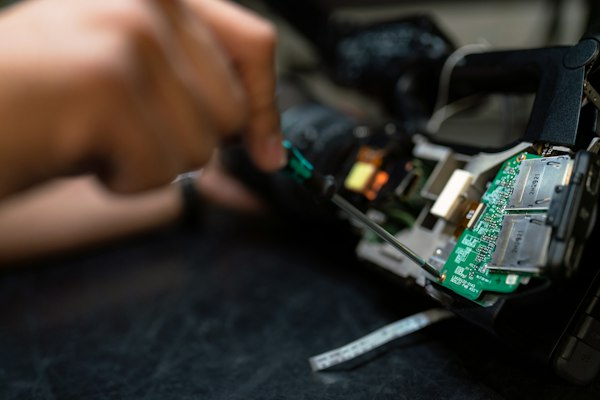
There is another complication: many external drives contain a standard internal SATA drive, but the USB enclosure may handle hardware encryption or translation. Removing the drive from its enclosure and connecting it another way can therefore make the data appear unreadable, even when the drive itself is intact. Do not open an enclosure simply because the drive is not detected. It may turn a relatively simple electronic issue into a more complex recovery job.
When software is reasonable, and when it is not
Data recovery software can help when a drive is stable, consistently detected at the correct capacity and suffering from accidental deletion or logical corruption. It is not a repair tool for a mechanically damaged hard drive, a drive that disappears during reads, or a device reporting the wrong size.
If you decide to use software, never install it onto the affected external drive and never recover files back to that same drive. Work from a separate healthy computer drive and save recovered files to different storage. If scans cause read errors, freezes or disconnections, stop rather than trying multiple programs.
For business data, accounting records, legal files, production media or the only copy of personal photos, it is often wiser to avoid DIY recovery attempts. The trade-off is clear: software may be cost-effective for a stable logical issue, but professional handling can preserve options when the device is deteriorating.
Stop immediately if you see these warning signs
Some signs call for a professional assessment rather than more troubleshooting:
- The drive clicks, beeps, grinds, smells burnt or repeatedly spins up and down.
- It is detected only briefly, disconnects during file transfers, or causes the computer to freeze.
- Disk Management or Disk Utility shows the wrong capacity, such as zero bytes.
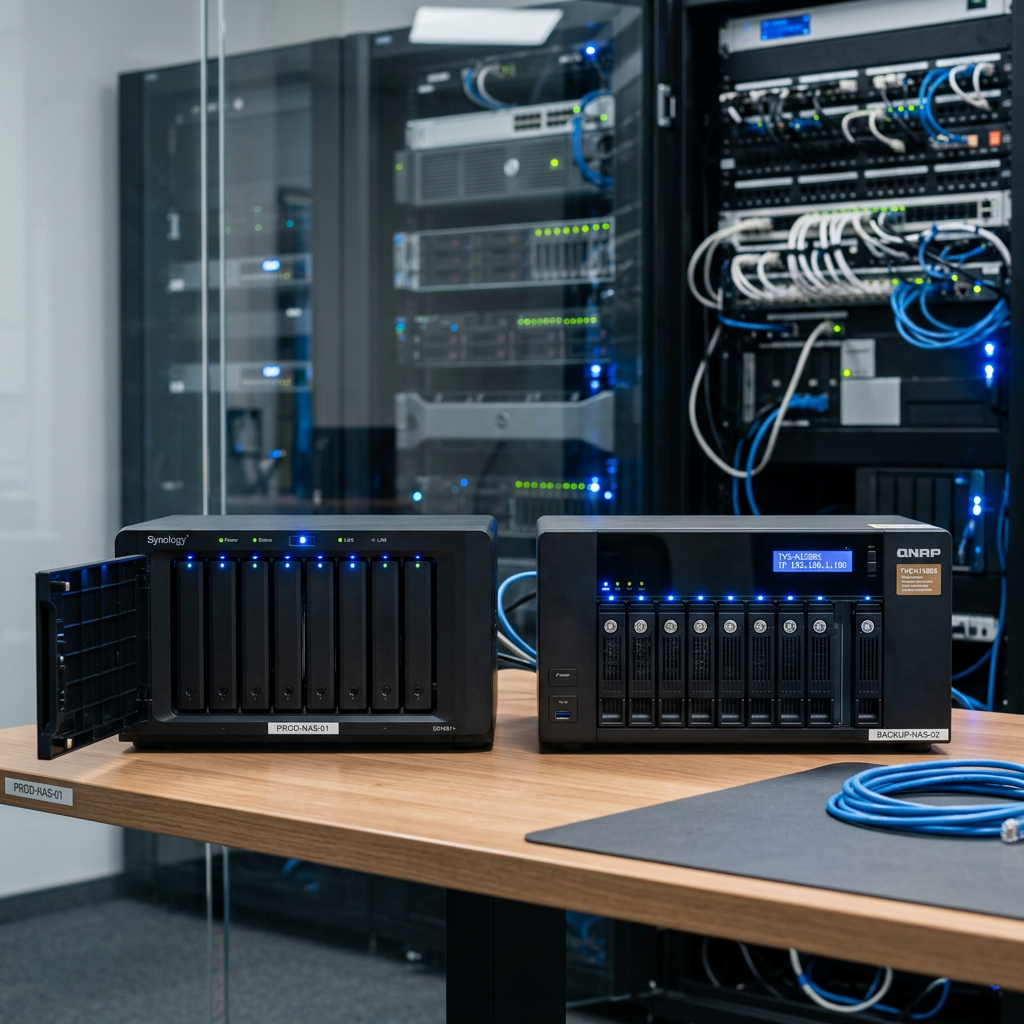
- The drive was dropped, exposed to liquid, affected by a power surge or involved in a failed NAS or RAID setup.
- The device asks to be formatted, has become RAW, or contains critical files with no backup.
Do not place a drive in a freezer, tap it, open it, or use improvised repair videos as a last resort. Modern drives have tight mechanical tolerances, and contamination inside a hard drive can make recovery substantially harder.
What to do before arranging data recovery
Make a note of the drive brand, model, capacity, connection type and exactly what happened before it stopped appearing. Mention whether it was dropped, whether it was used on Windows or Mac, and whether it makes sounds or displays an error message. This information helps determine whether the likely issue is logical, electronic or mechanical.
Keep the device dry, protected from impact and disconnected until it can be assessed. Do not send power adaptors, cables or enclosures unless requested, but keep them available because they can be useful for diagnosis. For a business drive, document the file system, RAID configuration and any recent changes to servers or storage hardware.
RecoveryGeeks provides expert professional data recovery for external hard drives, SSDs and more complex storage devices for Canberra customers and clients across Australia. A proper assessment focuses on the condition of the device first, then on the safest path to retrieving the data.
The best next move is usually the calmest one: stop making changes, preserve the drive in its current state and choose the recovery path that gives your files the strongest chance of coming back.