
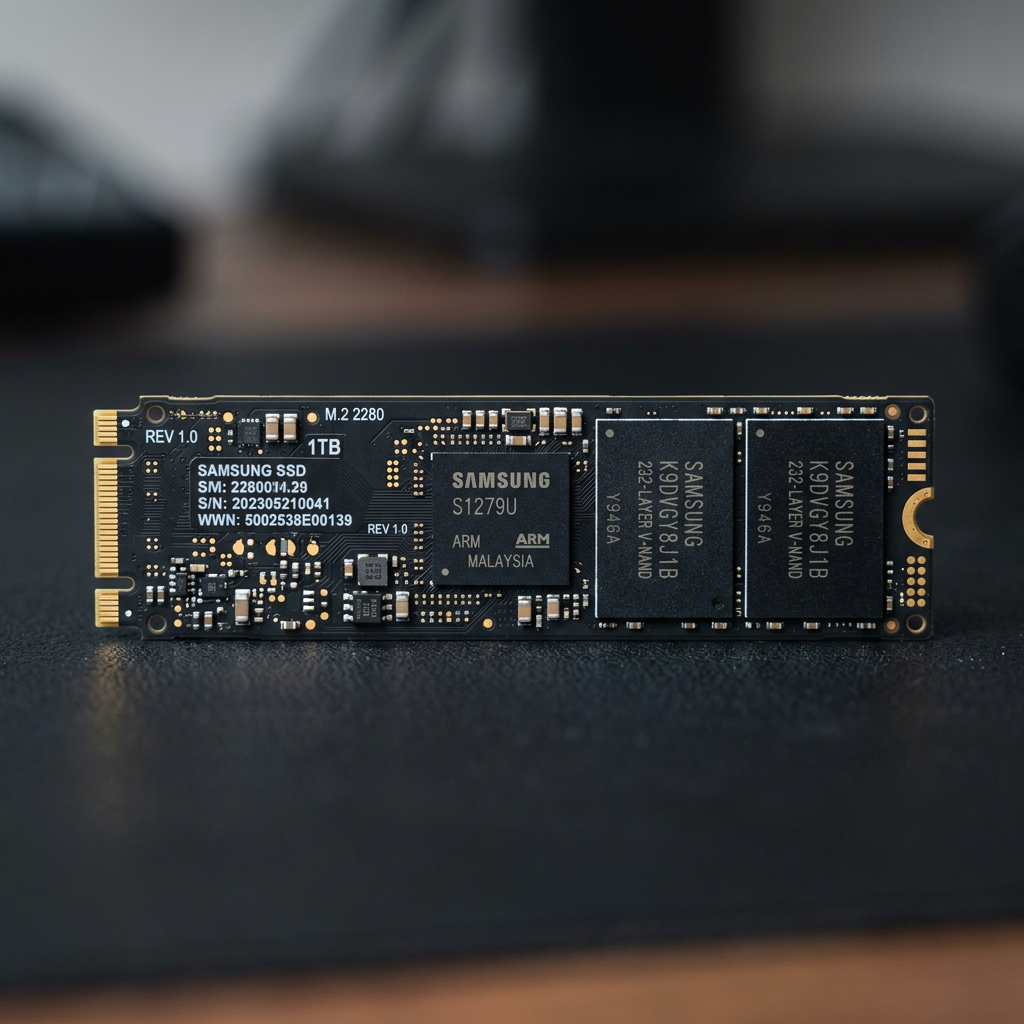

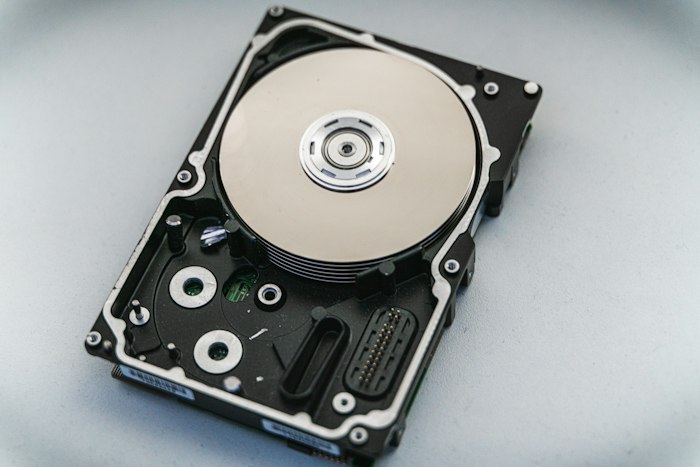




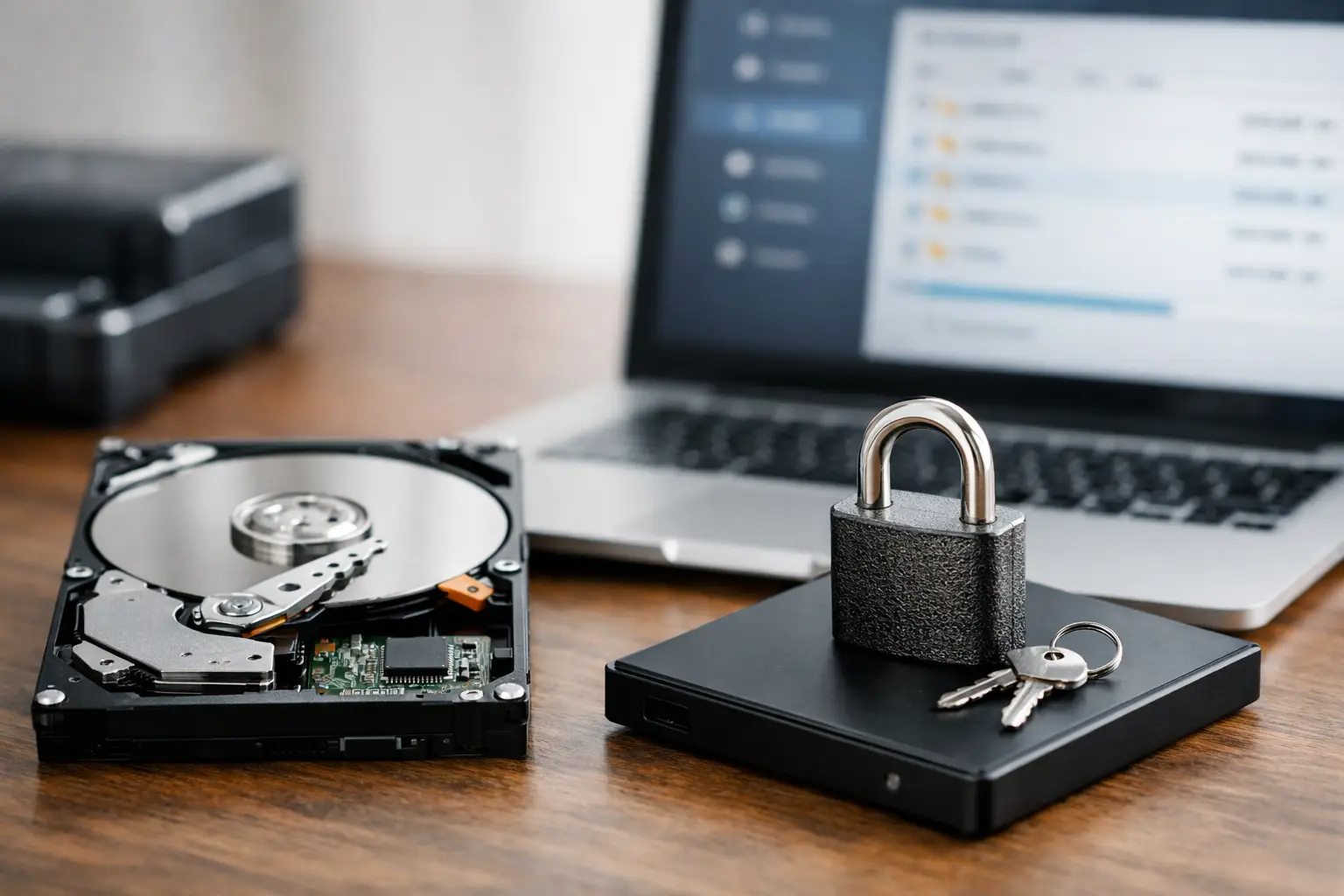
A drive can be physically healthy and still leave every file inaccessible. That is the difficult reality of encryption: the data may still be present on the storage media, but without the correct password, recovery key or working cryptographic information, it remains unreadable. This encrypted drive recovery guide explains the safest actions to take when an encrypted hard drive, SSD, USB drive, NAS volume or Apple device stops opening.
Encryption protects sensitive information when a device is lost, stolen or disposed of. It also changes the recovery process after a failure. A standard deleted-file recovery job may involve locating and rebuilding file records. An encrypted-drive case often requires two separate problems to be solved: restoring access to the storage hardware and preserving the information required to decrypt the files.
First, identify the type of encryption
The message on screen usually provides a useful starting point. Windows devices may use BitLocker, while Apple Macs commonly use FileVault. External drives can use BitLocker To Go, VeraCrypt, vendor software or hardware-based encryption built into the drive enclosure. Businesses may also have encrypted NAS volumes, self-encrypting drives or encryption managed through central IT systems.
Do not assume that a drive is unencrypted simply because you did not set a password yourself. BitLocker device encryption can be enabled automatically on some Windows systems once a Microsoft account is connected. Similarly, a work laptop may be managed by an organisation, with recovery keys held by its IT administrator.
The distinction matters because a missing recovery key is not the same issue as a failing drive. If the drive is working and the key is available, access may be restored quickly. If the drive has physical or logical damage, the priority becomes stabilising the media before further attempts cause more damage.
What to do immediately when an encrypted drive fails
Avoid repeated restarts, password guesses and repair prompts. Each action can complicate diagnosis, particularly if the device is unstable, the file system is damaged or an SSD is degrading. If an external drive makes clicking, beeping or spinning-up-and-down sounds, disconnect it rather than continuing to power it on.
Write down exactly what happened before access was lost. Was the drive dropped? Did the computer crash during an update? Did a power outage affect a NAS or RAID system? Has the device been asking for a BitLocker recovery key after a hardware change? These details help distinguish an encryption issue from a hardware, operating-system or configuration failure.
Keep all associated items together. This includes the original drive enclosure, cables, power adaptor, USB dock, laptop, recovery-key printouts and any old computers that previously opened the data. For encrypted external drives, the enclosure can be crucial. Some models encrypt data within the USB bridge board, meaning the bare hard drive cannot simply be connected to another adaptor and read normally.
Check for legitimate recovery information
Only attempt recovery using credentials and keys you are authorised to use. Encryption is designed specifically to prevent unauthorised access, and there is no reliable or appropriate shortcut around a genuinely missing key.
For BitLocker, look for the 48-digit recovery key. It may be saved in a Microsoft account, printed, stored on a USB device, saved as a text file, held by your workplace or recorded in an organisation’s device-management system. The BitLocker recovery screen displays a Recovery Key ID, which can help match the correct key where several are stored.
For FileVault, try the known Mac user password first. Depending on how FileVault was configured, recovery may also be available through an Apple ID or a FileVault recovery key. On a business-managed Mac, contact the organisation’s IT team before changing settings or reinstalling macOS.
For VeraCrypt and similar software, locate the correct volume password, keyfiles and any header backup created when the volume was set up. A password alone may not be enough if keyfiles were used. With hardware-encrypted drives, check the manufacturer documentation and retain the original enclosure. Replacing an enclosure without understanding its encryption design can make accessible data appear completely lost.
Do not format, initialise or reinstall
When Windows asks to initialise a disk, macOS suggests erasing a volume, or a NAS interface reports an unrecognised array, stop. These prompts do not mean the data is gone, but accepting them can overwrite information needed for a successful recovery.
The same caution applies to operating-system reinstallations. A laptop that will not boot may have an intact encrypted internal drive, while the problem lies elsewhere. Reinstalling Windows or macOS can alter partitions, recovery environments and encryption metadata. If the files are important, assess the storage device before making major changes.
Avoid consumer recovery software on a physically failing drive. Software cannot repair damaged read heads, unstable firmware, failed NAND chips or an encrypted enclosure fault. Repeated scans can place extra stress on the media and reduce the chance of obtaining a stable copy of the encrypted data.
When encrypted drive recovery needs a specialist
Professional help is most valuable when there is a combination of data loss and encryption. Common examples include a BitLocker-protected laptop that no longer boots, a failed SSD containing FileVault data, an encrypted external drive that disconnects during reads, or a RAID system whose encrypted volume will not mount after multiple disks fail.
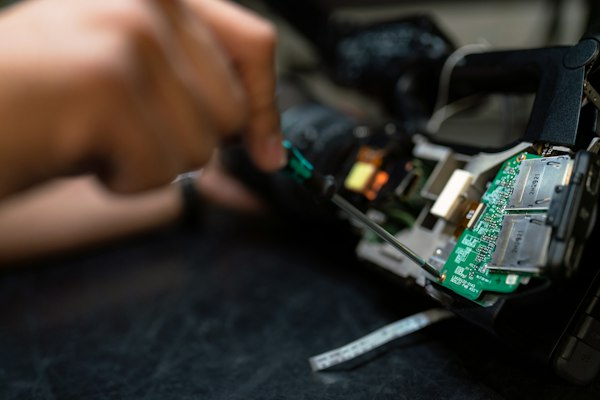
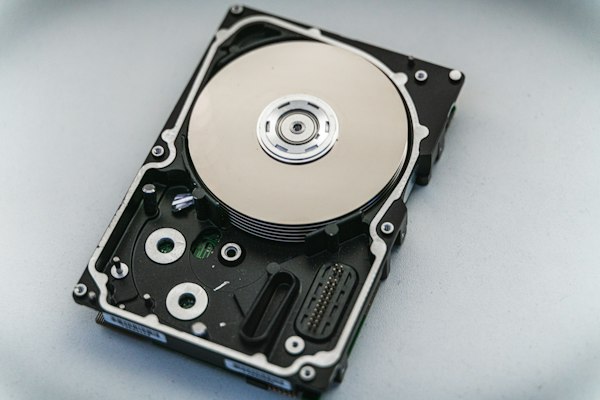
The recovery process normally begins with a non-destructive assessment. A specialist determines whether the storage media can be read safely, whether a sector-by-sector clone or image is possible, and what encryption information will be needed after the data has been stabilised. On hard drives with mechanical faults, cleanroom work may be required before any encrypted data can be copied. SSD recovery can be more complex because controller faults, wear levelling and TRIM may affect what remains available.
For NAS and RAID systems, do not remove drives at random or rebuild the array before documenting the disk order and configuration. Encryption can sit above the RAID layer, so recovery may require reconstructing the RAID correctly before the encrypted volume can be addressed. Record the make and model of the NAS, the number of drives, bay order, error messages and any recent disk replacements.
RecoveryGeeks provides professional data recovery for encrypted storage devices, from individual drives and Apple devices to business NAS and RAID environments. Providing the recovery key, password or authorised access details when available allows the technical work to focus on recovering the data rather than attempting to resolve an avoidable credential gap.
A practical decision point: key problem or drive problem?
If the drive is detected consistently, opens normally after the correct key is entered and shows no errors, the issue is likely credential-related. Check key records carefully and seek assistance from the person or organisation that configured the encryption.
If the correct key is accepted but the volume will not mount, files are missing, the drive is not detected, or the device behaves erratically, treat it as a recovery case. The encryption credentials are still essential, but they may only be useful after the damaged media has been read and reconstructed.
There are also mixed cases. A Windows update can trigger BitLocker recovery while an underlying SSD fault is developing. A failed USB cable may mimic an encrypted-drive error. A NAS may report a locked volume after an unplanned shutdown, even though the key is correct but the file system requires careful repair. Accurate diagnosis prevents the wrong fix from making a manageable problem worse.
Protect future access without weakening security
A recovery key should not live only on the encrypted drive it unlocks. Keep it in at least two secure, separate locations, such as a protected password manager and an offline record stored safely. Businesses should document key custodianship, device ownership and encryption procedures so a staff departure or hardware failure does not become an operational outage.
Maintain tested backups as well. Encryption protects confidentiality, not availability. A backup should be separate from the primary device, verified periodically and protected with its own appropriate security controls. For critical business data, consider more than one backup copy and ensure the people responsible can access recovery information when needed.
When an encrypted device becomes inaccessible, patience is often the most valuable first response. Preserve the device, locate the correct credentials and avoid changes that write to the media. Those few decisions can make the difference between a controlled recovery and a far more difficult one.