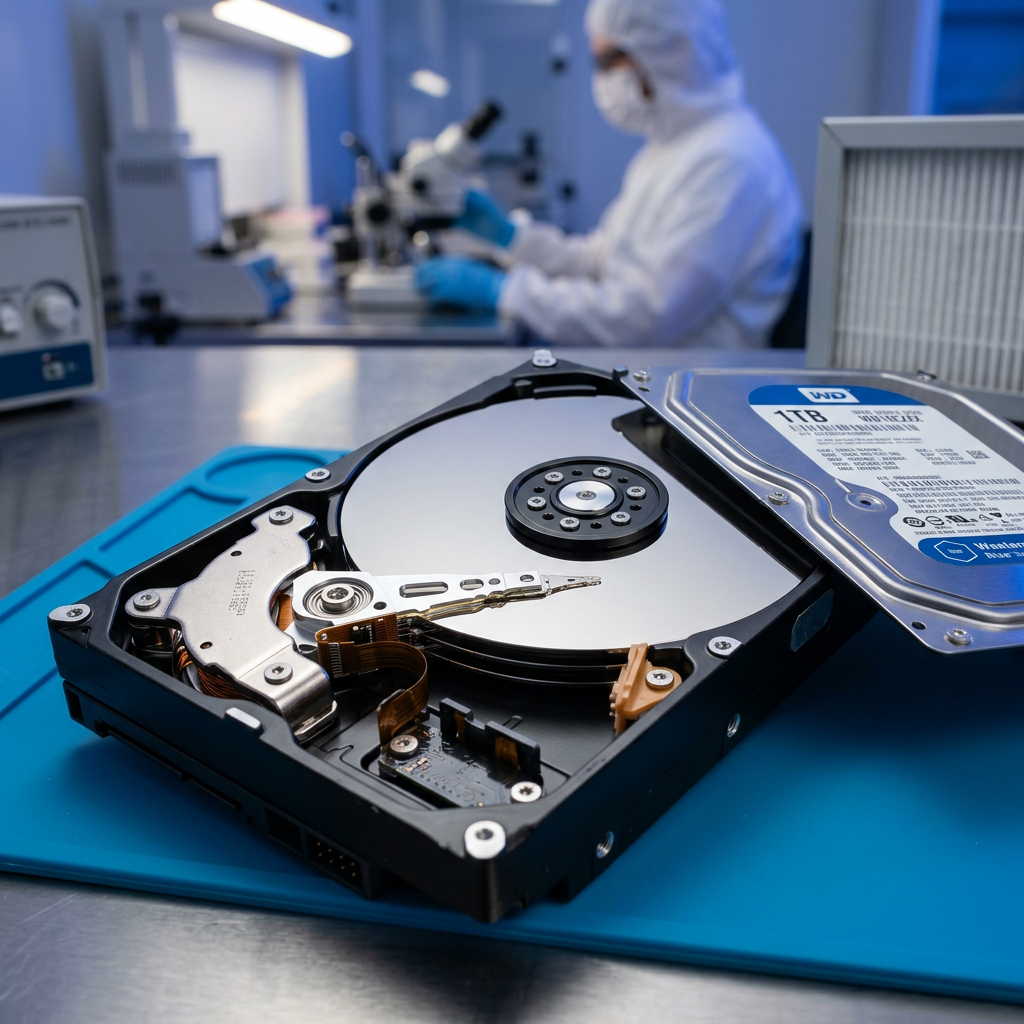
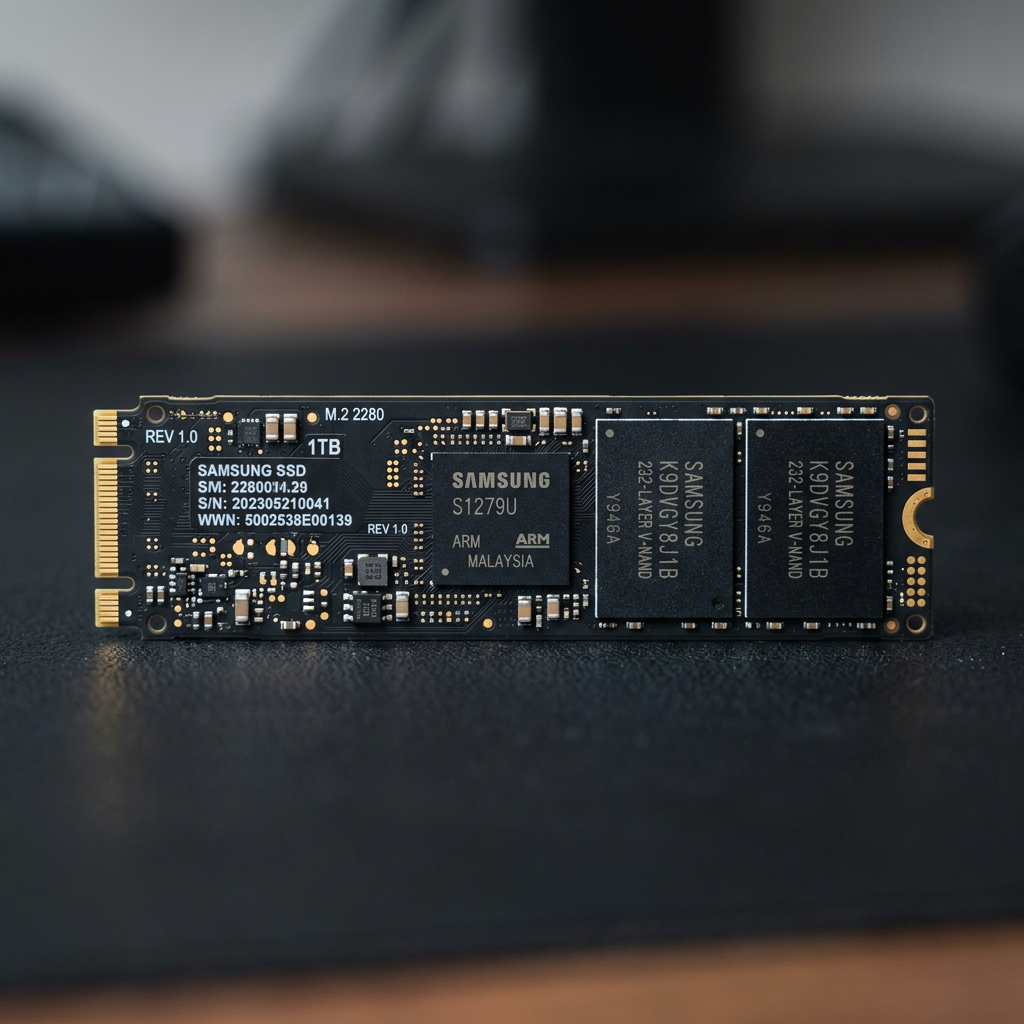



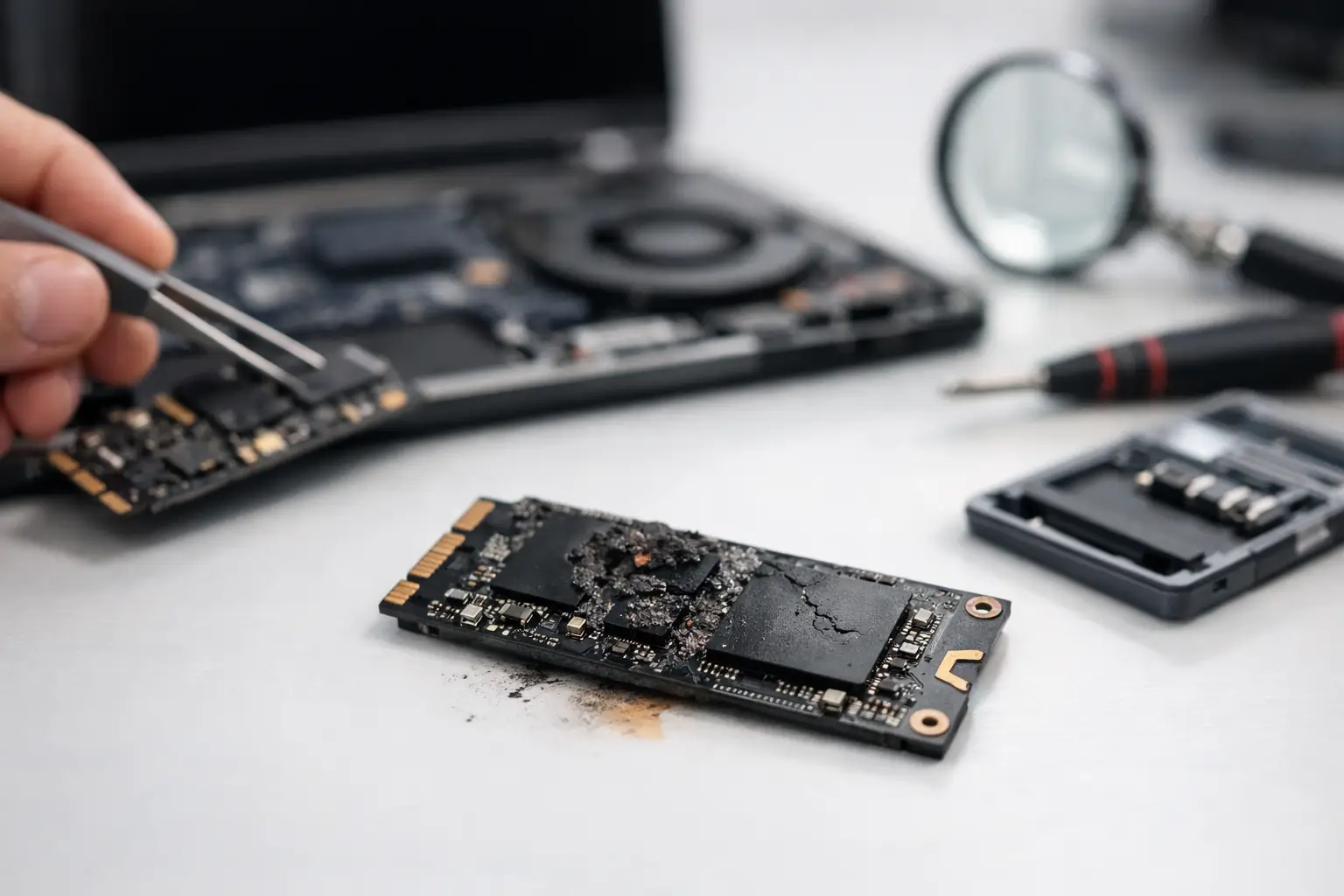
A drive that was working yesterday but is now missing from your computer creates an immediate question: can a dead SSD be recovered? Often, yes - but SSD recovery is highly dependent on what has failed, what happened immediately before the failure, and whether the drive has continued receiving power.
Unlike a traditional hard drive, an SSD has no spinning platters or moving read heads. That does not make it immune to failure. It means its failure modes are different, and well-intended DIY fixes can make a difficult recovery substantially harder.
Can a dead SSD be recovered?
A dead SSD can sometimes be recovered when the data remains intact on its NAND flash memory but the drive can no longer communicate normally with a computer. Common recoverable faults include controller failure, damaged firmware, power-management faults, a failed USB enclosure, or corruption in the drive's internal translation layer.
The outlook is less certain when the flash memory itself has deteriorated, the drive has been heavily encrypted and its key is unavailable, or the SSD has been repeatedly powered on after an internal fault. Modern SSDs distribute data across many memory chips and use sophisticated error correction, wear levelling and encryption. Those technologies improve everyday performance and reliability, but they also make recovery more specialised.
“Dead” is therefore a symptom, not a diagnosis. An SSD that is not detected in BIOS, asks to be formatted, appears with the wrong capacity, freezes a computer, or reports as RAW may each require a different recovery approach.
Why SSD data recovery is different
With a hard drive, a specialist may be able to repair mechanical issues long enough to read the platters. SSDs store data electronically across NAND flash chips, managed by a controller that constantly moves, corrects and maps data behind the scenes.
The file system your computer sees is not a simple map of where every file physically sits. The controller maintains a private translation table that connects logical addresses to locations across the flash memory. If that table is corrupted or the controller fails, the data may still exist but be inaccessible without reconstructing the drive's internal structure.
SSDs also use a command called TRIM. When files are deleted, formatted, or certain partitions are changed, TRIM may tell the SSD that the relevant blocks are no longer needed. The drive can then erase them internally during background maintenance. This is why recovery of deleted SSD files is often less successful than recovery from a conventional hard drive, particularly if the SSD has remained powered on.
Encryption adds another consideration. Many current SSDs use hardware encryption automatically, even when the owner has not deliberately enabled a password. If the controller is damaged and the encryption information cannot be reconstructed, readable raw data from the memory chips may not be enough to restore files.
Signs that point to a recoverable fault
Some symptoms warrant urgent caution but do not automatically mean the data is gone. A drive that is intermittently detected, disconnects during file transfers, becomes extremely slow, or causes the operating system to hang may be experiencing controller, firmware or read-instability issues.
An external SSD that appears dead may instead have a damaged cable, USB port, enclosure board or power issue. Testing a known-good cable and a different computer can be reasonable, provided the drive is not repeatedly connecting and disconnecting or making the system unstable. If it mounts even briefly, do not browse through folders or attempt to open files. Copying or imaging data from a failing drive should be handled carefully, because ordinary file copying can trigger repeated read attempts and worsen instability.
A drive that is completely absent from BIOS or Disk Management may still have recoverable data. It simply requires a different level of diagnosis. Professional assessment determines whether the issue sits with the interface, controller, firmware, flash memory or the drive's electrical components.
What to do when an SSD fails
The first hour after a failure matters. The goal is to avoid new writes, limit power cycles and preserve the drive in its current state.
If your SSD contains important business records, creative work, client files, photos or irreplaceable personal data, take these steps:
- Stop using the drive immediately. Do not install recovery software, save new files, or use it as a boot drive.
- Do not format, initialise or repartition it, even if Windows or macOS prompts you to do so.
- Avoid repeated restarts and reconnecting the SSD over and over in the hope that it will appear.
- Do not run repair utilities such as CHKDSK, First Aid, firmware updates or manufacturer diagnostic tools against a failing drive.
- Record what happened: error messages, whether the drive was dropped, exposed to liquid, affected by a power event, or began slowing down beforehand.
A single controlled check of cables or another computer may rule out an external connection problem. Beyond that, trial-and-error troubleshooting can be risky. This is especially true for NVMe and SATA SSDs that contain the only copy of critical information.
When recovery software can help - and when it cannot
Software recovery tools can be useful when an SSD is healthy, consistently detected at the correct capacity, and the issue is limited to accidental deletion or a logical file-system problem. Even then, the drive should not be used for normal work, and any recovered data must be saved to a separate device.
Software is not a repair for an SSD that disappears, reports 0 bytes, shows an incorrect size, causes computer crashes, or has physical and electrical damage. Attempting a scan on an unstable SSD can force it to read inaccessible areas repeatedly. If the drive is failing at the controller or NAND level, recovery software cannot access the data it cannot see.
Do not confuse a successful scan with a safe recovery path. Some tools display old file names or fragments from cached metadata while failing to produce usable documents, databases, photos or video files. The condition of the drive and the value of the data should determine whether a DIY attempt is sensible.
What professional SSD recovery involves
Professional SSD recovery begins with diagnosis rather than assumptions. A specialist assesses the drive's electronic condition, detection behaviour, firmware state and flash-memory health before choosing a method.
Depending on the fault, this may involve stabilising the hardware, working with the controller and firmware, creating a controlled image, or reading NAND memory directly and reconstructing the data through specialist tools. Direct NAND work is complex because data is commonly distributed, scrambled and protected by error-correction processes. It is not equivalent to soldering memory chips onto another board.
Results cannot be guaranteed. SSD designs vary greatly between manufacturers and models, and some failures destroy or permanently obscure the information needed to decode stored data. A reputable service should explain the likely recovery path, risks and realistic prospects before proceeding with extensive work.
For Canberra customers and organisations across Australia, RecoveryGeeks provides specialist assessment for failed SSDs alongside wider data recovery requirements, including hard drives, RAID and NAS systems, Apple devices and camera media. Where the data has operational, financial or personal value, early expert assessment is usually the safest option.
Protecting the next SSD failure
SSDs are fast and dependable, but they are not a backup strategy. Maintain at least one separate backup copy, preferably with another copy stored away from the computer or office. Test that backups can actually be restored, not merely that they appear in a backup application.
For businesses, monitor SSD health where possible and replace drives showing persistent errors, unexpected slowdowns or diminishing spare capacity. For individuals, keep important folders synchronised or backed up before a warning sign appears. A failed SSD is stressful; having a verified second copy turns it from a potential disaster into an inconvenience.
If the drive has failed and the files matter, preserve it as it is. The fewer changes made before assessment, the better the chance that a specialist can determine what remains recoverable.