


A laptop that suddenly reports an SSD needs formatting, a folder that will not open, or a drive that disappears from File Explorer can create immediate pressure. Can a corrupted SSD be fixed? Sometimes, yes - but fixing the drive and recovering its data are two different jobs. The safest next step depends on whether the problem is a damaged file system, failing hardware, encryption, or an issue elsewhere in the computer.
An SSD can appear corrupted even when the physical storage is healthy. Equally, a drive can look like a simple software problem while its controller or memory chips are failing. Acting too quickly can turn a recoverable situation into permanent data loss, particularly if the drive contains work files, family photos, accounting records or a business database.
What does a corrupted SSD actually mean?
“Corrupted” describes the symptom, not the cause. Your operating system may be unable to read the SSD’s file system, partition table or boot data. It may ask to initialise or format the drive, show a RAW partition, display files with strange names, or report that a file is damaged and unreadable.
In a straightforward logical corruption case, the SSD itself is still communicating normally. A power interruption during a write operation, unsafe removal of an external SSD, a system crash, malware, faulty software or a file-system error may have damaged the structures that tell the operating system where files are stored. Repairing those structures, or extracting the files to another device, may be possible.
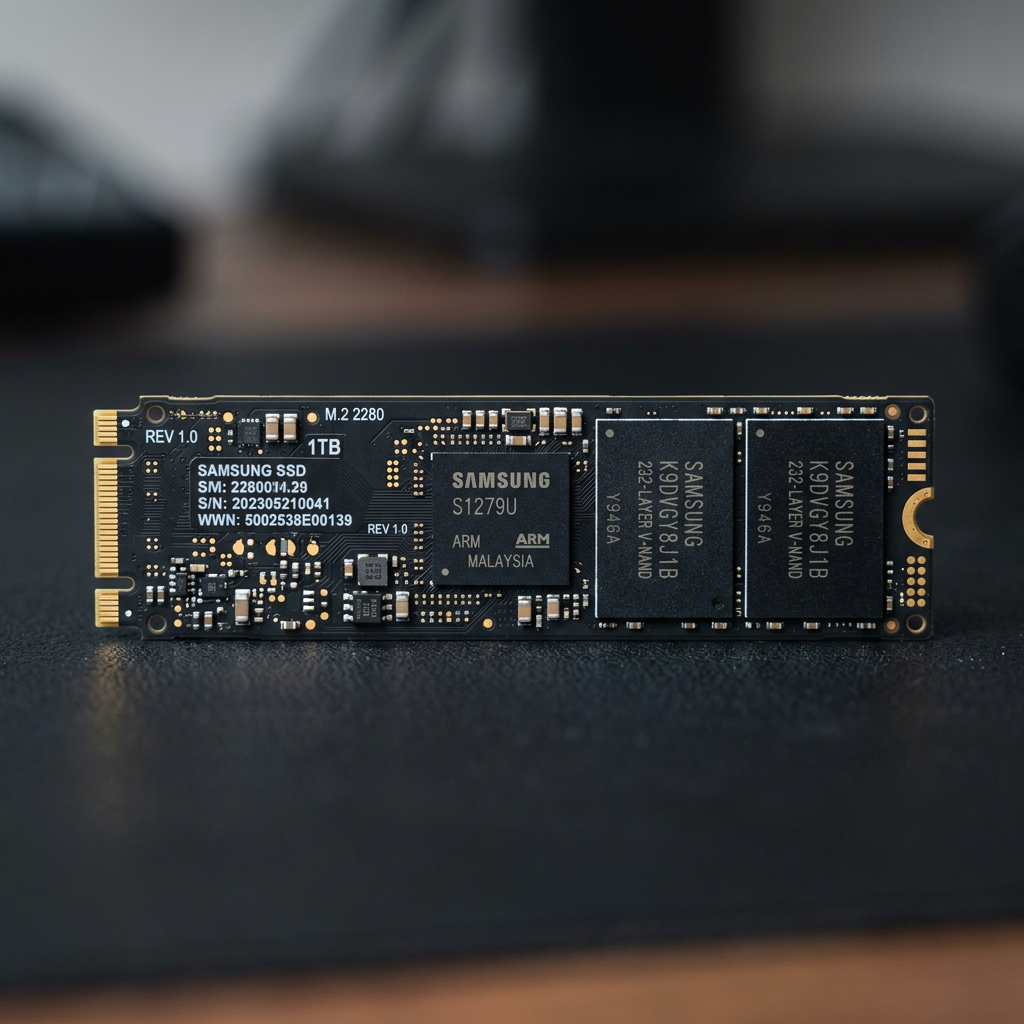
The picture changes when the SSD is intermittently detected, repeatedly disconnects, runs extremely slowly, is missing its correct capacity, or is not detected in the BIOS or Disk Management. These signs can point to hardware failure. SSDs do not have moving parts, but their controllers, firmware and NAND flash memory can still fail without warning.
Can a corrupted SSD be fixed without losing data?
A corrupted SSD may be repairable without data loss when the issue is limited to file-system metadata or a damaged partition. However, no repair method is risk-free until the valuable data has been copied or recovered elsewhere. A repair utility changes information on the drive. If its diagnosis is wrong, or if the SSD is unstable, those changes can overwrite evidence needed for recovery.
For that reason, the first priority is usually data preservation, not making the SSD usable again. A successful repair that leaves a drive empty is not a good outcome if the missing files matter.
If the SSD is stable and all critical files are accessible, copy them immediately to a separate physical drive or secure storage location. Do not save the backup onto another partition of the same SSD. Once the data is safe, you can assess whether the drive can be repaired, securely erased and reused, or should be replaced.
If files are inaccessible, avoid formatting the drive even when Windows or macOS offers the option. Do not initialise an unrecognised disk, reinstall the operating system over it, or run multiple repair tools in the hope that one works. Each action can alter data and narrow the recovery options.
Start with safe checks
Before assuming corruption, rule out a connection problem. For an external SSD, try a known-good cable and a different USB port. Connect directly to the computer rather than through a hub or dock. If possible, test on another computer. A failed cable, inadequate power or faulty enclosure can make a healthy drive look unreadable.
For an internal SSD, check whether the drive appears consistently in the computer’s BIOS or UEFI settings. If it is a removable M.2 or SATA SSD and you are comfortable working inside the device, a qualified technician can check the connection. Do not repeatedly reseat hardware if the drive is showing erratic behaviour or contains irreplaceable data. Repeated power cycles can place further stress on a failing controller.
Record what you see before making changes: error messages, reported capacity, whether the drive is detected, and whether it disconnects during use. These details help distinguish logical damage from a physical fault.
If the SSD is readable
When the drive is visible and files can be opened, make a complete backup first. After that, operating-system tools may help identify logical errors. Windows tools can check a volume’s file system, while macOS Disk Utility can run First Aid on a compatible volume. Use these only after the data is protected and only when the drive is stable.
A repair tool may restore normal access, but it does not prove the SSD is trustworthy. Check the drive’s health information with an appropriate diagnostic tool and watch for recurring errors, sudden capacity changes or new disconnects. If corruption returns, replace the SSD rather than treating it as a dependable storage device.
If the SSD is not readable
Stop writing to it. That means no formatting, no attempts to install software onto it, and no copying files onto the affected drive. If it is an external SSD, safely disconnect it once you have confirmed the issue is not the cable or computer.
Professional data recovery is the sensible option where the files are valuable, the SSD is not consistently detected, the drive has encrypted data, or software recovery attempts have failed. SSD recovery is technically different from hard drive recovery. Many SSDs use wear levelling, garbage collection and the TRIM command, which can remove data blocks that the operating system has marked as deleted. Timing and careful handling matter.
Why SSD corruption can be harder than hard drive corruption
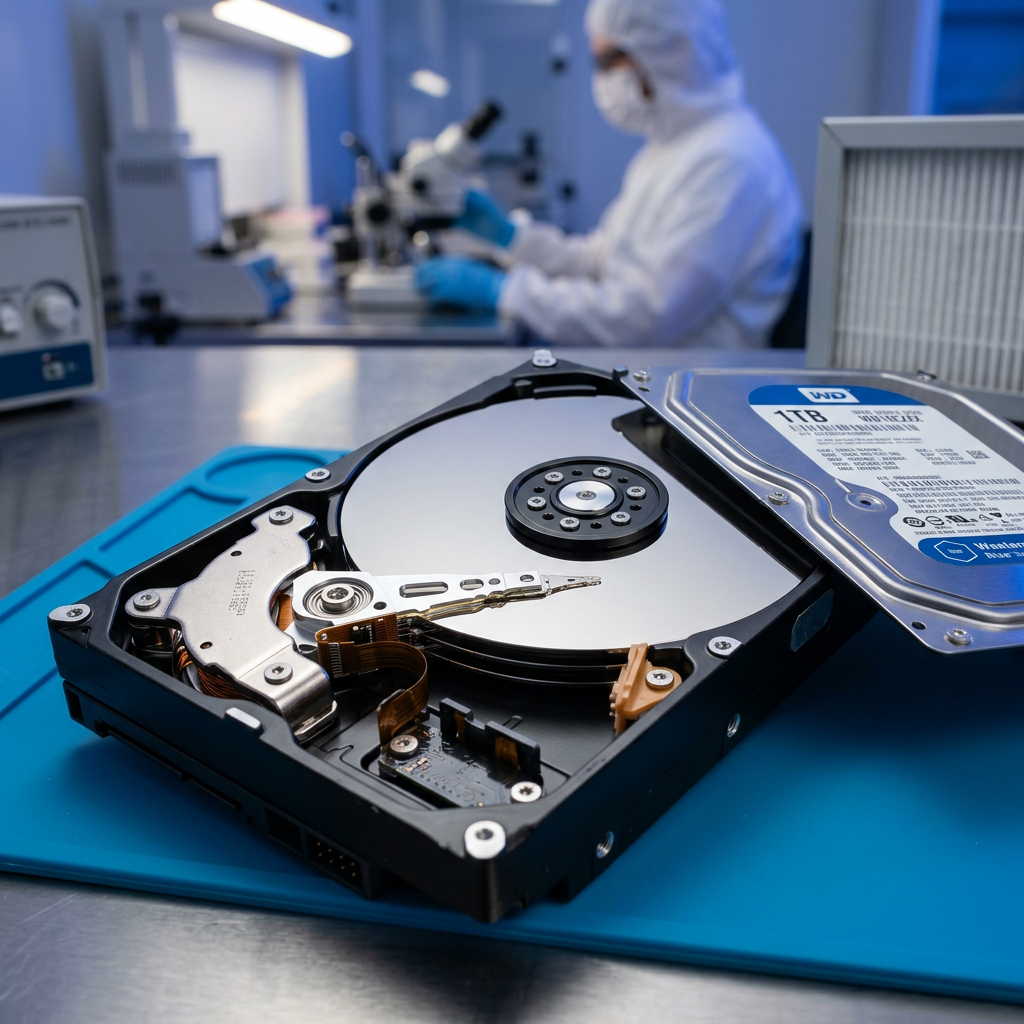
Traditional hard drives store data in relatively predictable physical locations. SSDs distribute writes across flash memory cells to extend their working life. Their controller continuously manages where data is stored, how worn cells are handled and which blocks are available for use.
That design is efficient in normal operation, but it complicates recovery after a failure. When an SSD controller fails, the raw contents of the flash chips may not be readable without reconstructing the controller’s data layout. Modern drives may also use hardware encryption automatically, even when the user has not manually set a password. Without access to the correct encryption information, recovered raw data may remain unusable.
TRIM is another factor. When files are deleted or a partition is formatted, the operating system can tell the SSD that certain blocks are no longer required. The drive may then clear those blocks internally. This is why deleted-file recovery from an SSD is often less predictable than from a conventional hard drive.
When DIY recovery is reasonable - and when it is not
DIY recovery can be reasonable for a stable SSD with a simple accidental deletion or a file-system issue, provided the data is not high stakes and you can work from a separate computer or recovery environment. The key is to recover files to another drive, not back to the affected SSD.
DIY work becomes risky when the SSD drops in and out, reports zero or incorrect capacity, has suffered a power surge, becomes unusually hot, causes the computer to freeze, or cannot be detected by multiple systems. It is also risky where a drive is part of a RAID or NAS, contains a business virtual machine, or uses BitLocker, FileVault or other encryption. RAID systems introduce an additional layer of configuration data, and rebuilding the wrong way can overwrite recoverable information.
Avoid downloading random “SSD repair” programs that promise one-click fixes. Some are legitimate utilities, but no software can repair failed NAND chips or a dead controller. A tool that writes repairs to a hardware-failing drive may make the situation worse.
Should you keep using an SSD after corruption?
Even if an SSD starts working again, treat unexpected corruption as a warning. A one-off software issue may never return, especially after a clean operating-system shutdown problem or external-cable fault. But recurring errors, unexplained missing files or intermittent detection are not normal wear-and-tear symptoms to ignore.
For a drive used for operating systems, business documents or creative projects, replacement is usually cheaper than the consequences of another failure. Retire the affected SSD after recovering and verifying the data, particularly if diagnostic results suggest deterioration. Keep at least two copies of critical files on separate storage devices, with one copy kept offsite or in secure cloud storage.
The right outcome is safe data, not just a working drive
A corrupted SSD can often be fixed at the file-system level, but hardware and firmware faults require a different response. If your files are accessible, back them up before attempting repairs. If the SSD is unstable, absent or contains data you cannot afford to lose, stop using it and seek specialist assessment rather than gambling on repeated fixes.
When data matters, caution is not wasted time. It is the step that gives your files the best chance of coming back intact.