






A deleted photo is not always gone, but the actions taken in the first few minutes can determine whether it is recoverable. The best ways to recover deleted photos depend on where the images were stored, whether the device is still working, and whether new data has already overwritten the deleted files. If the photos matter, stop using the device before trying fixes at random.
Deletion usually removes the file’s reference from the storage system rather than immediately erasing every part of the image. That creates an opportunity for recovery. It is also why taking more photos, installing recovery software, downloading apps or saving files to the same drive can reduce the chance of success.
Start by protecting the storage device
Your first job is to prevent further writes to the device. Put a camera or mobile in aeroplane mode if it may automatically synchronise, stop recording on a memory card, and disconnect an external drive safely. Do not format the device, run a repair utility, or accept a prompt to initialise a drive that has suddenly become unreadable.
For a computer drive, avoid installing recovery software onto the affected disk. Software installation creates new files, which may overwrite the very photo data you need. If you decide to use recovery software, install it on a separate working drive and recover any found images to another drive.
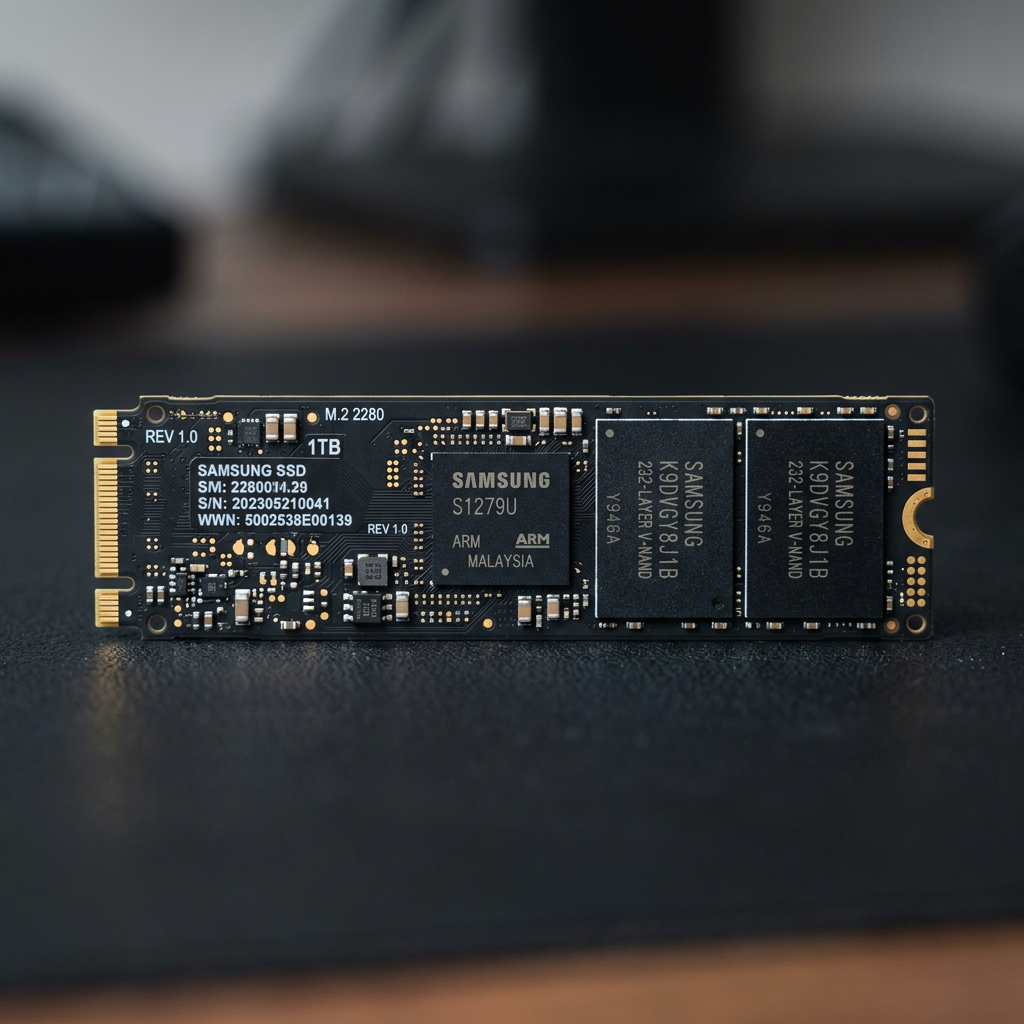
This is particularly important for solid-state drives. Many SSDs use a process called TRIM, which can permanently clear deleted data relatively quickly. Recovery can still be possible in some situations, but the window may be shorter than it is with a conventional hard drive.
Check recently deleted folders and cloud backups first
The simplest recovery route is often already available. Most mobiles, computers and cloud photo services retain deleted images in a recently deleted, bin or trash folder for a limited period. Check these locations before taking more technical steps.
On an iPhone or iPad, look in the Recently Deleted album in the Photos app. On Android devices, check the gallery app’s bin as well as the bin within any photo backup service you use. The wording and retention period vary by device manufacturer and app, so inspect each relevant location.
On a Windows computer, check the Recycle Bin. On a Mac, check Bin and the Photos app’s Recently Deleted album. Also consider whether the images were copied to another folder, attached to an email, shared through a messaging app, or backed up to a cloud account. A photo that appears deleted from one device may still exist in a synchronised library or older backup.
Be careful when using cloud services. Deleting a photo while synchronisation is active can remove it from connected devices too. Conversely, restoring it from a cloud bin may be all that is required. Confirm the restored image opens correctly and save another copy somewhere separate.
Recover photos from memory cards with care
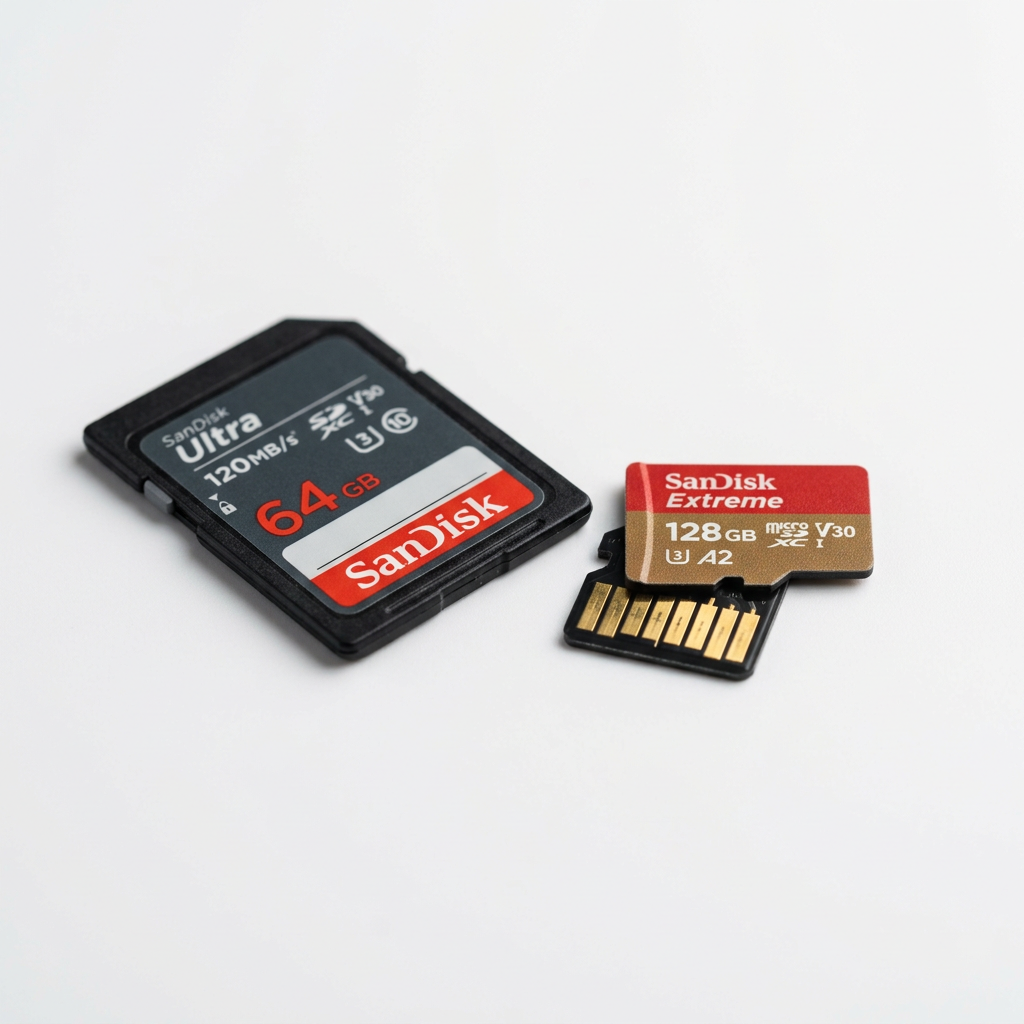
Camera SD cards and microSD cards are common candidates for deleted photo recovery. Stop using the card immediately. Do not take test photos, and do not put it back in the camera to see whether the images reappear. Each new image can occupy space previously used by deleted files.
If the card is physically sound and can still be read reliably, photo recovery software may locate deleted image files by scanning the card’s unallocated space. Results vary. Software may recover filenames and folder structures, or it may find images without their original names, dates or organisation. Recover the results to your computer or another external drive, never back onto the same card.
There is a trade-off here. A logical scan on a healthy card is often reasonable for straightforward accidental deletion. Repeated scans, formatting attempts and repair tools are less sensible when the card disconnects, reports errors, requests formatting, becomes unusually hot, or has been physically damaged. Those signs can point to a hardware fault, where further use may make recovery more difficult.
Consider software only when the device is stable
Recovery software is not a universal fix. It can be useful when a hard drive, USB drive or memory card is detected consistently and the loss appears to be accidental deletion or a simple formatting event. It is less suitable when there are signs of physical failure, encryption issues, file system corruption, a failing SSD or an unstable connection.
Before scanning, create a disk image if you have the technical capability and enough spare storage. An image is a sector-by-sector copy of the affected media that allows recovery work to be performed on the copy rather than the original. This reduces the need to keep reading a failing device.
Do not rely solely on file previews. A preview indicates that some image data may be present, not necessarily that every recovered file will be complete. Open a selection of recovered photos at full size and inspect them for corruption, missing sections, incorrect colours or unreadable metadata. Professional photography files, including RAW formats, deserve particular care because partial recovery can leave a file visible but unusable for editing or printing.
Treat failed drives and inaccessible devices differently
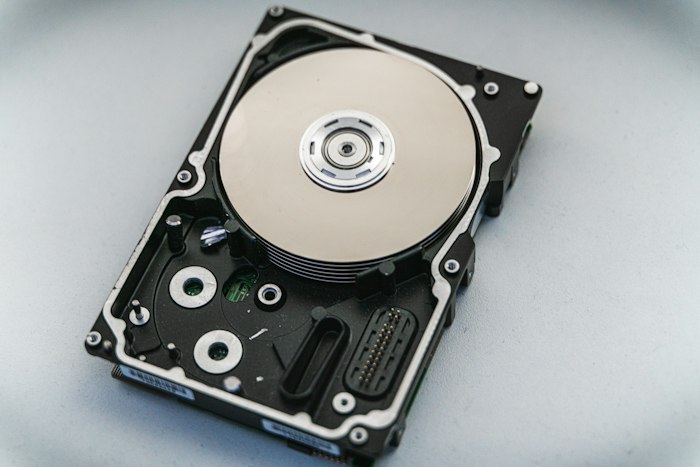
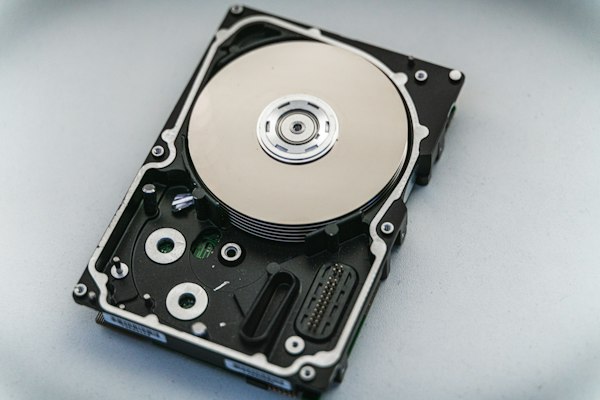
A drive that clicks, beeps, spins down, disappears intermittently or is no longer recognised should not be treated like a routine deletion. Do not open a hard drive casing, freeze it, tap it, or keep reconnecting it in the hope it will stay online long enough to copy files. These actions can turn a recoverable fault into a more serious one.
The same caution applies to mobiles and Apple devices with liquid damage, broken screens, boot failures or charging problems. If photos are not backed up and the device will not operate normally, a repair attempt aimed at making it usable again may not protect the data. The right approach depends on the device, its encryption, its condition and whether access credentials are available.
For encrypted phones, computers and external drives, passwords, PINs and recovery keys can be essential. A recovery provider may be able to restore accessible data from damaged media, but cannot bypass every form of modern encryption. Keep any relevant credentials available and avoid resetting the device, as a reset can remove encryption keys needed to read the photos.
The best ways to recover deleted photos from NAS and RAID systems
When photos are stored on a NAS, RAID array or business server, pause before replacing disks or rebuilding the array. RAID is designed for availability, not as a substitute for backup, and a rebuild writes heavily across the remaining drives. If the configuration is incorrect or more than one disk has issues, that process can overwrite recoverable information.
Record the device model, RAID level, drive order, error messages and any recent changes. Power the unit down if it is behaving abnormally, and keep each drive clearly labelled in its original bay order. Avoid initialising replacement disks or creating a new volume over the existing array.
These cases often require specialist assessment because successful recovery depends on reconstructing the correct RAID parameters, file system and disk sequence. For a business, the decision should also account for downtime, the value of the images, available backups and the risk of making the data loss worse through an unplanned rebuild.
When professional recovery is the safer option
Professional help is worth considering when the photos are irreplaceable, the storage media has failed, or a software scan has not produced usable results. This includes wedding and event photography, family archives, evidence, client work, camera cards with file errors, water-damaged devices, failed external drives and inaccessible NAS or RAID storage.
RecoveryGeeks provides specialist professional data recovery for storage media ranging from cameras and memory cards to hard drives, SSDs, Apple devices, NAS and RAID systems. An assessment can establish whether the problem is logical, physical or encryption-related before unnecessary recovery attempts add risk.
If you seek assistance, describe exactly what happened and what has been attempted so far. Mention whether files were deleted, the device was formatted, the drive was dropped, the computer crashed, or the device began showing errors. That information helps determine the safest next step.
Build protection after the recovery attempt
Once your photos are recovered, keep at least two additional copies in separate locations. A practical arrangement is a working library on your computer, a local backup drive and a separate cloud or off-site copy. Photographers and businesses should also test backups by opening random images and confirming that catalogues, edits and RAW files are present.
A deleted photo can be a stressful loss, but restraint is often the most valuable first response. Stop using the affected storage, check the obvious recovery locations, and choose the method that matches the device’s condition rather than the quickest-looking fix.