






A MacBook that will not start, a folder that has disappeared, or a spilled coffee can turn ordinary work into an urgent data loss event. The best MacBook data recovery solutions depend on what has happened to the device, where the files were stored, and whether the Mac is still safe to use. Acting quickly matters, but taking the wrong step can reduce the chance of a successful recovery.
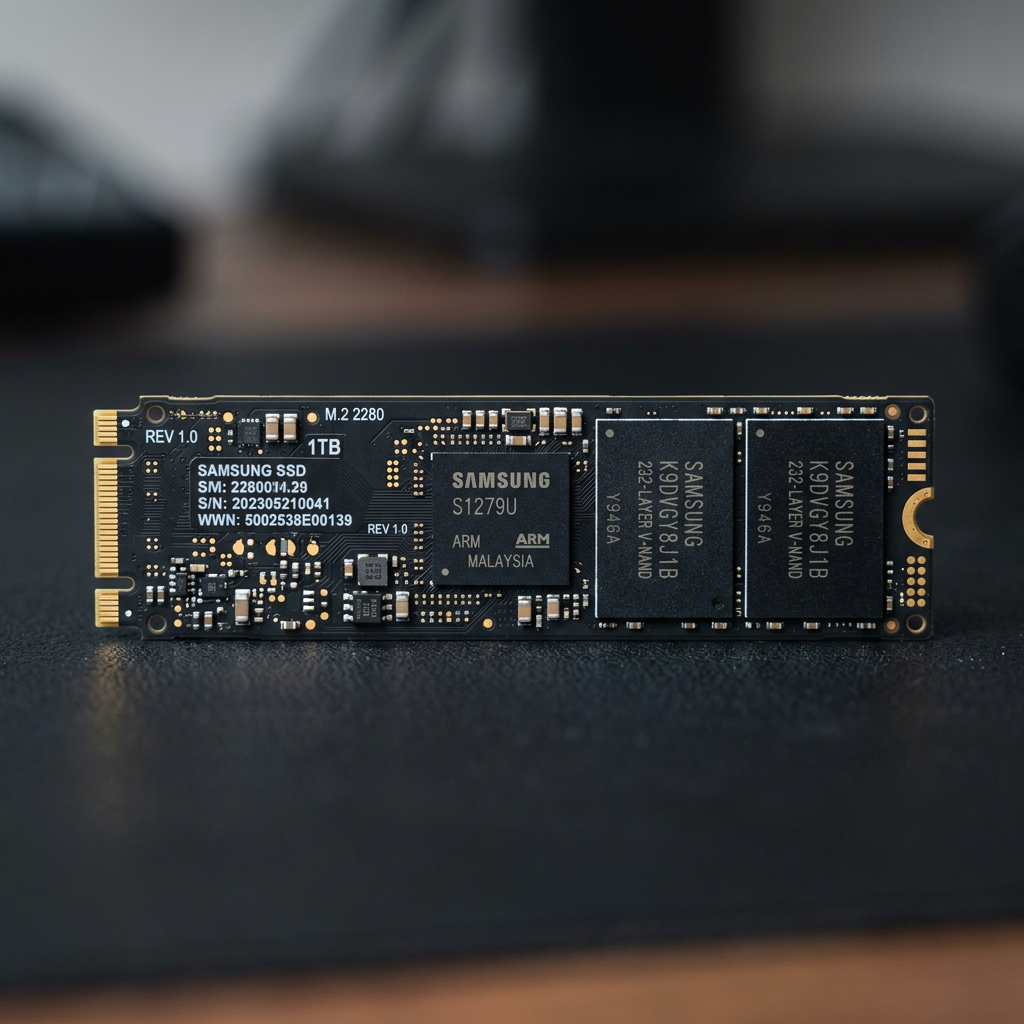
Modern MacBooks are not built like older laptops with easily removable hard drives. Many have soldered internal SSD storage, hardware-based encryption and tightly integrated logic boards. That makes the right diagnosis more valuable than a quick fix.
What the best MacBook data recovery solutions look like
There is no single recovery method that suits every MacBook. A deleted document on a working MacBook is very different from an Apple Silicon model that will not power on after liquid damage. Start by separating the problem into one of three categories: accessible data, inaccessible data, or a physically damaged device.
Recover files from a working MacBook
If the MacBook starts normally and the internal drive appears in Finder, begin with the least invasive options. Check the Bin, recently deleted areas in relevant applications, and cloud storage recycle folders. Time Machine may hold earlier versions of a file even when the current version is gone.
If those options do not help, recovery software can be appropriate for a logical issue such as accidental deletion, a mistakenly formatted external drive, or a corrupted file system. It should be installed and run from a separate drive where possible. Installing software onto the affected internal drive can overwrite the very data you need to recover.
Software has limits. Deleted data is often difficult or impossible to restore from modern internal SSDs because macOS may use TRIM, which clears storage blocks after deletion. Encryption can add another barrier. A program that promises guaranteed recovery from every MacBook should be treated with caution.
Restore from a backup or synchronised service
A verified backup is usually the fastest and cleanest solution. Time Machine backups, external clones and synchronised cloud folders can restore data without altering the damaged device. Check that the backup contains the required files and dates before erasing, reinstalling macOS or replacing hardware.
For business users, do not assume that a synchronised folder is a backup. If a file was deleted or encrypted by ransomware, that change may have synchronised across devices. Version history and retention settings may still provide a recovery path, but they need to be checked promptly.
Use professional recovery for failed or damaged hardware
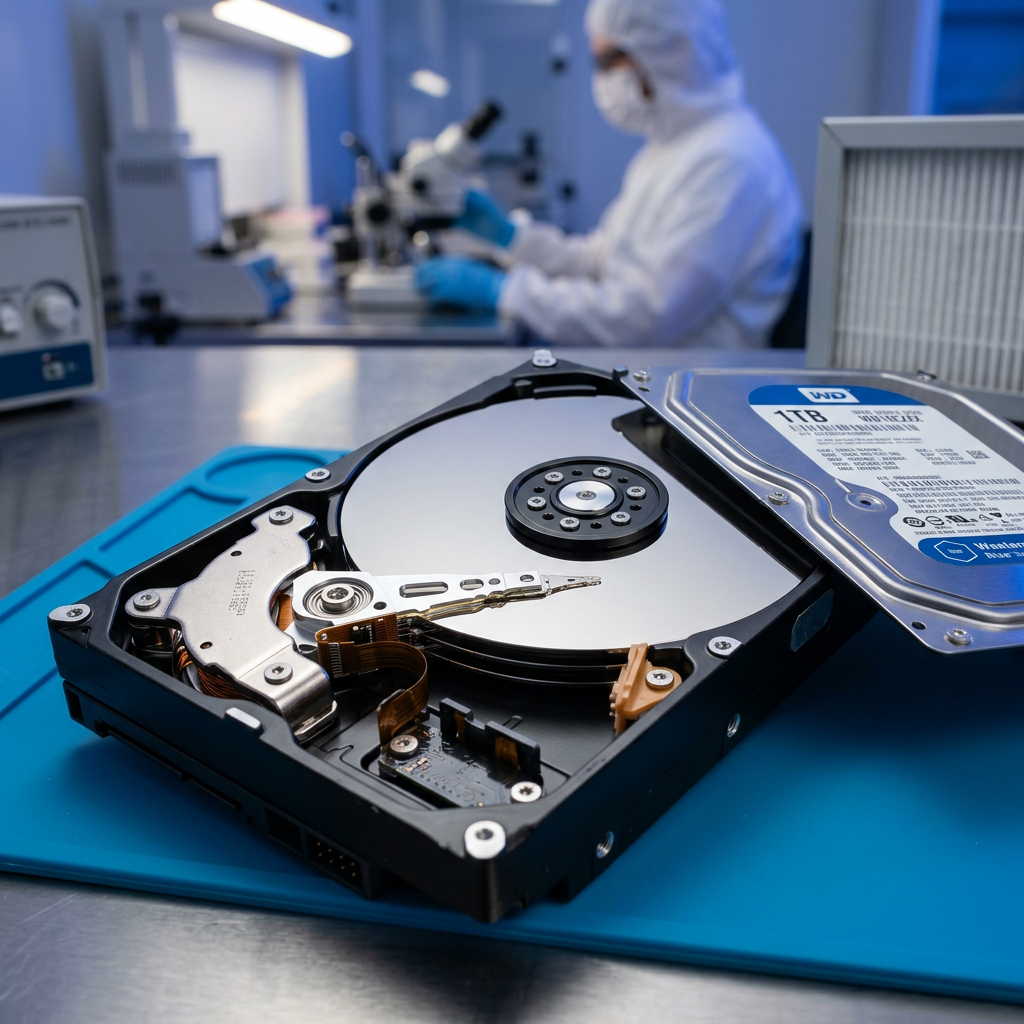
Professional assessment is the sensible option when the MacBook will not start, the drive is not detected, the device has liquid damage, there are signs of physical impact, or valuable business and personal data is at risk. The same applies if an external SSD, SD card or portable hard drive connected to the MacBook has failed.
A specialist can determine whether the fault sits with the storage, file system, logic board, power circuitry or another component. With newer MacBooks, recovery may require board-level diagnosis because the storage and encryption functions are integrated into the device. Success is never guaranteed, particularly where encryption keys are unavailable or the device has suffered severe damage, but a proper assessment avoids guesswork.
Match the recovery method to the symptom
A MacBook showing a flashing folder with a question mark may have a damaged macOS installation, a missing startup volume or a storage fault. If the data is critical, avoid repeatedly attempting repairs before confirming that the files are backed up or recoverable. Reinstalling macOS can be appropriate for a non-critical machine, but it is not the first move when irreplaceable data is involved.
If the MacBook starts but freezes, restarts unexpectedly or shows a spinning wheel, copy essential files to a separate storage device only if the system remains stable enough to do so. Do not continue using a drive that is visibly failing. Repeated reads, writes and restarts can make an unstable device less recoverable.
For liquid exposure, switch the MacBook off immediately, disconnect power and accessories, and do not charge it. Avoid rice, heat guns and repeated power-on attempts. Liquid residue can cause corrosion and electrical shorts long after the initial spill, so time is a factor.
A MacBook that asks for a FileVault password or recovery key presents a different challenge. FileVault is designed to protect data from unauthorised access. If the password and recovery key are unavailable, even technically healthy storage may not be readable. Keep recovery keys stored securely away from the MacBook itself, and ensure authorised staff can access them under a documented process.
Actions to take before attempting recovery
When data has disappeared, restraint is often the most useful first response. Stop downloading files, installing applications and saving new work to the affected internal drive. Every write operation can overwrite deleted data.
Next, record what happened. Note the MacBook model, macOS version, error messages, whether the device was dropped or exposed to liquid, and the last time the files were accessible. For businesses, note whether the files were stored locally, on a network share, in a cloud platform or on an attached drive. These details help identify the most likely recovery route.
If the MacBook can start, check whether the data is visible from another user account or through a known backup. If it cannot start, resist the urge to erase the drive through macOS Recovery or Disk Utility. Disk Utility can identify some volume problems, but repair attempts are not risk-free on a drive containing the only copy of important data.
When DIY software is the wrong choice
Recovery software is best reserved for straightforward logical loss where the device is stable and the files are not uniquely valuable. It is not designed to repair liquid damage, recover a dead logic board, resolve severe SSD controller faults or bypass encryption.
Do not use DIY tools when the MacBook has been dropped, exposed to water, become unusually hot, emits unusual noises from an attached external hard drive, or cannot reliably detect its storage. Likewise, do not repeatedly run repair utilities over a damaged APFS volume simply because the first scan did not produce the desired result.
For creative professionals, a partial recovery can be particularly misleading. A recovered photo catalogue, video project or design library may contain files that appear normal but have hidden corruption. Important recovered data should be checked by opening a representative selection of files before assuming the job is complete.
What to expect from a professional assessment
A credible data recovery service should explain the likely fault, the recovery options and the practical limitations before promising an outcome. The process may include stabilising the device, imaging readable storage, reconstructing damaged file systems, extracting accessible data and validating recovered files.
Privacy is also central. A MacBook may contain client records, financial documents, medical information, intellectual property or personal photos. Ask how the data will be handled, where recovered files will be returned, and whether the service has experience with your device type. A recovery provider should be comfortable discussing Apple hardware, encrypted volumes, external media and business storage environments in clear terms.
For Canberra customers and organisations across Australia, RecoveryGeeks provides specialist assessment for Apple devices alongside hard drives, SSDs, NAS and RAID systems. That breadth matters when the apparent MacBook issue is actually caused by a failed external drive, damaged memory card or inaccessible network storage.
Build a safer recovery position for next time
The most effective recovery solution is the one you do not need in an emergency. Keep at least one backup that is disconnected or protected from routine synchronisation, and test it occasionally by restoring a file. Time Machine is useful, but it should not be the only copy of critical work.
For business MacBooks, document who holds FileVault recovery keys, apply sensible cloud version retention, and make sure staff know what to do after a spill, drop or suspected hardware failure. A short response plan can prevent a stressful incident from becoming permanent data loss.
When the only copy of your data is at stake, stop using the affected MacBook and choose the recovery path that protects the device first. The best next step is rarely the fastest-looking button on screen - it is the one that preserves the greatest chance of getting your files back.